Table of Contents
A quantity step forces purchases to move in fixed increments, so customers buy in multiples such as 6, 12 or 18. This suits products packaged in fixed sizes. You set it in the Quantity Step section of the Min Max Step Quantity Limits Manager for WooCommerce, and the store-wide form is free.
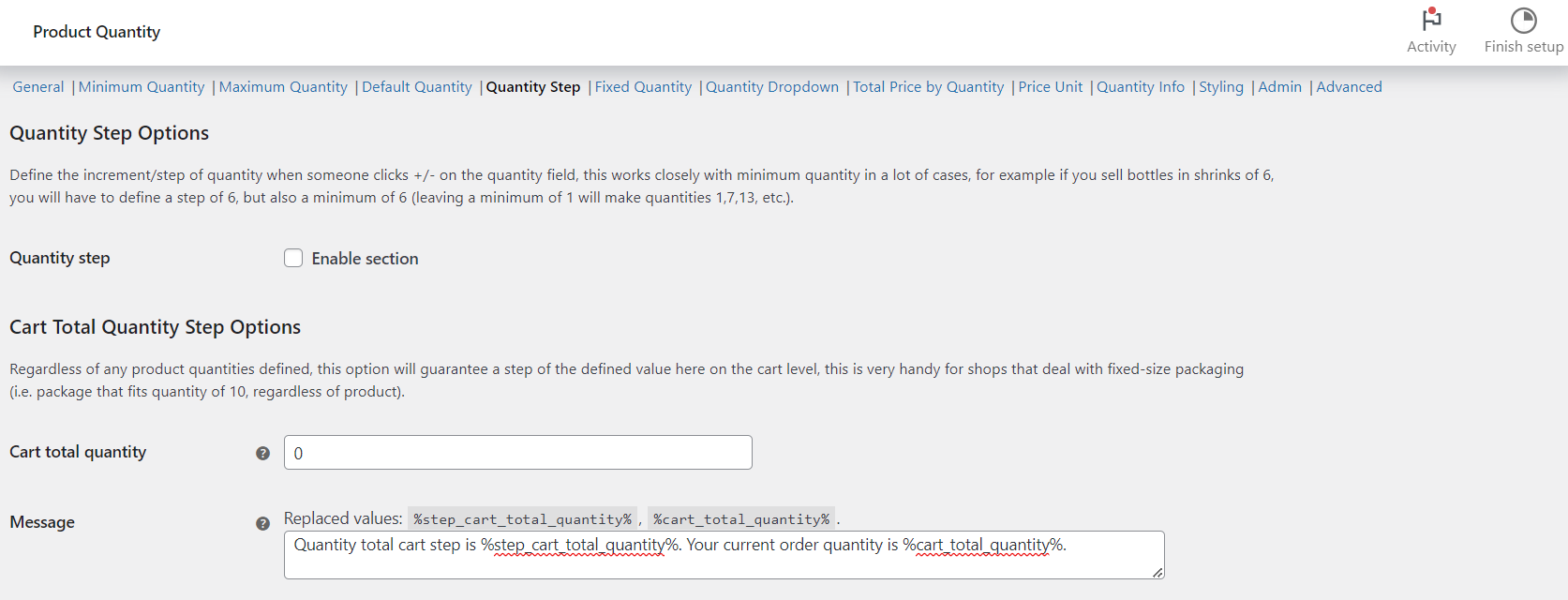
Steps #
- Go to WPFactory > Quantity Manager (also reachable at WooCommerce > Settings > Product Quantity).
- Open the Quantity Step section and tick Quantity step to enable it.
- Set Per Item Quantity Step Options > All products (
wpfmmsq_step) to your increment, for example6. - To also step the cart total, set Cart Total Quantity Step Options > Cart total quantity (
wpfmmsq_step_cart_total_quantity). - Click Save changes.
Important: the step works with the minimum. A step of 6 with a minimum of 1 allows 1, 7, 13, and so on. For clean multiples (6, 12, 18) set both the step and the minimum to 6.
Options reference #
| Label | Option ID | Default | Free/Pro |
|---|---|---|---|
| Quantity step (enable) | wpfmmsq_step_section_enabled |
No | Free |
| All products | wpfmmsq_step |
0 | Free |
| Cart total quantity step | wpfmmsq_step_cart_total_quantity |
0 | Free |
| Per product | wpfmmsq_step_per_product_enabled |
No | Free |
Get more control #
The store-wide and per-product steps are free. Min Max Step Quantity Limits Manager for WooCommerce Pro adds per-category and per-attribute steps, plus a low-stock exception. See what Pro unlocks.