Table of Contents
The Min Max Step Quantity Limits Manager for WooCommerce can add Min, Max and Step columns to the WordPress Products list, so you can see each product’s quantity rules at a glance without opening it. This is a free feature.
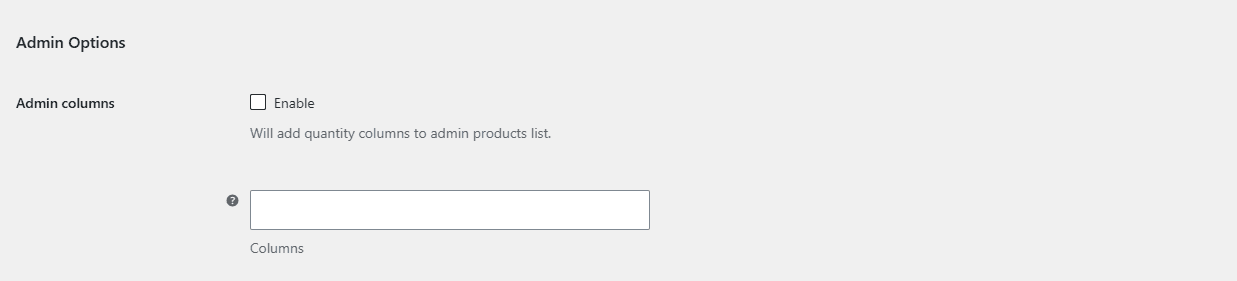
Steps #
- Go to WPFactory > Quantity Manager (also reachable at WooCommerce > Settings > Product Quantity).
- Open the Admin section.
- Tick Admin columns (
wpfmmsq_admin_columns_enabled). - In Columns (
wpfmmsq_admin_columns), choose which to show: Min Qty, Max Qty, Qty Step. Leave blank to add all of them. - Click Save changes, then open Products > All Products to see the new columns.
Options reference #
| Label | Option ID | Default | Free/Pro |
|---|---|---|---|
| Admin columns | wpfmmsq_admin_columns_enabled |
No | Free |
| Columns | wpfmmsq_admin_columns |
All (blank) | Free |
Get more control #
Admin columns are free. Min Max Step Quantity Limits Manager for WooCommerce Per-product minimum, maximum and step, the values those columns display, are free to set as well. See what Pro unlocks.