Table of Contents
A price unit is short text shown beside the price, such as “per KG” or “per meter,” so customers understand what the price refers to. You add it in the Price Unit section of the Min Max Step Quantity Limits Manager for WooCommerce. A global value and a per-category value are free.
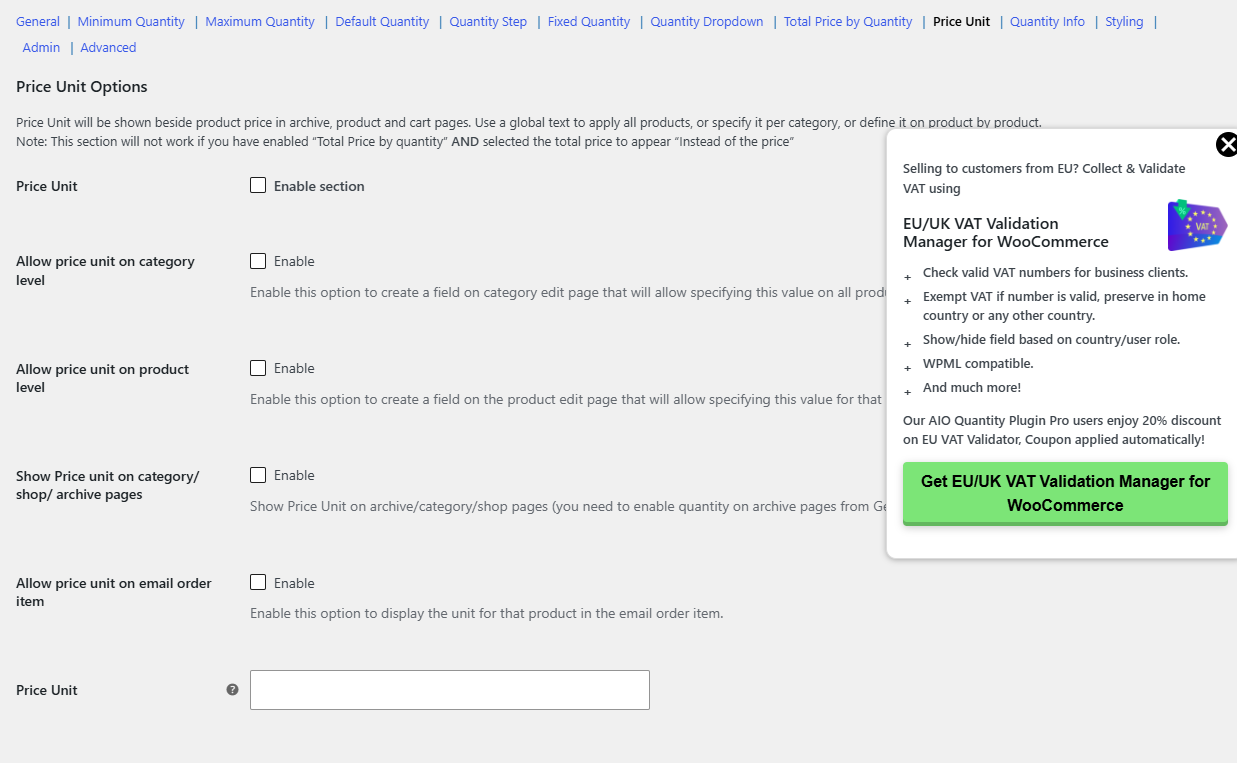
Steps #
- Go to WPFactory > Quantity Manager (also reachable at WooCommerce > Settings > Product Quantity).
- Open the Price Unit section and tick Price Unit to enable it.
- In the Price Unit text field (
wpfmmsq_qty_price_unit), enter your text, for exampleper KG. - To let categories set their own unit, tick Allow price unit on category level.
- Click Save changes.
Options reference #
| Label | Option ID | Default | Free/Pro |
|---|---|---|---|
| Price Unit (enable) | wpfmmsq_qty_price_unit_enabled |
No | Free |
| Price Unit text | wpfmmsq_qty_price_unit |
(empty) | Free |
| Allow price unit on category level | wpfmmsq_qty_price_unit_category_enabled |
No | Free |
| Allow price unit on product level | wpfmmsq_qty_price_unit_product_enabled |
No | Pro |
| Show on archive pages | wpfmmsq_qty_price_unit_show_archive_enabled |
No | Pro |
Note: the Price Unit does not display if Total Price by Quantity is enabled with its position set to Instead of the price, because that template replaces the price output.
Get more control #
The global and category unit are free. Min Max Step Quantity Limits Manager for WooCommerce Pro adds product-level units, units on shop/archive pages, and units in order emails. See what Pro unlocks.