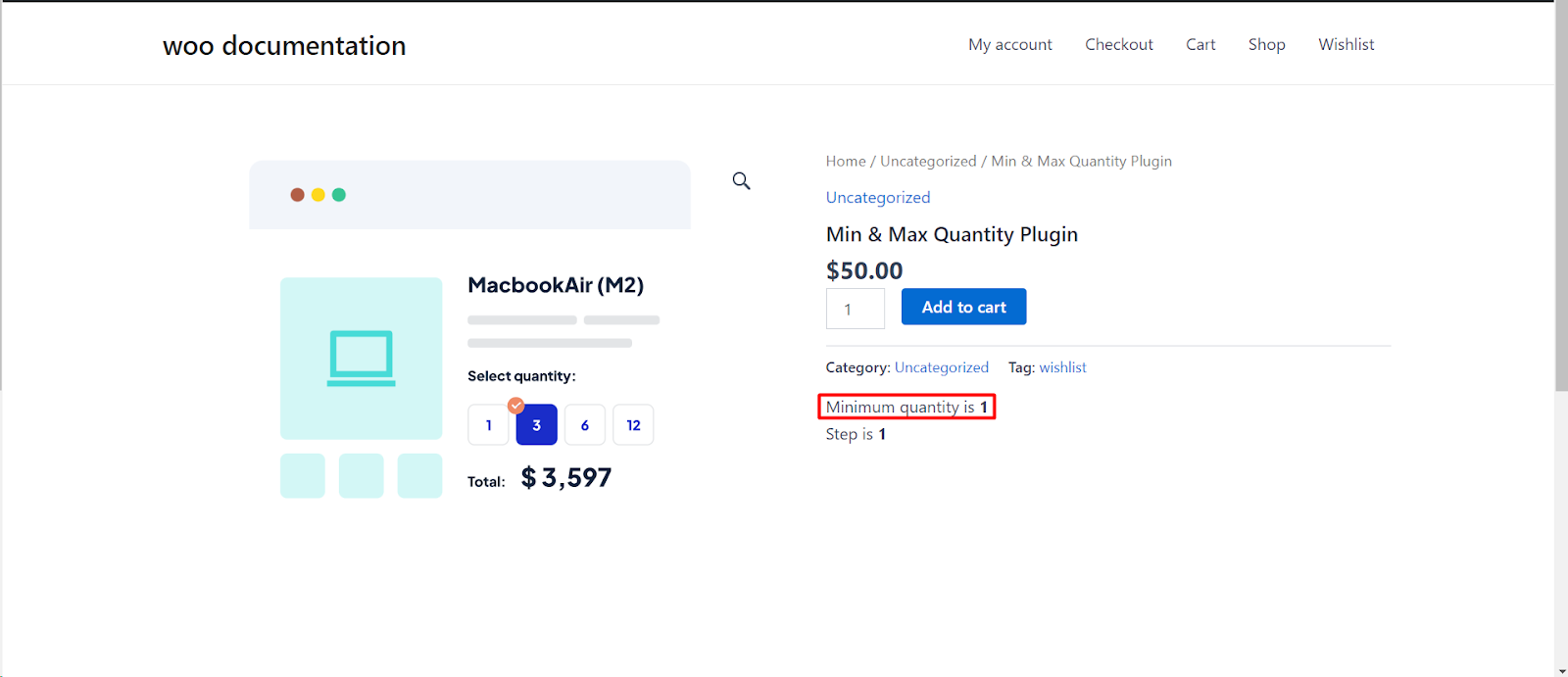
To display quantity rules such as “Minimum quantity is 2” on WooCommerce product and shop pages, open WPFactory > Quantity Manager > Quantity Info in Min Max Step Quantity Limits Manager for WooCommerce and tick Single product page, Archives, or both. The text uses shortcodes, so it always matches your current rules. This feature is free.
Step by step #
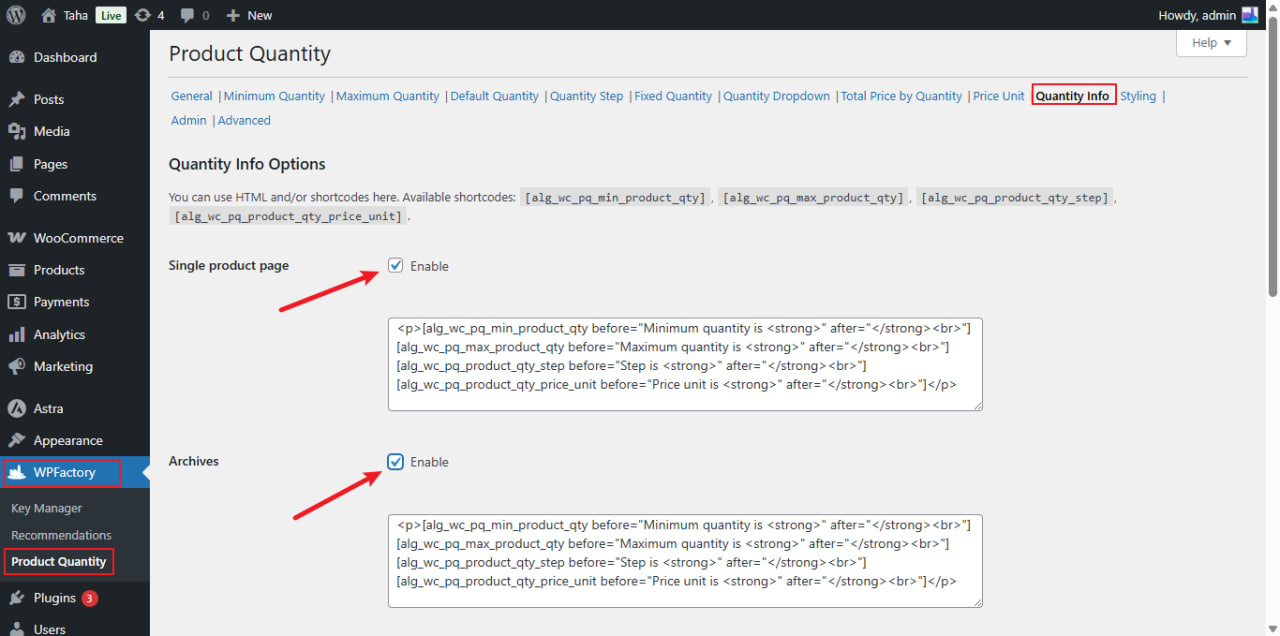
- Go to WPFactory > Quantity Manager (also reachable at WooCommerce > Settings > Product Quantity).
- Open the Quantity Info section.
- Tick Single product page (and/or Archives) to enable the info block where you want it.
- Edit the content box below each toggle. You can use HTML and the shortcodes listed below.
- Click Save changes.
Quantity Info options #
| Label | Option ID | Default | Free/Pro |
|---|---|---|---|
| Single product page | wpfmmsq_qty_info_on_single_product |
No | Free |
| Single product page content | wpfmmsq_qty_info_on_single_product_content |
Min, max, step and price unit lines | Free |
| Archives | wpfmmsq_qty_info_on_loop |
No | Free |
| Archives content | wpfmmsq_qty_info_on_loop_content |
Min, max, step and price unit lines | Free |
| Enable per category | wpfmmsq_qty_info_enable_per_category |
No | Free |
| Exclude product categories | wpfmmsq_qty_info_per_category_categories |
None | Free |
| Single product page custom hook | wpfmmsq_qty_info_on_single_product_custom_hook |
No | Free |
| Custom hook name / Custom hook priority | wpfmmsq_qty_info_on_single_product_custom_hook_name / _priority |
Empty | Free |
Available shortcodes #
| Shortcode | Shows |
|---|---|
[wpfmmsq_min_product_qty] |
The product’s minimum quantity |
[wpfmmsq_max_product_qty] |
The product’s maximum quantity |
[wpfmmsq_product_qty_step] |
The product’s quantity step |
[wpfmmsq_product_qty_price_unit] |
The product’s price unit text |
Each shortcode accepts before and after attributes for wrapping text, for example:
[wpfmmsq_min_product_qty before="Minimum quantity is <strong>" after="</strong>"]A shortcode prints nothing, including its before and after text, when it has no value. That is how the maximum line disappears for products with no maximum. The minimum and step fall back to WooCommerce’s value of 1, so those lines always show; remove them from the box if you only want to show real rules.
Note: the older [alg_wc_pq_*] tags still work as aliases but are deprecated since v5.3.1. Use the wpfmmsq_* tags above. The default content box still contains [alg_wc_pq_product_qty_price_unit]; replace it with [wpfmmsq_product_qty_price_unit].
What the customer sees #
- Product page: the text appears in the product summary, just below the add to cart area.
- Shop and category pages: the text appears under each product, after the add to cart button.
- Variable products: if variations have different rules, the value shows as a range from the lowest to the highest.
Common variations #
- Hide the info for some categories: tick Enable per category and pick the categories in Exclude product categories.
- Move it on the product page: tick Single product page custom hook and enter a WooCommerce hook name and priority. Wrong hooks can break the page, so test on staging.
- Show it inside the description: the shortcodes also work in the product description, since the current product is known there.
If it does not work #
- It says “Minimum quantity is 1” although you set a higher minimum: the Minimum quantity section is not enabled, or no value applies to this product. On the product page, the value also drops by the quantity already in the cart.
- The maximum line is missing: no maximum applies to this product, so the line is skipped.
- Missing on some products: the product’s category is in the exclude list, or the plugin is disabled for that page with Advanced > Disable plugin by URL (Pro).
FAQ #
Is Quantity Info free? #
Yes. Every option in the Quantity Info section, including the category exclusions and the custom hook, is in the free version.
Can I use the shortcodes outside the product page? #
Only where WooCommerce knows the current product, such as the product description or product templates. On a regular page they print nothing. See Quantity Manager shortcodes.
Can I translate the info text? #
Yes, wrap each language version in [wpfmmsq_translate]. See How to show quantity messages in multiple languages.
Get more control #
This feature is free. Min Max Step Quantity Limits Manager for WooCommerce Pro adds per-category and per-attribute quantity rules, so the info can reflect different limits for each group of products. See what Pro unlocks.
Need a hand? Our team answers every ticket on the Quantity Manager support forum.