To change the WooCommerce default quantity that shows when a product page loads, enable Default Quantity and enter a value at WPFactory > Quantity Manager > Default Quantity in Min Max Step Quantity Limits Manager for WooCommerce, then set General > Initial Quantity Options > Single product page to Default quantity. The store-wide default is free.
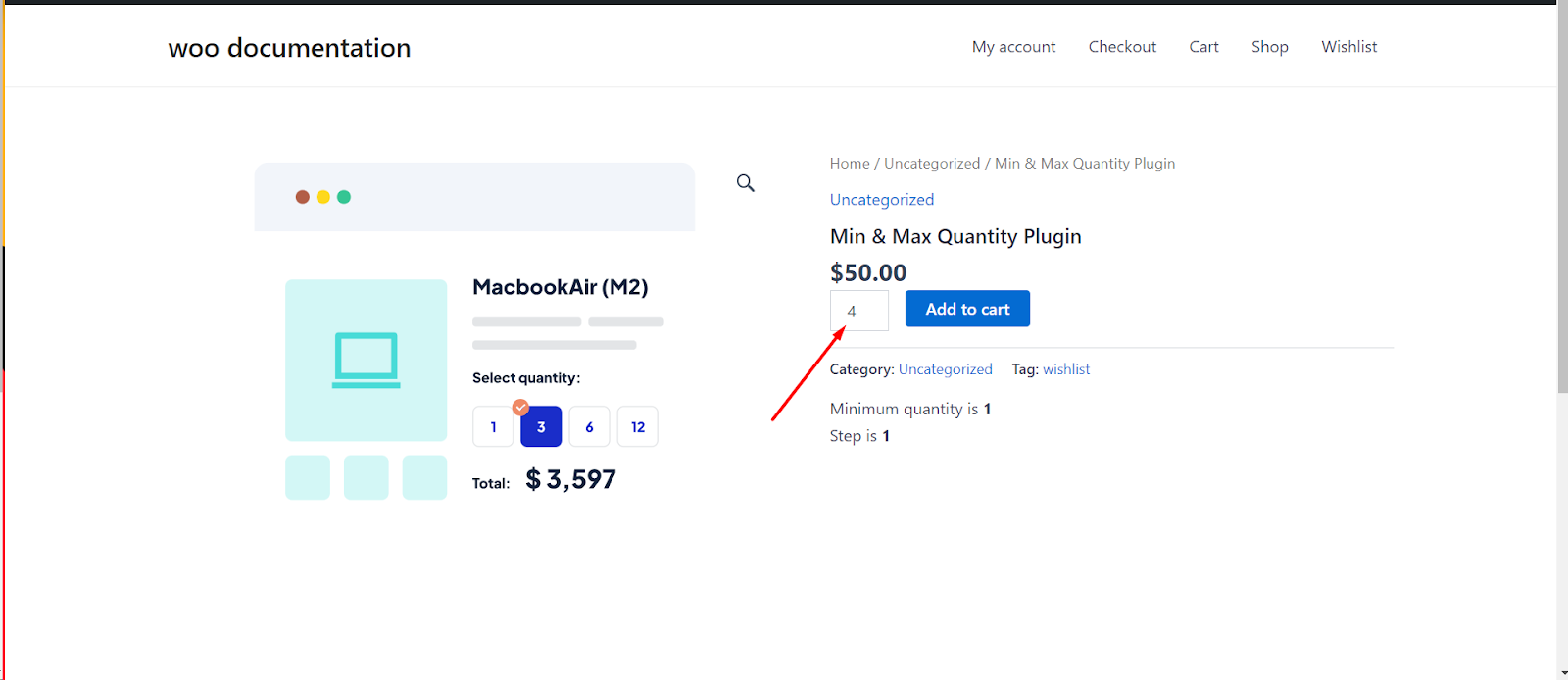
Step 1: Set the default value #
- Go to WPFactory > Quantity Manager (also reachable at WooCommerce > Settings > Product Quantity).
- Open the Default Quantity section and tick Default quantity to enable it.
- In Per Item Default Quantity Options > All products, enter the default value you want (set to 0 to disable).
- Click Save changes.
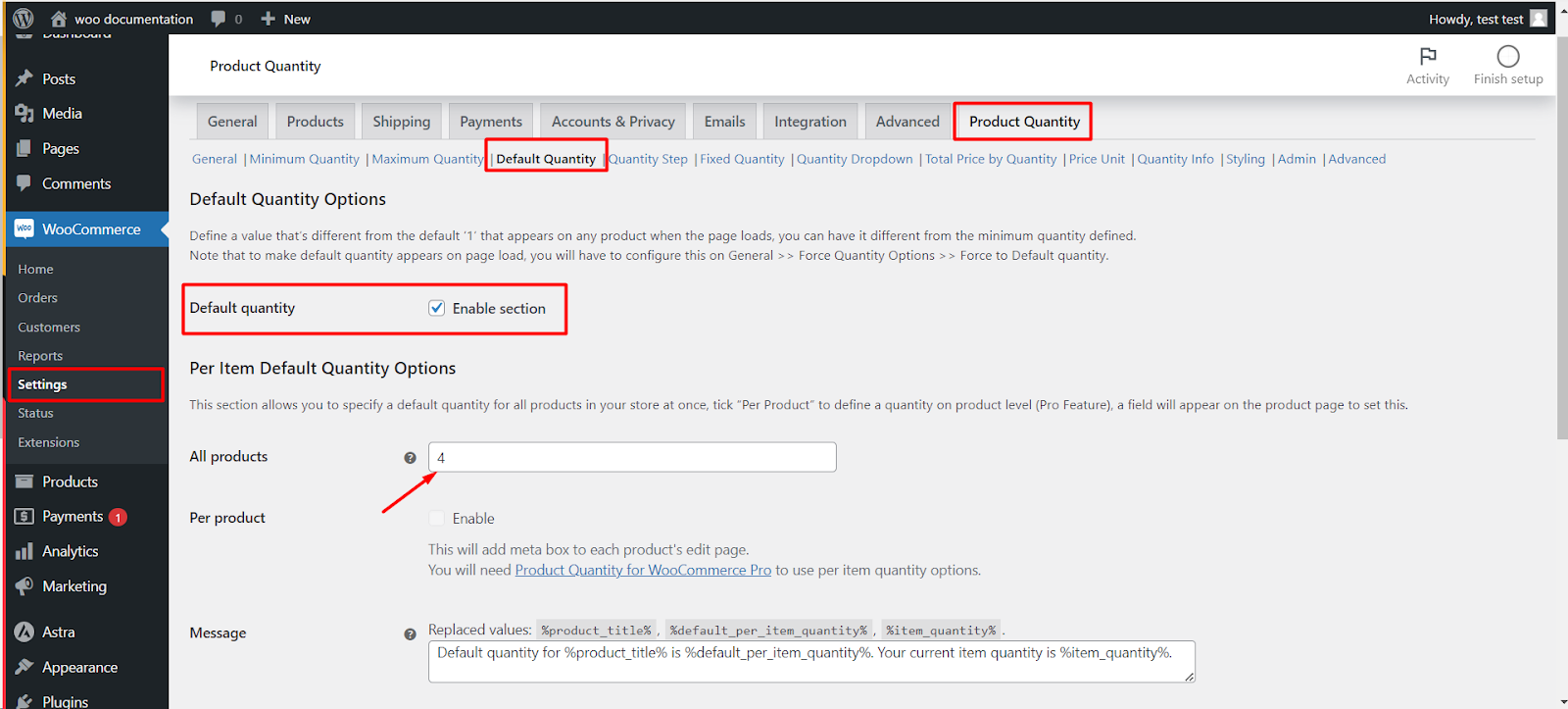
Step 2: Load it on the product page #
Setting a value is not enough on its own: you also have to tell the plugin to apply it when the page loads.
- Open the General section.
- Under Initial Quantity Options, set Single product page to Default quantity. (There is a matching Archive pages control for shop and category pages.)
- Click Save changes.
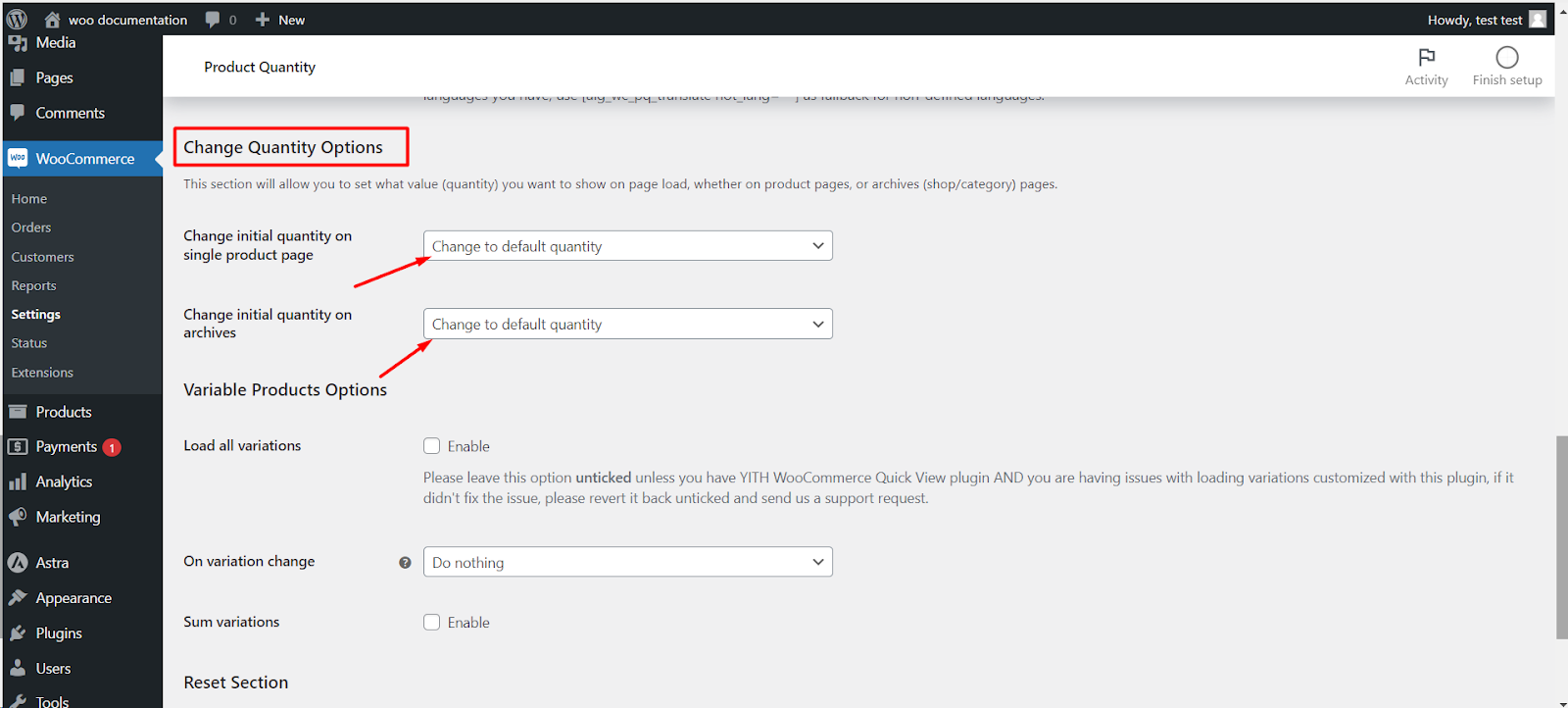
Options reference #
| Label | Option ID | Default | Free/Pro |
|---|---|---|---|
| Default quantity (enable) | wpfmmsq_default_section_enabled |
No | Free |
| All products | wpfmmsq_default_per_item_quantity |
0 | Free |
| Single product page (Initial Quantity) | wpfmmsq_force_on_single |
Do not Change | Free |
| Archive pages (Initial Quantity) | wpfmmsq_force_on_loop |
Do not change | Free |
Initial quantity choices #
Both Initial Quantity controls offer the same choices:
- Do not Change: WooCommerce’s normal starting value.
- Min quantity: start at the product’s minimum.
- Max quantity: start at the product’s maximum.
- Default quantity: start at the value from the Default Quantity section.
- Change to lowest fixed quantity: start at the lowest value from the Fixed Quantity section’s allowed list.
Note: if a minimum quantity is set and it is higher than your default, the initial quantity loads at the minimum instead.
What the customer sees #
The quantity box on the product page opens with your default, for example 6 instead of 1. The customer can still change it within your minimum, maximum and step rules. Products set to Sold individually have no quantity box, so the default does not apply to them.
Different defaults per product or category #
The Default Quantity section also has Per product and Per Category options (Pro). See How to set per product and per category default quantities.
If it does not work #
- Still showing 1: Step 2 was skipped. Single product page must be set to Default quantity.
- Showing a different number: the product has a higher minimum, or a Pro per-product or per-category default overrides the store-wide value.
- No change after saving: clear your page cache, since cached product pages keep the old quantity.
FAQ #
How do I set a default quantity in WooCommerce without code? #
Follow the two steps above: set the value in Default Quantity, then choose Default quantity in General > Initial Quantity Options.
Can the product page start at the minimum instead? #
Yes. Set Single product page to Min quantity. You do not need the Default Quantity section for that. See How to set a minimum order quantity.
Is the default quantity free? #
Yes, the store-wide default and both Initial Quantity controls are free.
Get more control #
The store-wide default is free. Min Max Step Quantity Limits Manager for WooCommerce Pro adds per-product and per-category default quantities. See what Pro unlocks.
Need a hand? Our team answers every ticket on the Quantity Manager support forum.