To give products or categories their own WooCommerce default quantity, enable Per product or Per Category at WPFactory > Quantity Manager > Default Quantity in Min Max Step Quantity Limits Manager for WooCommerce, then set the value on the product or category. The store-wide default is free; per-product and per-category defaults are Pro.
Before you start #
- WooCommerce, active.
- Min Max Step Quantity Limits Manager for WooCommerce Pro (per-product and per-category rules are Pro only).
- General > Initial Quantity Options > Single product page set to Default quantity. Without it, no default loads.
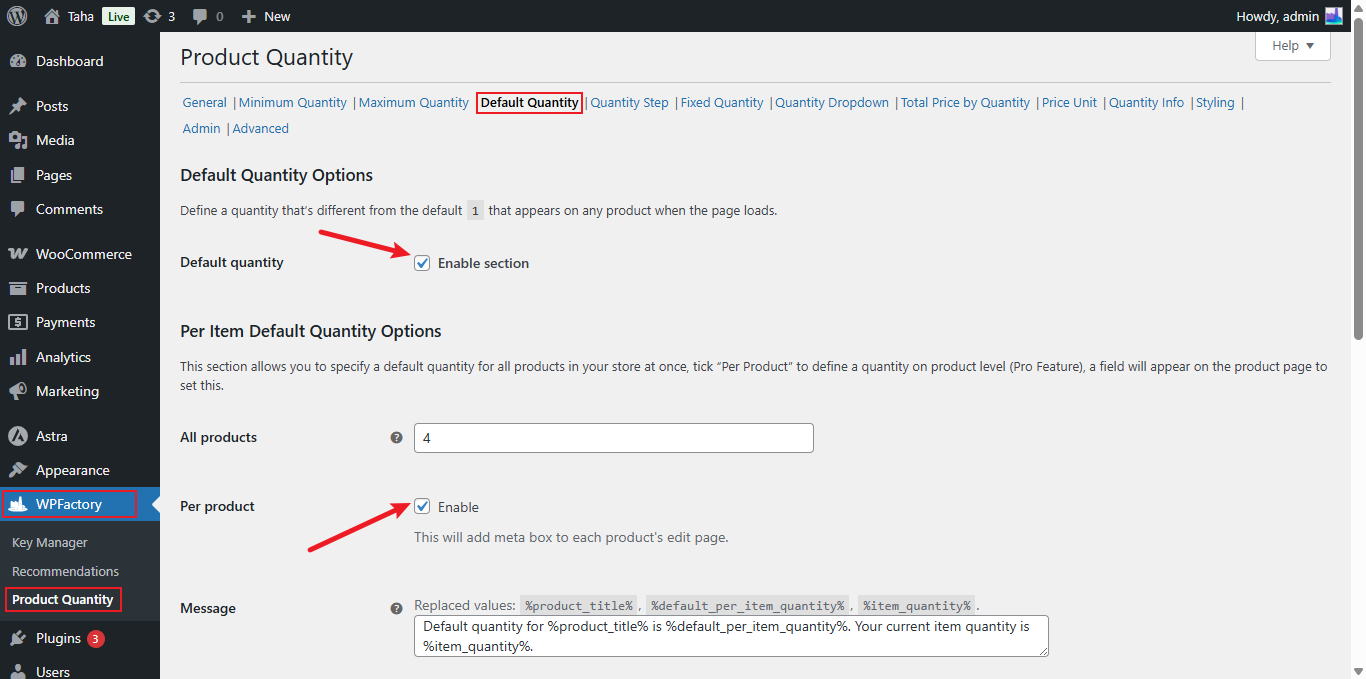
Global default (Free) #
- Go to WPFactory > Quantity Manager (also reachable at WooCommerce > Settings > Product Quantity).
- Open the Default Quantity section and tick Default quantity.
- Set All products to your default value and save.
Per product (Pro) #
- In the same section, tick Per product (
wpfmmsq_default_per_item_quantity_per_product) and save. A default quantity box is added to each product’s edit page. - Edit a product and set its default quantity there.
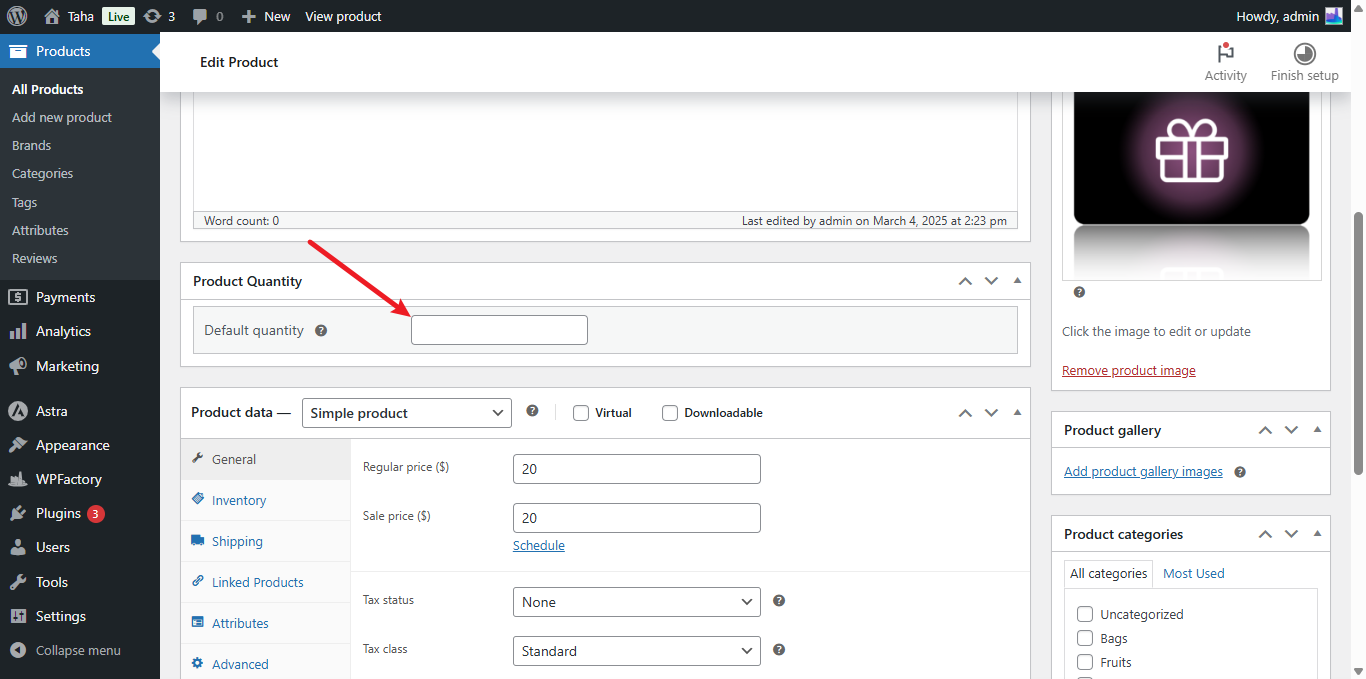
The field is Default quantity in the Product Quantity box.
Per category (Pro) #
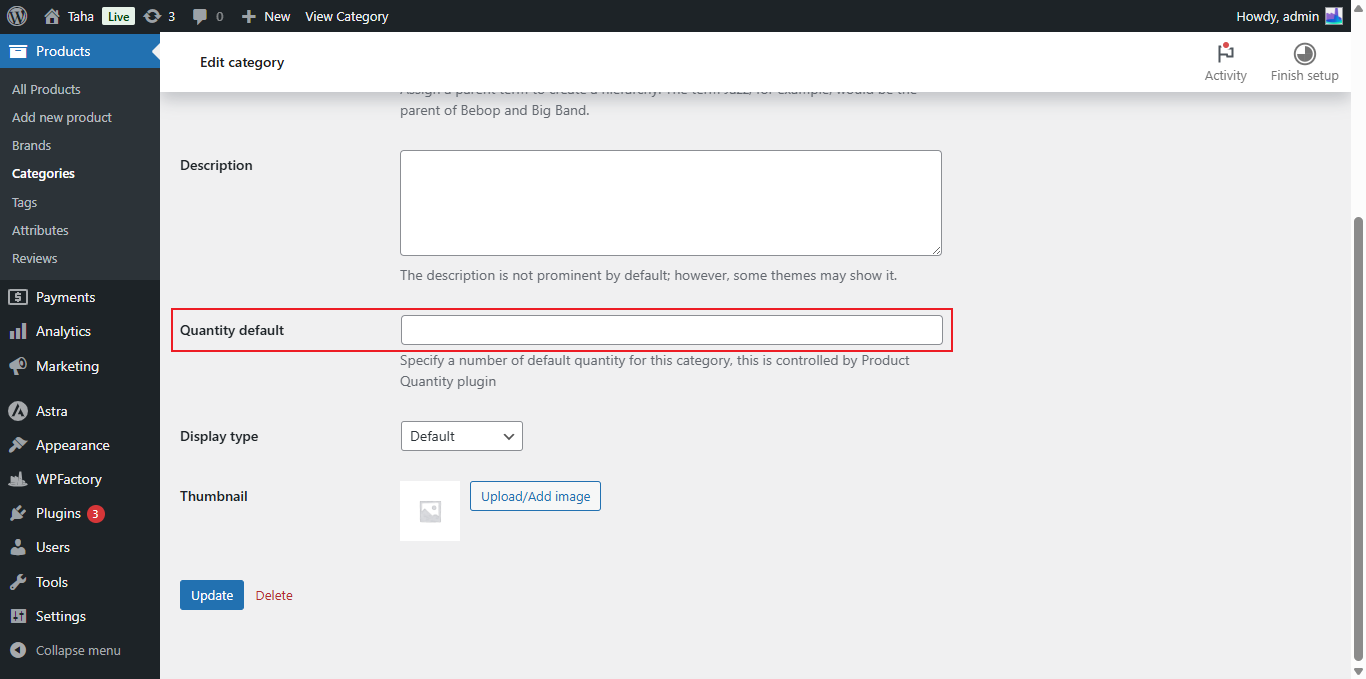
- Tick Per Category (
wpfmmsq_default_per_cat_item_quantity_per_product) and save. A default quantity field is added to each category edit page. - Go to Products > Categories, edit a category, and set its default quantity in the Quantity default field. Leave
0to use the global setting.
Note: a default only loads when General > Initial Quantity Options > Single product page is set to Default quantity. If the default is below the minimum, the minimum loads instead.
Options reference #
| Label | Option ID | Default | Free/Pro |
|---|---|---|---|
| Default quantity (enable section) | wpfmmsq_default_section_enabled |
No | Free |
| All products | wpfmmsq_default_per_item_quantity |
0 (off) | Free |
| Per product | wpfmmsq_default_per_item_quantity_per_product |
No | Pro |
| Per Category | wpfmmsq_default_per_cat_item_quantity_per_product |
No | Pro |
| Single product page (General > Initial Quantity Options) | wpfmmsq_force_on_single |
Do not Change | Free |
Which default wins #
- The product’s own Default quantity.
- The default of the product’s category. If the product is in several categories, the first one with a default above 0 is used.
- The All products default.
Products set to Sold individually ignore defaults, since they have no quantity box.
Example #
A store sells candles in packs. Set All products to 1, the “Tea lights” category to 12, and one gift set product to 2. Tea light pages open with 12, the gift set with 2, and everything else with 1.
If it does not work #
- The page still shows 1: Single product page in General is not set to Default quantity, or the Default Quantity section is off.
- A higher number loads than you set: the product’s minimum is higher than its default, so the minimum wins.
- No field on the product or category: the Per product or Per Category box is not ticked, or Pro is not active.
FAQ #
Is a default quantity the same as a minimum? #
No. The default is only the starting value. Customers can lower it unless a minimum stops them. See How to set a minimum order quantity.
Can I set a default quantity without Pro? #
Yes, one store-wide default. See How to set a default quantity on product page load.
Does the default apply on shop pages? #
Use General > Initial Quantity Options > Archive pages for shop and category pages. A quantity box on those pages is a Pro feature (Enable quantity on archive pages).
Ready to set this up? #
Per-product and per-category defaults are a Pro feature of Quantity Manager. Get Quantity Manager Pro.
Need a hand? Our team answers every ticket on the Quantity Manager support forum.