To sell products individually in WooCommerce, so customers can add only one unit and the quantity box disappears, use the Sold individually setting in the Min Max Step Quantity Limits Manager for WooCommerce. This is useful for exclusive items, made-to-order goods, or anything you never sell in multiples.
Steps #
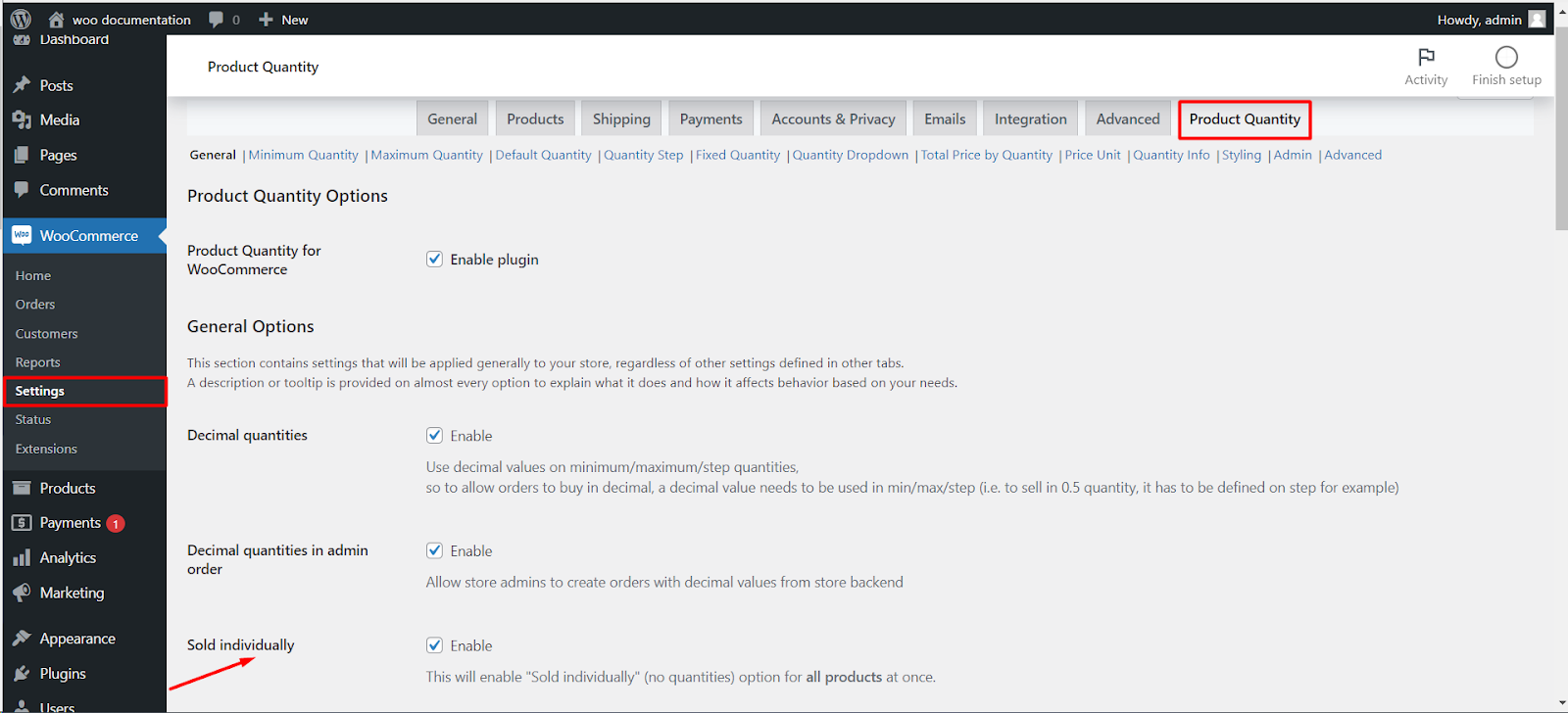
- Go to WPFactory > Quantity Manager (also reachable at WooCommerce > Settings > Product Quantity).
- Open the General section.
- Find Sold individually and tick Enable. This turns on WooCommerce’s “Sold individually” behavior for all products at once.
- Click Save changes.
Options reference #
| Label | Option ID | Default | Free/Pro |
|---|---|---|---|
| Sold individually | wpfmmsq_all_sold_individually_enabled |
No | Free |
Note: this switch applies to the whole store. To make only certain products sold individually, use WooCommerce’s own per-product “Sold individually” checkbox on the product’s Inventory tab instead.
Result #
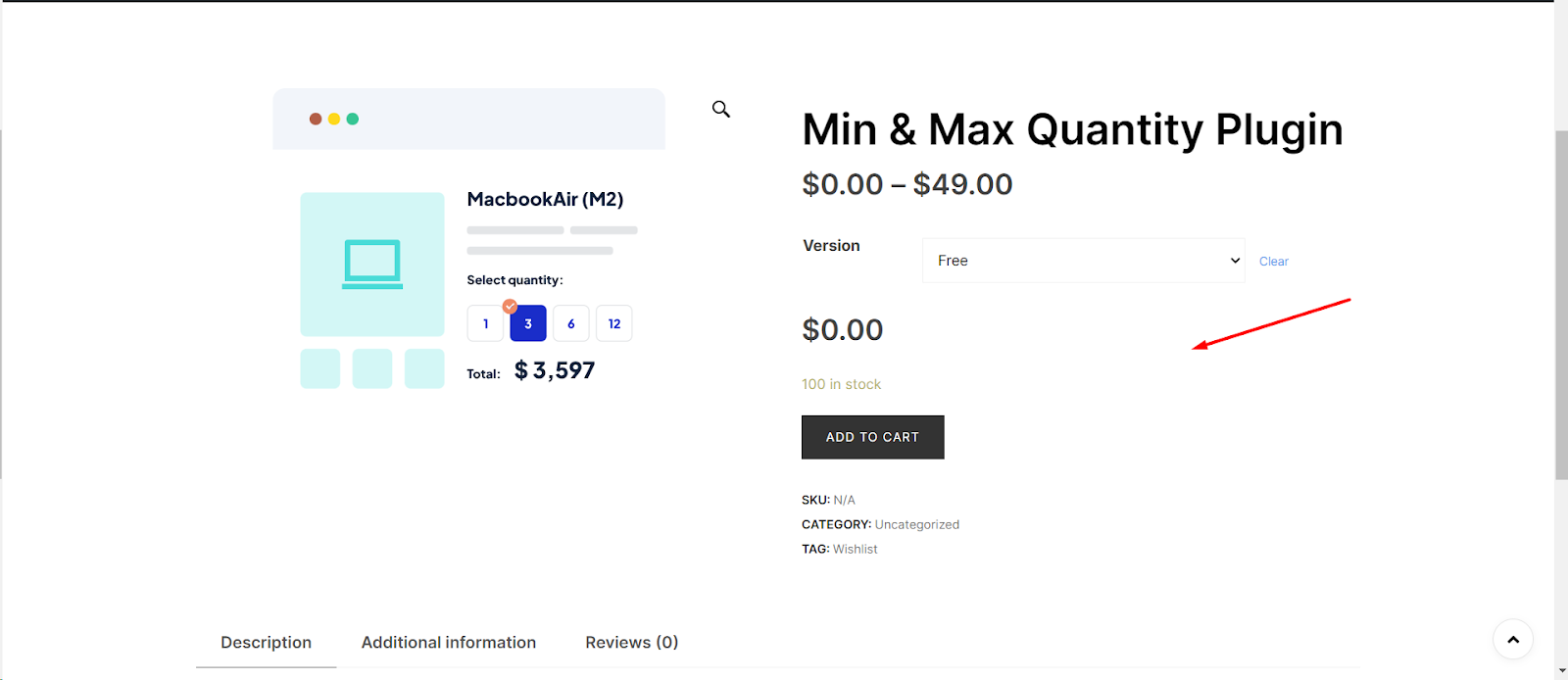
On the affected products the quantity input is removed and customers can add a single unit to the cart.
Get more control #
This feature is free. Min Max Step Quantity Limits Manager for WooCommerce Pro adds per-category and per-attribute quantity rules, so you can set limits exactly where you need them. Per-product minimum, maximum and step are free. See what Pro unlocks.