To set a fixed quantity in WooCommerce, so customers can only buy exact amounts such as 3, 7 or 9, tick Allowed quantity at WPFactory > Quantity Manager > Fixed Quantity in Min Max Step Quantity Limits Manager for WooCommerce and enter a comma-separated list. You can also block specific amounts. The all-products lists are free.
Step by step #
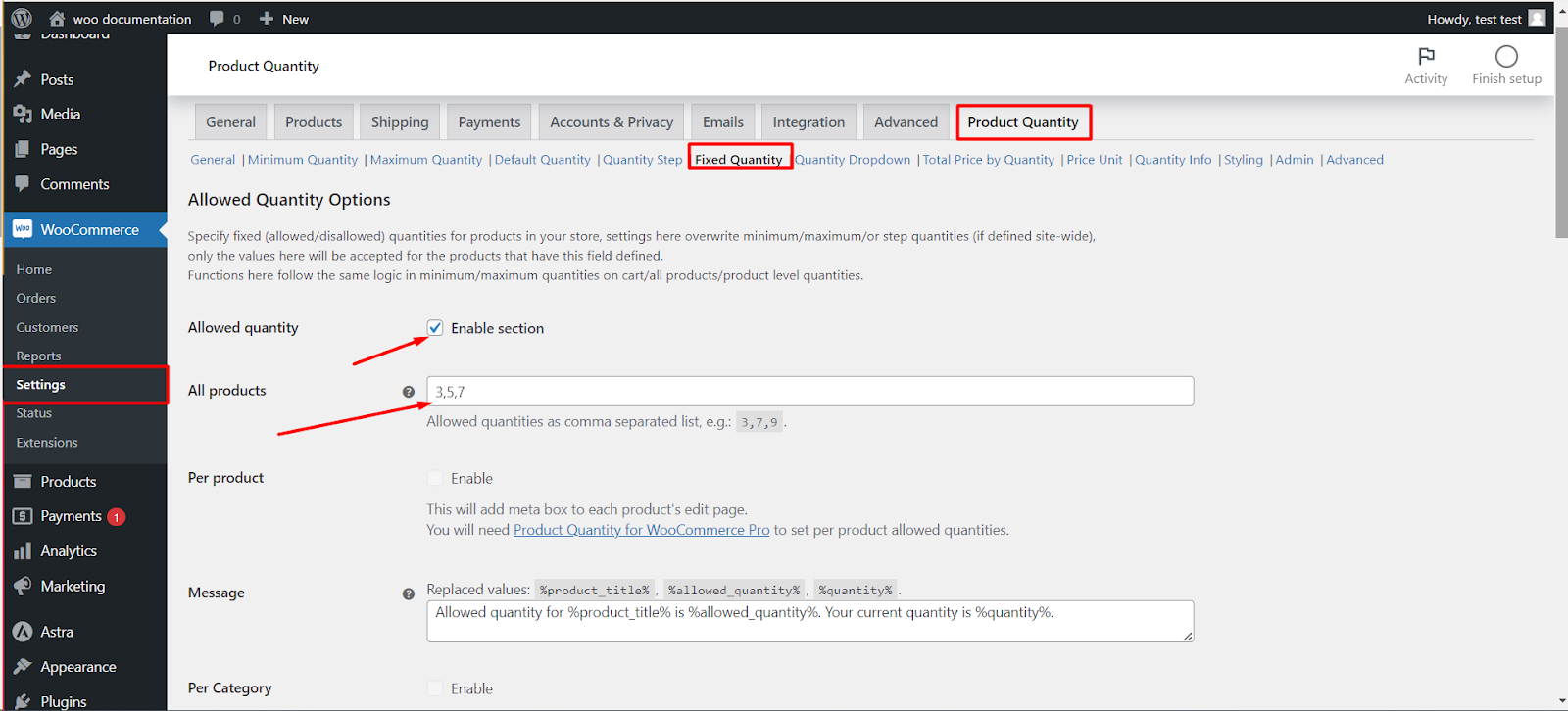
- Go to WPFactory > Quantity Manager (also reachable at WooCommerce > Settings > Product Quantity).
- Open the Fixed Quantity section.
- Tick Allowed quantity to enable the section.
- In All products, enter the allowed quantities as a comma-separated list, for example
3,7,9. - To block amounts instead, tick Disallowed quantity and list the amounts to refuse, for example
13. - Click Save changes.
How the lists behave #
- Allowed: only the values you list are accepted. An empty field is ignored.
- Disallowed: every value except the ones you list is accepted.
- Fixed quantities override minimum, maximum and step values for the products they apply to.
- The check uses the product’s total quantity in the cart, so two separate adds of 3 count as 6.
- Ranges: write
[10-100|10]to allow 10, 20, 30 up to 100 without typing each value. You can mix ranges and single values, for example1,[10-50|10].
Options reference #
| Label | Option ID | Default | Free/Pro |
|---|---|---|---|
| Allowed quantity (enable) | wpfmmsq_exact_qty_allowed_section_enabled |
No | Free |
| Allowed quantity: All products | wpfmmsq_exact_qty_allowed |
(empty) | Free |
| Allowed quantity: Per product | wpfmmsq_exact_qty_allowed_per_product_enabled |
No | Pro |
| Allowed quantity: Per Category | wpfmmsq_exact_qty_allowed_per_cat_item_quantity_per_product |
No | Pro |
| Allowed quantity: Per Attribute | wpfmmsq_exact_qty_allowed_per_attribute_item_quantity |
No | Pro |
| Permit the calculation of subset sums from the allowed quantities | wpfmmsq_exact_subset_sum_allowed_enabled |
No | Pro |
| Disallowed quantity (enable) | wpfmmsq_exact_qty_disallowed_section_enabled |
No | Free |
| Disallowed quantity: All products | wpfmmsq_exact_qty_disallowed |
(empty) | Free |
| Disallowed quantity: Per product | wpfmmsq_exact_qty_disallowed_per_product_enabled |
No | Pro |
| Cart fixed quantity | wpfmmsq_exact_cart_total_quantity_enabled |
No | Pro |
Note: the Message field controls what shoppers see when they enter a quantity you do not allow. It accepts the placeholders %product_title%, %allowed_quantity% and %quantity%.
Common variations #
- Per product (Pro): tick Per product, then fill Exact quantity allowed or Exact quantity disallowed in the product’s Product Quantity box. Leave it blank to use the global list.
- Per category (Pro): the category page gets Exact quantity allowed for all product (each product) and Exact quantity allowed (grouped for this category) (the category’s combined quantity).
- Combinations (Pro): with subset sums on, totals made by adding allowed values are accepted too. Allowing
5,10then also accepts 15. - Whole cart (Pro): Cart fixed quantity with a Cart total quantity such as
6,12makes the entire cart match one of those totals.
What the customer sees #
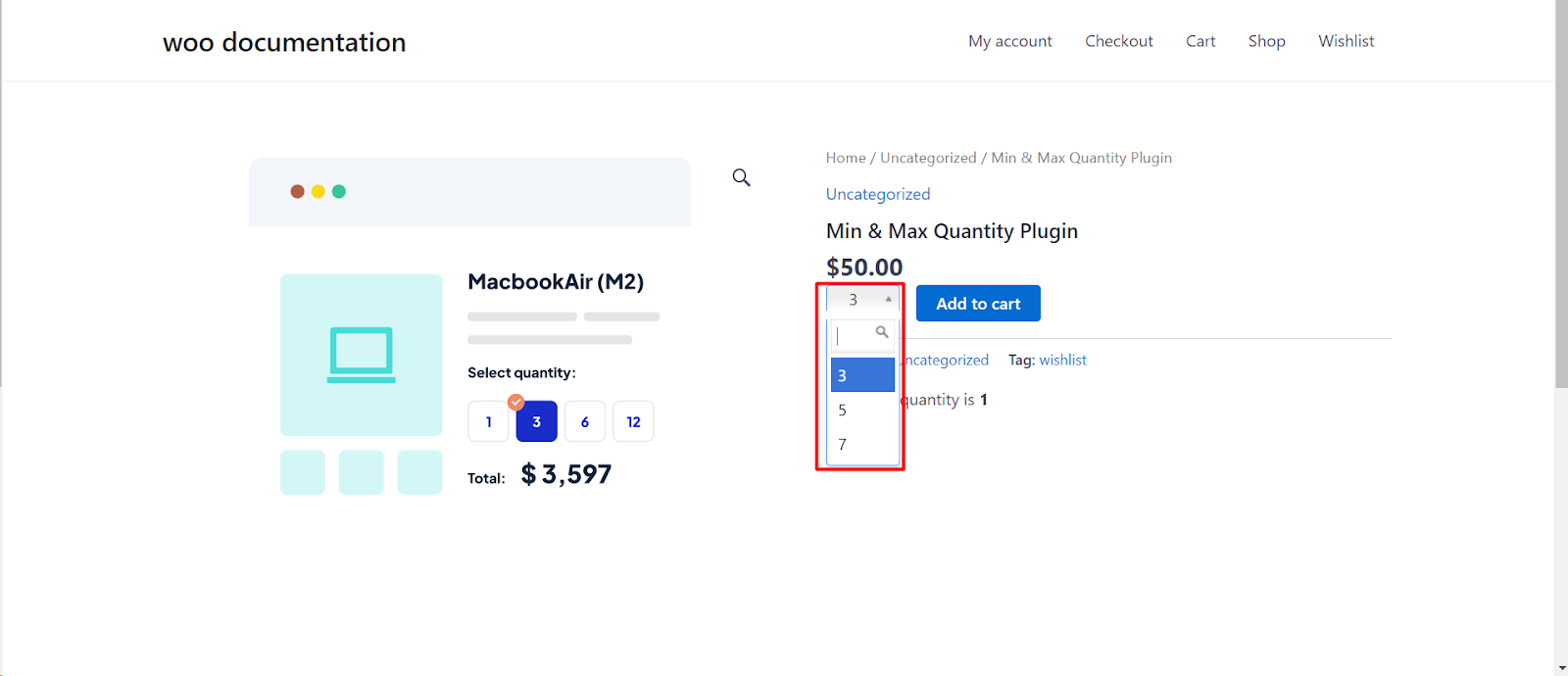
Pair the list with the Quantity Dropdown so customers pick from the allowed values only; disallowed values are left out of the dropdown. To open the page at the smallest allowed value, set General > Initial Quantity Options > Single product page to Change to lowest fixed quantity. If a wrong quantity reaches checkout, the order is stopped with your Message. With General > “Add to cart” validation set to auto-correct, an allowed-list quantity changes to the closest allowed value, and a disallowed one moves up to the next accepted value.
If it does not work #
- Any quantity is accepted: the section checkbox (Allowed quantity or Disallowed quantity) is not ticked.
- The number box still counts 1, 2, 3: expected with the standard box. Use the dropdown to show only allowed values.
- A range is ignored: check the format, square brackets with a hyphen and a pipe:
[from-to|step].
FAQ #
What is the difference between a fixed quantity and a step? #
A step accepts every multiple (6, 12, 18 and so on). A fixed list accepts only the values you name, which suits pack sizes that do not follow a pattern.
Can a customer buy 6 if I allow 3? #
Not by default, because 6 is not in the list. Add 6 to the list, or enable subset sums in Pro to accept combinations of different allowed values.
Can I set fixed quantities for one product only? #
Yes, with Pro’s Per product option. The free version applies one list to all products.
Get more control #
The all-products fixed quantity is free. Min Max Step Quantity Limits Manager for WooCommerce Pro adds per-product, per-category and per-attribute allowed quantities, plus subset-sum matching. See what Pro unlocks.
Need a hand? Our team answers every ticket on the Quantity Manager support forum.