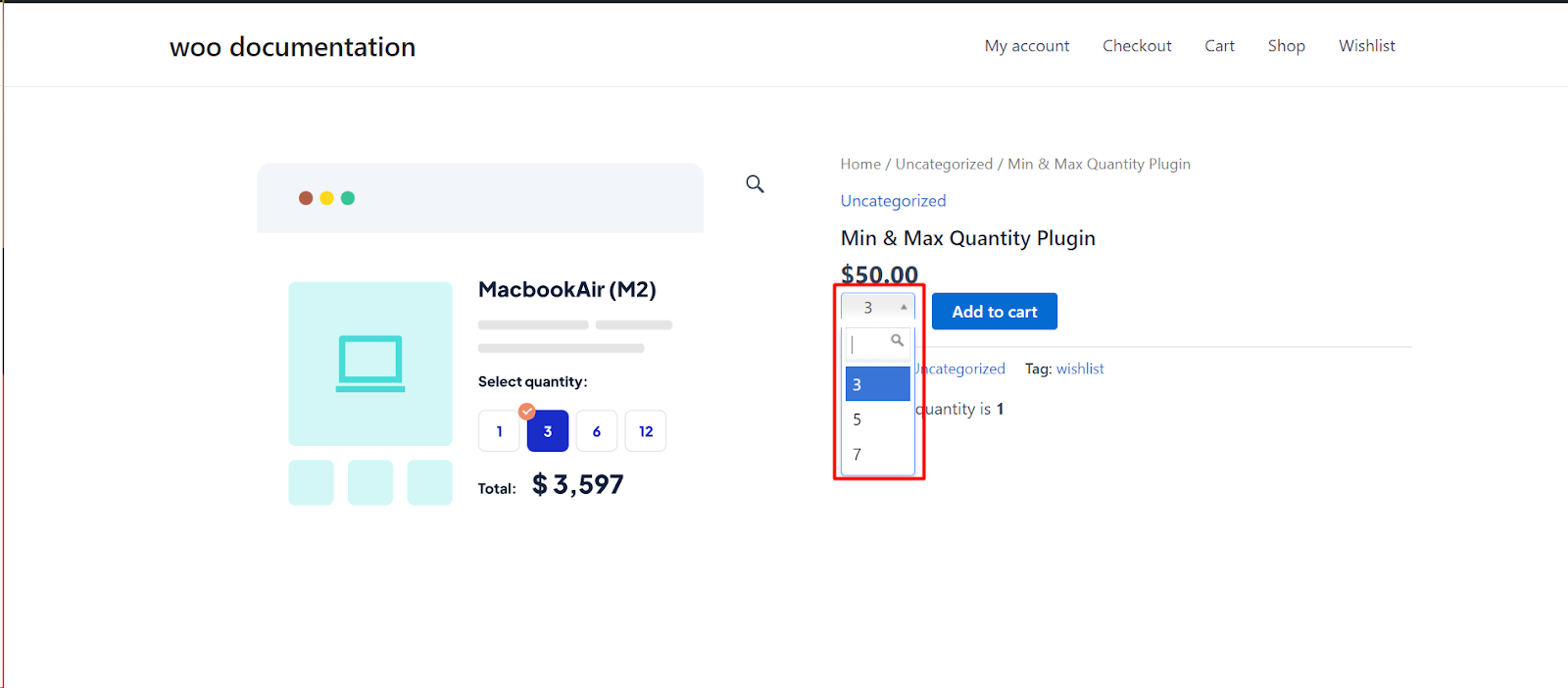
To show a WooCommerce quantity dropdown instead of the number box, install Min Max Step Quantity Limits Manager for WooCommerce, go to WPFactory > Quantity Manager > Quantity Dropdown, tick Quantity as dropdown and save. The dropdown needs a top value: a maximum, a fixed quantity or a Max value fallback. The dropdown itself is free.
Before you start #
A dropdown needs an upper limit, otherwise the list has no end and nothing renders. Make sure at least one of these is set for the product: a Maximum quantity, a Fixed (allowed) quantity, or a Max value fallback (in the Quantity Dropdown section). Quantity Manager will not show a dropdown until one of them exists.
Steps #
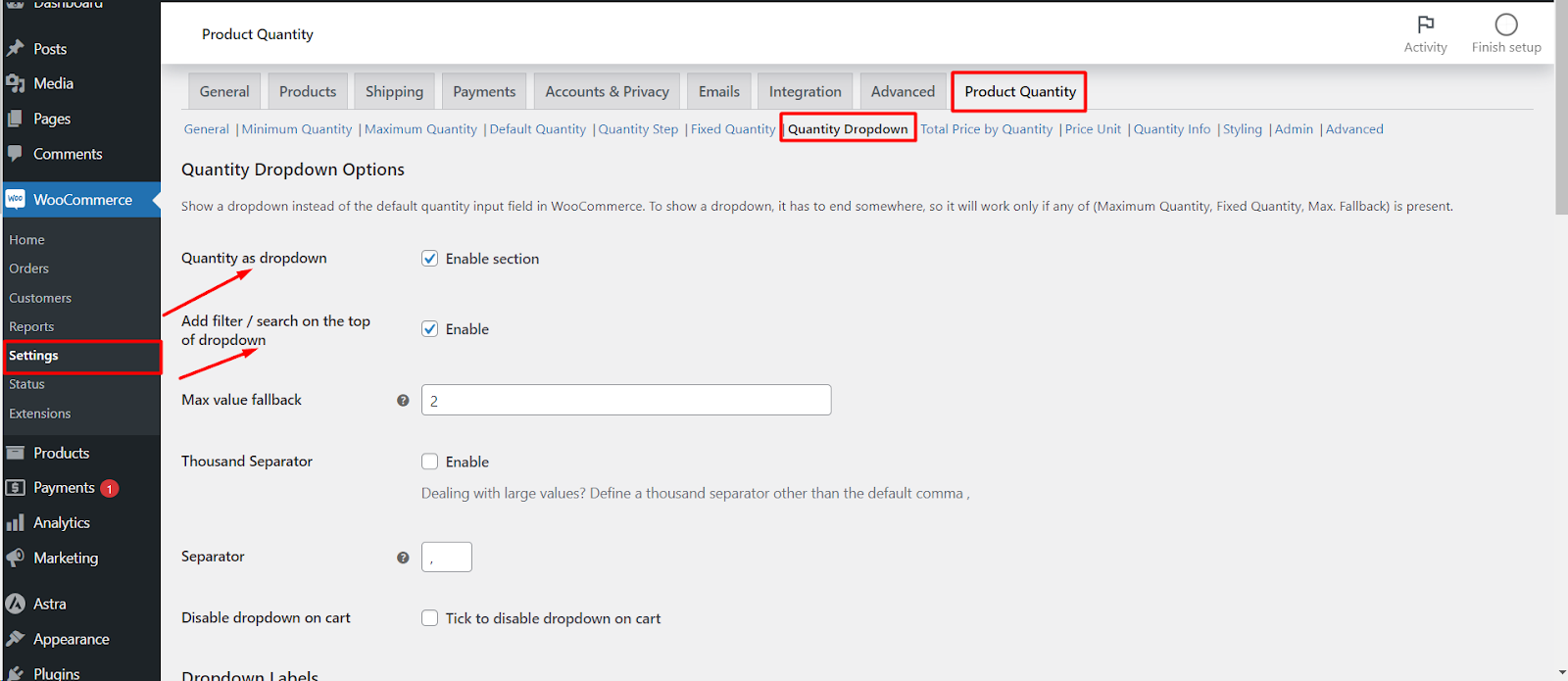
- Go to WPFactory > Quantity Manager (also reachable at WooCommerce > Settings > Product Quantity).
- Open the Quantity Dropdown section.
- Tick Quantity as dropdown to enable the feature.
- If your products have no maximum or fixed quantity, set a Max value fallback so the dropdown has a top value.
- Click Save changes.
Options reference #
| Label | Option ID | Default | Free/Pro |
|---|---|---|---|
| Quantity as dropdown | wpfmmsq_qty_dropdown |
No | Free |
| Add filter / search on the top of dropdown | wpfmmsq_qty_dropdown_search_filter |
No | Free |
| Max value fallback | wpfmmsq_qty_dropdown_max_value_fallback |
0 | Free |
| Thousand Separator / Separator | wpfmmsq_qty_dropdown_thousand_separator_enabled, wpfmmsq_qty_dropdown_thousand_separator |
No, , |
Free |
| Disable dropdown on cart | wpfmmsq_qty_dropdown_disable_dropdown_on_cart |
No | Free |
| Singular / Plural label template | wpfmmsq_qty_dropdown_label_template_singular, wpfmmsq_qty_dropdown_label_template_plural |
%qty% |
Free |
| Before / After (Template) | wpfmmsq_qty_dropdown_template_before, wpfmmsq_qty_dropdown_template_after |
Empty | Free |
| Labels per product | wpfmmsq_qty_dropdown_label_template_is_per_product |
No | Pro |
| Enable per category / Exclude product categories | wpfmmsq_qty_dropdown_enable_per_category, wpfmmsq_qty_dropdown_per_category_categories |
No, none | Pro |
| Enable dropdown on archive pages | wpfmmsq_qty_dropdown_qty_archive_enabled |
No | Pro |
What the customer sees #
Customers now see a dropdown instead of the number field on the product page and, unless you tick Disable dropdown on cart, in the cart too. The list starts at the product’s minimum quantity and goes up to the maximum (or the fallback) in steps of the quantity step. If a fixed (allowed) quantity is set, only those values are listed, and values above the available stock are left out.
You can add unit labels to each value (for example “1 KG”, “2 KGs”) with the Singular and Plural label template fields in the same section. The singular template is used for values below 2. Besides %qty%, you can use %price% (the total price for that quantity) and %item_price% (the unit price), for example %qty% for %item_price% = %price%.
Variations by product and category (Pro) #
- Labels per product adds label template fields to each product’s edit page, so one product can say “KG” and another “pieces”. Empty product fields fall back to the global templates.
- Enable per category with Exclude product categories keeps the normal number box for the categories you select.
- Enable dropdown on archive pages shows the dropdown on shop and category pages for simple products. It also needs the quantity box on archive pages switched on in the General section, see show a quantity box on shop and category pages.
If it does not work #
- The product has no maximum, no fixed quantity and Max value fallback is 0, so the normal number field is shown.
- The minimum and maximum are the same value. Then there is nothing to choose, and the quantity field is hidden instead of shown as a dropdown.
- The product is in a category excluded under Dropdown per category (Pro).
- You are looking at the shop page. The archive dropdown is Pro and needs the archive quantity box enabled too.
- The list stops early because the product has little stock left. Values above the purchasable stock are not listed.
- Your theme or page builder does not load the standard WooCommerce
global/quantity-input.phptemplate, so the plugin cannot replace the field.
FAQ #
Can I use the dropdown without setting a maximum quantity? #
Yes. Enter a Max value fallback, for example 20. Every product without its own maximum or fixed quantity then lists values up to 20.
Can I show only specific quantities, such as 6, 12 and 24? #
Yes. Set them as a fixed (allowed) quantity and the dropdown lists only those values. See how to set a fixed (allowed) quantity.
How do I keep the number box in the cart? #
Tick Disable dropdown on cart. The dropdown stays on product pages and the cart shows the standard field.
Can customers search in a long list? #
Yes. Tick Add filter / search on the top of dropdown to add a search box above the values. This is free.
Get more control #
The dropdown is free. Min Max Step Quantity Limits Manager for WooCommerce Pro adds per-product dropdown labels, per-category control and a dropdown on shop and category pages. See what Pro unlocks.
Need a hand? Our team answers every ticket on the Quantity Manager support forum.