To cap how much of a WooCommerce category a customer can buy, enable Per Category under WPFactory > Quantity Manager > Maximum Quantity in Min Max Step Quantity Limits Manager for WooCommerce, then set the maximum on the category page, either for each product or for the category combined. This is a Pro feature.
Before you start #
- WooCommerce, active.
- Min Max Step Quantity Limits Manager for WooCommerce Pro (per-category rules are Pro only).
Step by step #
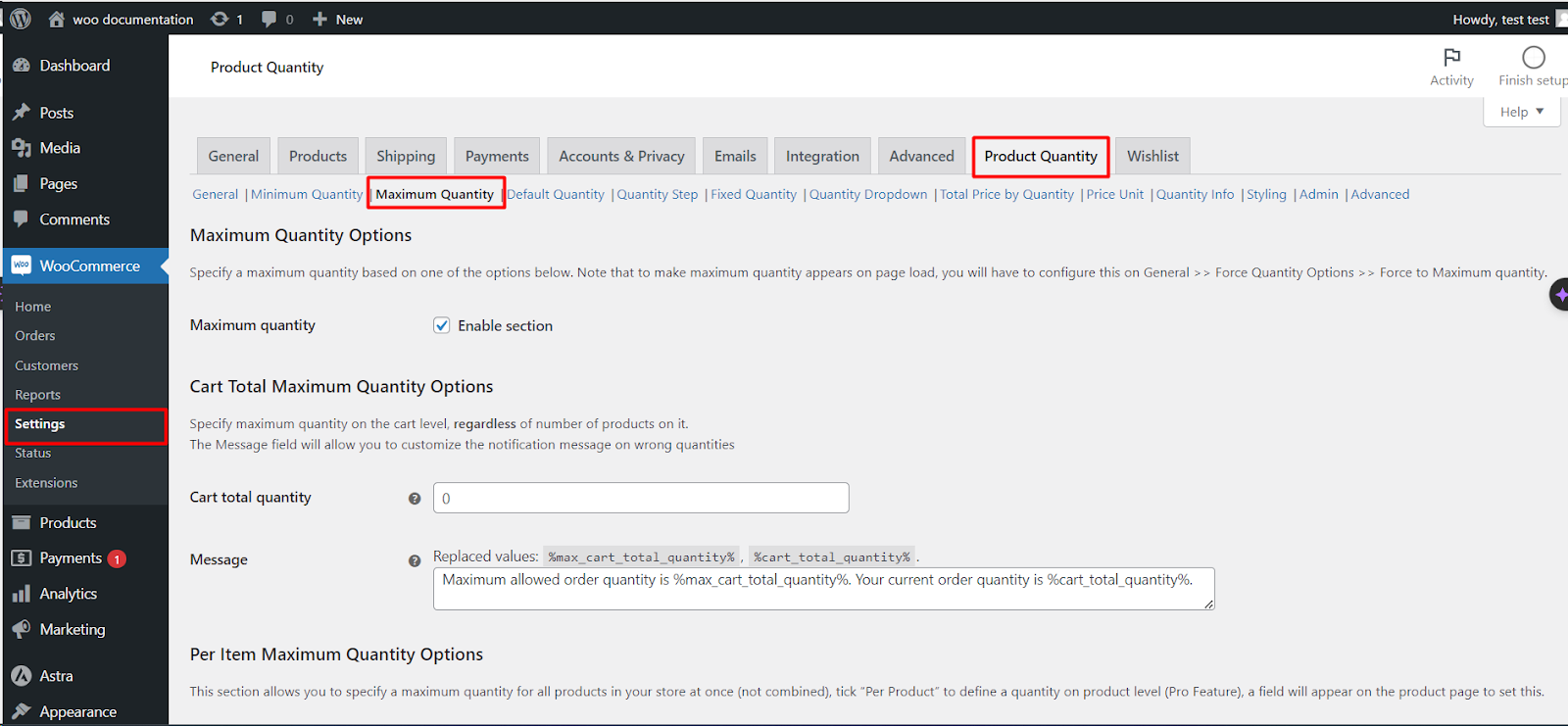
- Go to WPFactory > Quantity Manager (also reachable at WooCommerce > Settings > Product Quantity).
- Open the Maximum Quantity section and tick Maximum quantity to enable it.
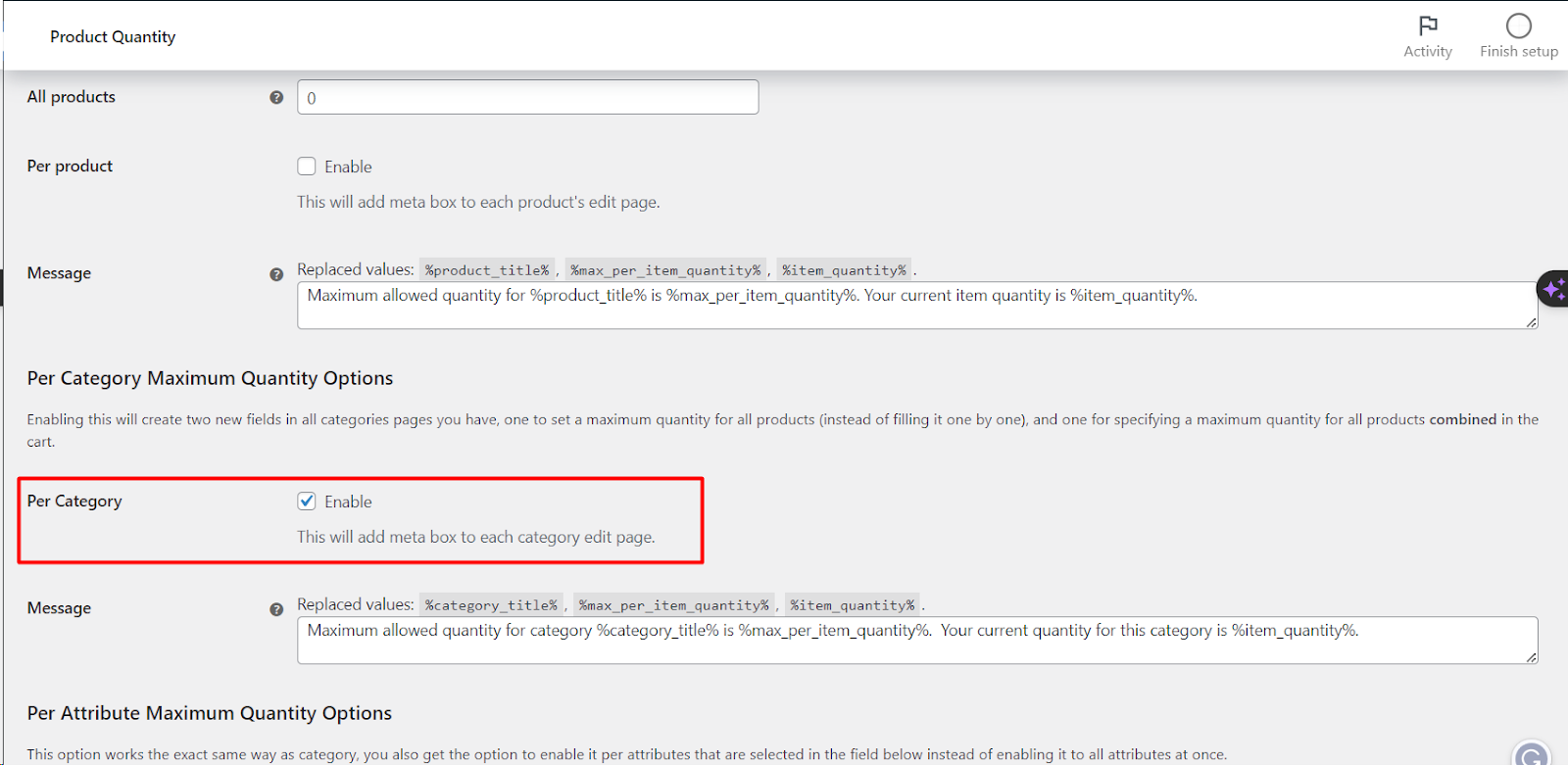
- Under Per Category Maximum Quantity Options, tick Per Category (
wpfmmsq_max_per_cat_item_quantity_per_product). This adds two fields to each category edit page. - Click Save changes.
- Go to Products > Categories, edit the category, fill one or both fields described below, and click Update.
The two category fields #
| Field on the category page | What it limits | Example with value 5 |
|---|---|---|
| Maximum quantity for all product (apply to all products in this category) | Each product in the category separately | Up to 5 of each product |
| Maximum quantity (grouped for this category) | All products of the category added together | Up to 5 in total from the category |
Leave a field at 0 to skip it; products then fall back to the next level, such as the All products maximum.
Tip: to make the maximum appear on page load, set General > Initial Quantity Options > Single product page to Max quantity.
Which maximum wins #
For each product, Quantity Manager uses the first maximum it finds: the product’s own Maximum quantity (Per product), then the category’s per-product value, then the attribute value (Per Attribute, Pro), then All products. The grouped category maximum is checked separately against the category total.
What the customer sees #
The quantity box stops at the per-product maximum. When the cart goes over a limit, the order is stopped at checkout with the Maximum Quantity message: for the grouped limit, “Maximum allowed quantity for category %category_title% is %max_per_item_quantity%. Your current quantity for this category is %item_quantity%.” Tick General > Cart notices to show it on the cart page too.
Options reference #
| Label | Option ID | Default | Free/Pro |
|---|---|---|---|
| Maximum quantity (enable section) | wpfmmsq_max_section_enabled |
No | Free |
| All products | wpfmmsq_max_per_item_quantity |
0 (off) | Free |
| Per product | wpfmmsq_max_per_item_quantity_per_product |
No | Free |
| Per Category | wpfmmsq_max_per_cat_item_quantity_per_product |
No | Pro |
| Message (category) | wpfmmsq_max_cat_message |
Maximum allowed quantity for category %category_title%… | Free |
| Per Attribute | wpfmmsq_max_per_attribute_item_quantity |
No | Pro |
If it does not work #
- No fields on the category page: the Maximum quantity section or the Per Category box is off, or Pro is not active.
- A product goes over the category value: it has its own per-product maximum, which takes priority.
- The grouped limit is not enforced until checkout: expected unless Cart notices or add to cart validation are enabled in General.
FAQ #
Can I set a minimum quantity per category? #
Yes. Enable Per Category in the Minimum Quantity section and the same two kinds of fields appear for the minimum. See How to set a minimum order quantity.
Can I cap the whole cart instead of one category? #
Yes, for free. Use Cart total quantity in the Maximum Quantity section. See How to set a maximum order quantity.
Does it limit repeat purchases? #
No, the limit applies to each cart. For limits per customer across orders, see Maximum Products per User for WooCommerce.
Ready to set this up? #
This is a Pro feature of Quantity Manager. Upgrading unlocks per-category and per-attribute maximums; per-product maximums are already free. Get Quantity Manager Pro.
Need a hand? Our team answers every ticket on the Quantity Manager support forum.