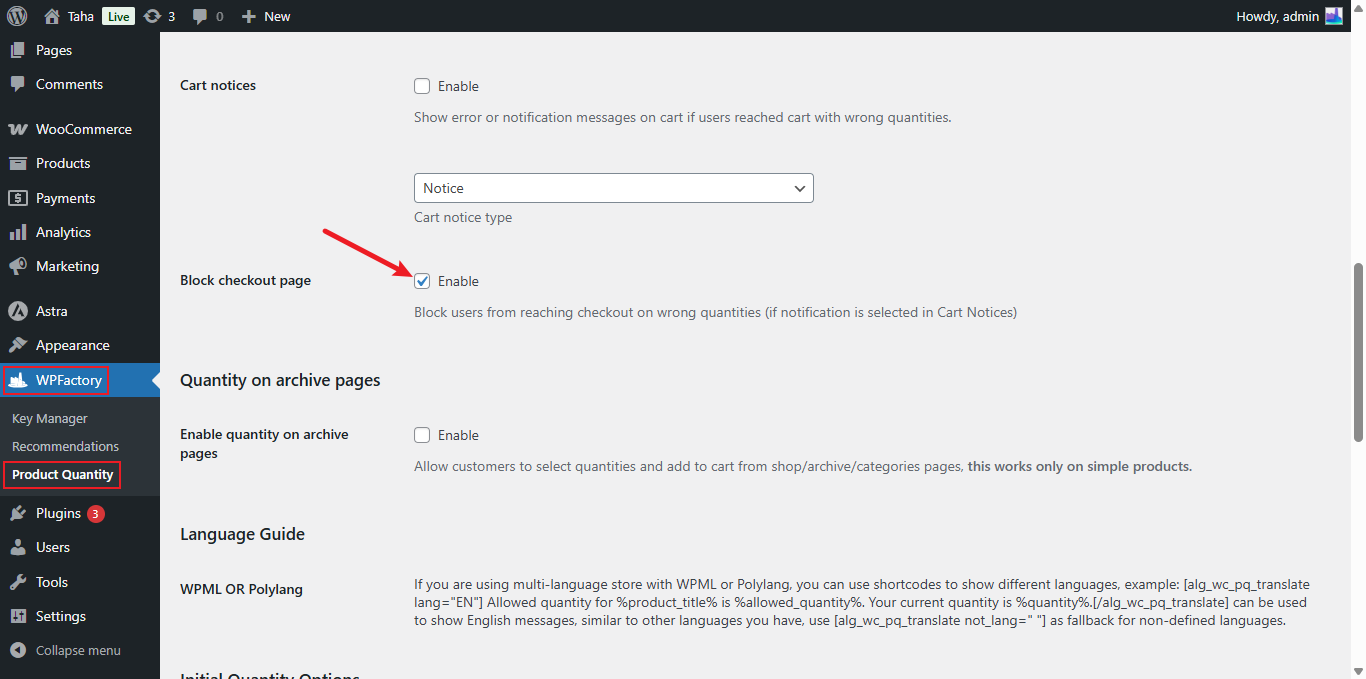
To stop customers from reaching checkout while their cart breaks your quantity rules, turn on Block checkout page in Min Max Step Quantity Limits Manager for WooCommerce. It is in the General section at WPFactory > Quantity Manager (also reachable at WooCommerce > Settings > Product Quantity). The option is free.
What it does #
When Block checkout page is on and a customer opens the checkout with a cart that breaks a minimum, maximum, step or fixed quantity rule, Quantity Manager sends them back to the cart page. With Cart notices on, the cart shows a message explaining which quantity to fix.
Before you start #
- Quantity Manager installed and active. See how to install Quantity Manager.
- At least one quantity rule section enabled: Minimum Quantity, Maximum Quantity, Quantity Step or Fixed Quantity. Block checkout page does nothing when no rule section is on. See how to set a minimum order quantity or a maximum order quantity.
Set it up #
- Go to WPFactory > Quantity Manager and open the General section.
- Check Cart notices (default: off) so wrong quantities are flagged on the cart, and choose a Cart notice type: Notice (default), Error or Success.
- Check Block checkout page (default: off).
- Click Save changes.
- Test it: add a product with a quantity that breaks your rule, then open the checkout URL. You should land back on the cart with the notice.
Note: the redirect works even when Cart notices is off, but then customers are sent back to the cart without being told why. Keep Cart notices on whenever you block checkout.
Options reference #
| Label | Option ID | Default | Free/Pro |
|---|---|---|---|
| Cart notices | wpfmmsq_cart_notice_enabled |
No | Free |
| Cart notice type | wpfmmsq_cart_notice_type |
Notice | Free |
| Block checkout page | wpfmmsq_stop_from_seeing_checkout |
No | Free |
Related options #
- “Add to cart” validation (General, default: Do not validate) can check quantities when the product is added, either adding notices or auto-correcting the quantity. See how to validate and auto-correct cart quantities.
- Validate on checkout (Advanced, default: on) also checks quantities when the order is placed.
FAQ #
Is Block checkout page a Pro feature? #
No. Block checkout page, Cart notices and Cart notice type are all free.
Why can customers still reach checkout? #
Check that at least one rule section (Minimum Quantity, Maximum Quantity, Quantity Step or Fixed Quantity) is enabled and that the cart really breaks that rule. See minimum/maximum quantity settings not working.
Can I change the message customers see? #
Yes. The texts are set in each rule section, and you can use placeholders such as the required and current quantity. See the message placeholders reference.
Get more control #
This feature is free. Min Max Step Quantity Limits Manager for WooCommerce Pro adds per-category and per-attribute quantity rules to enforce at checkout. Per-product minimum, maximum and step are free. See what Pro unlocks.
Need a hand? Our team answers every ticket on the Quantity Manager support forum.