To install Min Max Step Quantity Limits Manager for WooCommerce, add the free version from Plugins > Add New, or upload the Pro ZIP after deactivating the free one. Once active, the settings are at WPFactory > Quantity Manager, where you switch on the minimum, maximum, step and default quantity sections you need.
Before you begin #
- WooCommerce installed and active. Quantity Manager declares WooCommerce as a required plugin.
- WordPress 6.1 or later.
Install the free version #
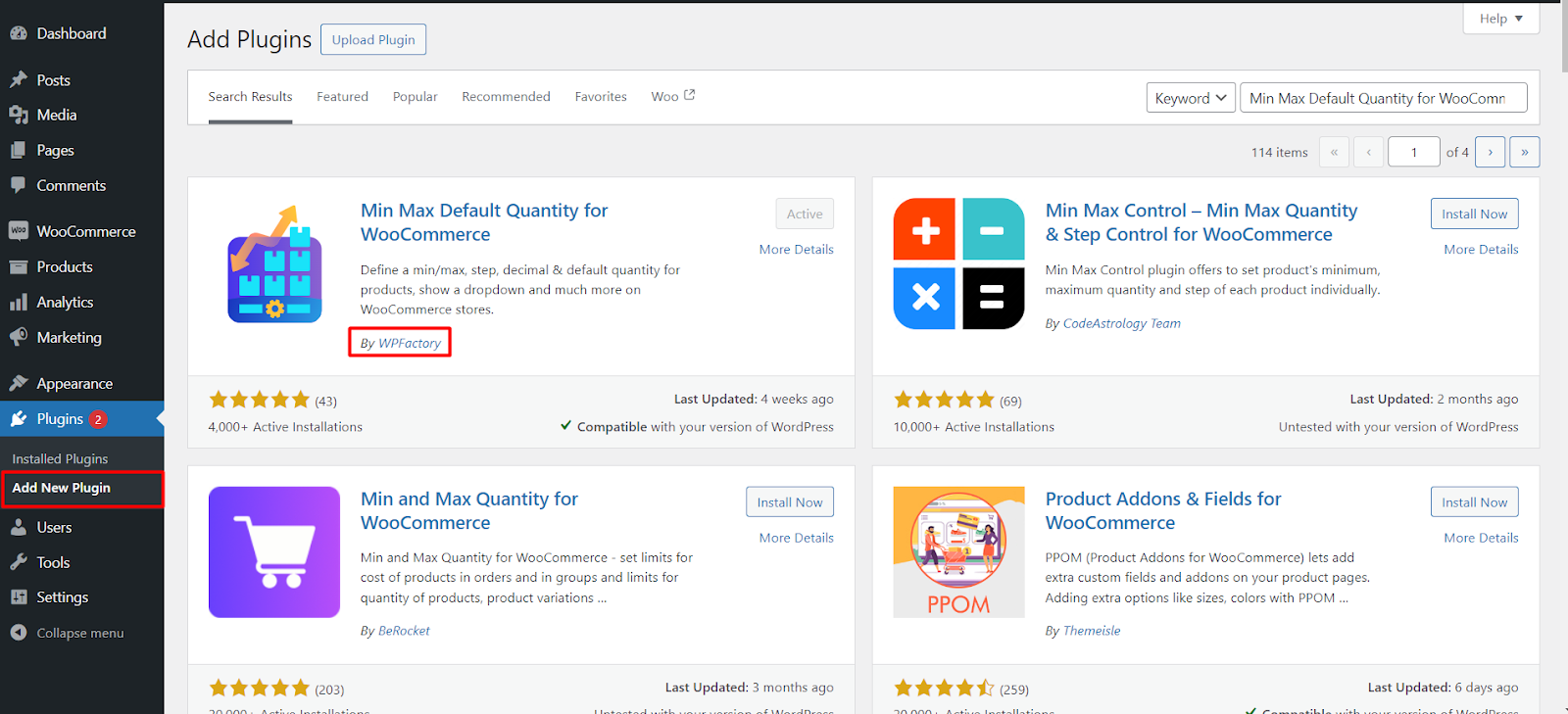
- In your WordPress dashboard, go to Plugins > Add New.
- Search for Min Max Step Quantity Limits Manager for WooCommerce (author: WPFactory).
- Click Install Now, then Activate.
Install Quantity Manager Pro #
- Download the Pro ZIP from your WPFactory account.
- If the free version is active, deactivate it first under Plugins. Pro refuses to activate while the free plugin is running and shows “You need to deactivate Product Quantity Control for WooCommerce.”
- Go to Plugins > Add New > Upload Plugin, choose the ZIP, click Install Now, then Activate.
- Enter your license key under WPFactory > Key Manager so you receive updates.
Open the settings #
After activation, the settings live at WPFactory > Quantity Manager (also reachable at WooCommerce > Settings > Product Quantity). The plugin itself is enabled by default, but each rule section starts switched off, so nothing changes in your store until you enable one. The sections are:
| Section | What it controls |
|---|---|
| General | Decimal quantities, sold individually, add to cart validation, cart notices, initial quantity on page load, Buy all stock button |
| Minimum Quantity / Maximum Quantity | Smallest and largest amounts, per item or for the whole cart |
| Default Quantity | The quantity pre-filled when a page loads |
| Quantity Step | Selling in multiples, for example packs of 6 |
| Fixed Quantity | Allowed or disallowed quantity lists |
| Quantity Dropdown | A dropdown instead of the number box |
| Total Price by Quantity / Price Unit | Price text that updates with quantity, and labels such as “per kg” |
| Quantity Info | Text showing the rules on product and shop pages |
| Styling / Admin / Advanced | Input CSS, product list columns, rounding, roles and compatibility options |
Quick first setup #
- Open Minimum Quantity, tick Enable Minimum quantity section, set All products to your minimum and save.
- To pre-fill a quantity, enable Default Quantity and set General > Initial Quantity Options > Single product page to Default quantity. See How to set a default quantity on page load.
- For per-product values, tick Per product in the section, then set the number in the Product Quantity box on the product edit page.
- Open a product page and try a quantity outside your rule to check the result.
Pro version features #
The free version already includes store-wide rules plus per-product minimum, maximum and step. Quantity Manager Pro adds, among other things:
- Per-product default and fixed quantities, and minimum, maximum, step and default quantities by category or attribute.
- A quantity box, dropdown and price on shop and category pages.
- Selling below the minimum when stock is low, role targeting, and disabling the plugin by URL or category.
If it does not work #
- Pro will not activate: the free version is still active. Deactivate it, then activate Pro.
- No Quantity Manager menu: WooCommerce is not active.
- Nothing changed on the store: expected until you enable a section and set a value.
FAQ #
Do I need the free version to run Pro? #
No. Pro is a standalone plugin and must replace the free version, not run beside it.
Where do I find a feature comparison? #
See Quantity Manager: Free vs Pro features.
Why is a Per product or Per Category checkbox greyed out? #
Greyed-out options are Pro. They become available once Pro is active.
Get started with Pro #
Ready for finer control? Get Quantity Manager Pro to unlock per-category and per-attribute rules.
Need a hand? Our team answers every ticket on the Quantity Manager support forum.