To let customers buy fractional amounts such as 0.5 or 1.25 in WooCommerce, tick Decimal quantities at WPFactory > Quantity Manager > General in Min Max Step Quantity Limits Manager for WooCommerce, then set a decimal step, for example 0.5. It suits products sold by weight, length or volume, and it is free.
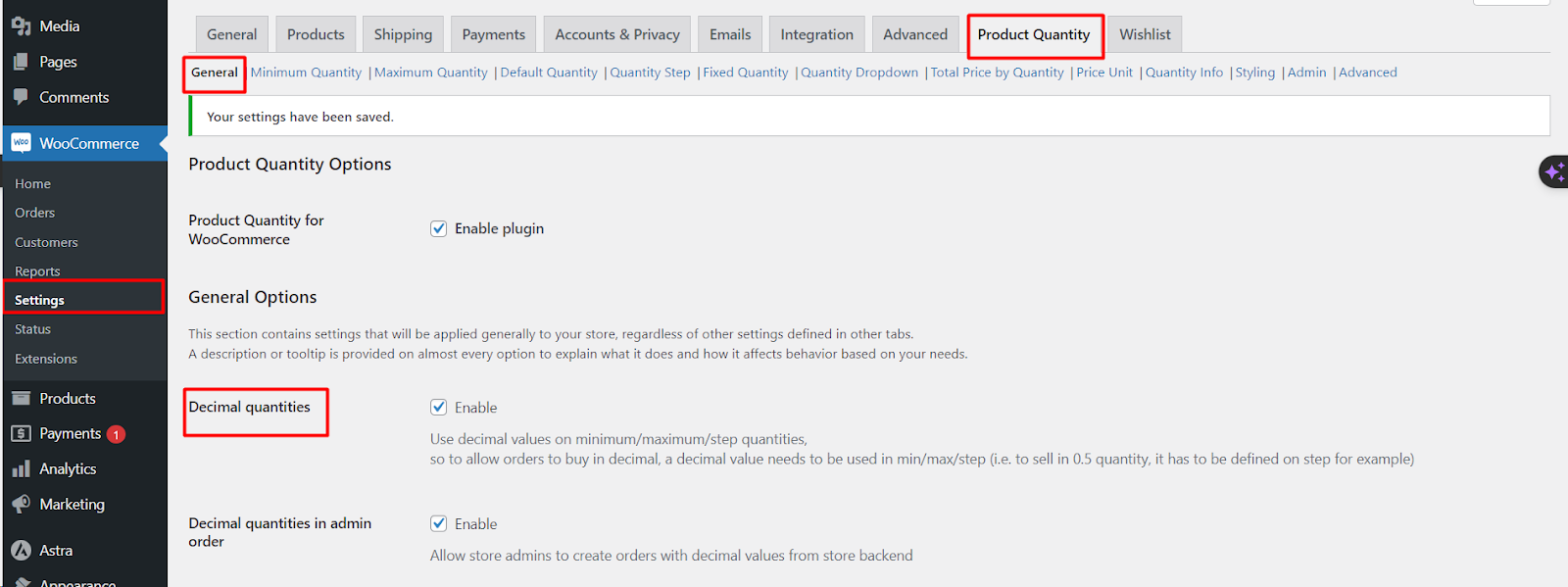
Step by step #
- Go to WPFactory > Quantity Manager (also reachable at WooCommerce > Settings > Product Quantity).
- Open the General section.
- Tick Decimal quantities (
wpfmmsq_decimal_quantities_enabled). This lets you use decimal values for minimum, maximum and step quantities. - Optionally tick Decimal quantities in admin order to allow decimal quantities when creating orders in the dashboard.
- Click Save changes.
- Open Quantity Step, enable the section and set All products (or a per-product step) to your increment, for example
0.5. Without a decimal step, the quantity box still moves in whole numbers. - Optionally set a decimal minimum in Minimum Quantity, for example
0.5, and save.
Options reference #
| Label | Section | Option ID | Default | Free/Pro |
|---|---|---|---|---|
| Decimal quantities | General | wpfmmsq_decimal_quantities_enabled |
No | Free |
| Decimal quantities in admin order | General | wpfmmsq_decimal_quantities_admin_order_enabled |
No | Free |
| Round on add to cart | Advanced | wpfmmsq_round_on_add_to_cart |
Do not round | Free |
| Round with JavaScript | Advanced | wpfmmsq_round_with_js |
Do not round | Free |
| Woocommerce block compatibility | Advanced | wpfmmsq_advance_wc_block_api |
No | Free |
What changes when decimals are on #
- Quantity box: accepts values such as 1.5 and moves by your decimal step.
- Stock: WooCommerce normally stores stock as whole numbers. Quantity Manager switches stock amounts to decimals (up to 6 places), so ordering 1.5 kg removes 1.5 from stock, and the stock status is recalculated after each change.
- Step checks: steps are validated with decimal precision, counting from the minimum quantity.
- PayPal Standard: a line with a decimal quantity is sent as quantity 1 with the full line amount, since PayPal only accepts whole quantities.
Example: fabric sold by the meter #
Enable Decimal quantities, set the minimum to 0.5 and the step to 0.25. Customers can then order 0.5, 0.75, 1, 1.25 meters and so on. Add a price unit such as “per meter” with the Price Unit section.
Important: WooCommerce’s block-based Cart and Checkout do not reliably support decimal quantities yet. If you use decimals, switch your Cart and Checkout pages to the classic (shortcode) versions, [woocommerce_cart] and [woocommerce_checkout]. See Decimal Quantities Causing Errors in Cart/Checkout if you hit problems.
If it does not work #
- The box still jumps by 1: no decimal step is set. Enable Quantity Step and enter a value such as 0.5.
- Decimals turn into whole numbers in the cart: Round on add to cart or Round with JavaScript is set to round. Set both to Do not round. Also leave Woocommerce block compatibility off, because it casts minimum, maximum and step to whole numbers for block carts.
- Errors on a block cart or checkout: switch to the classic cart and checkout shortcodes.
- Stock looks wrong: see Stock update fails with decimal quantities.
FAQ #
Are decimal quantities free? #
Yes. Decimal quantities, the admin order option and the rounding options are all free.
Can I use decimals for only some products? #
The setting is store-wide, but a product only accepts decimals if its step is a decimal. Give whole-number products a step of 1 in their Product Quantity box to keep them whole.
What does Round on add to cart do? #
It rounds the added quantity to a whole number (round, round up or round down). Use it only if you want decimal input but whole units in the cart.
Get more control #
This feature is free. Min Max Step Quantity Limits Manager for WooCommerce Pro adds per-category and per-attribute quantity rules, including decimals. Per-product minimum, maximum and step are free. See what Pro unlocks.
Need a hand? Our team answers every ticket on the Quantity Manager support forum.