To sell every product in a WooCommerce category in fixed increments, such as multiples of 5, enable Per Category under WPFactory > Quantity Manager > Quantity Step in Min Max Step Quantity Limits Manager for WooCommerce, then enter the step on each category’s edit page. No product-by-product editing is needed. This is a Pro feature.
Before you start #
- WooCommerce, active.
- Min Max Step Quantity Limits Manager for WooCommerce Pro (per-category rules are Pro only).
Step by step #
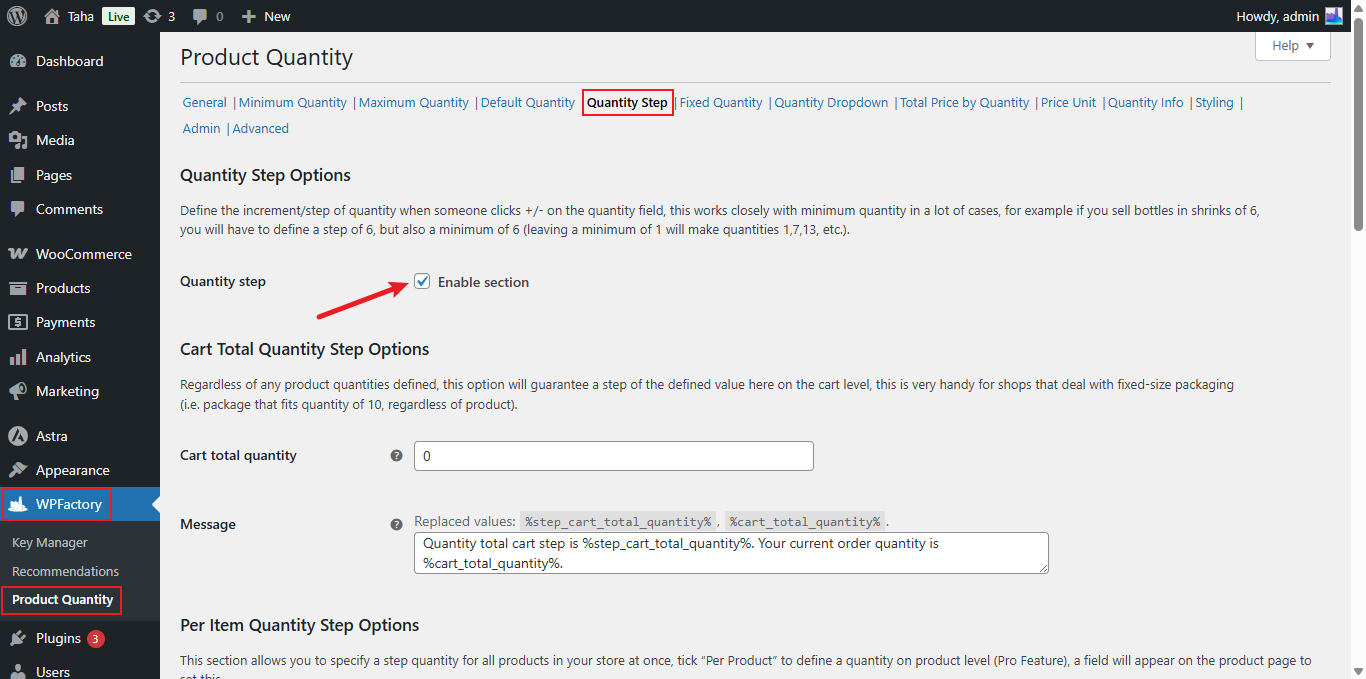
- Go to WPFactory > Quantity Manager (also reachable at WooCommerce > Settings > Product Quantity).
- Open the Quantity Step section and tick Quantity step to enable it.
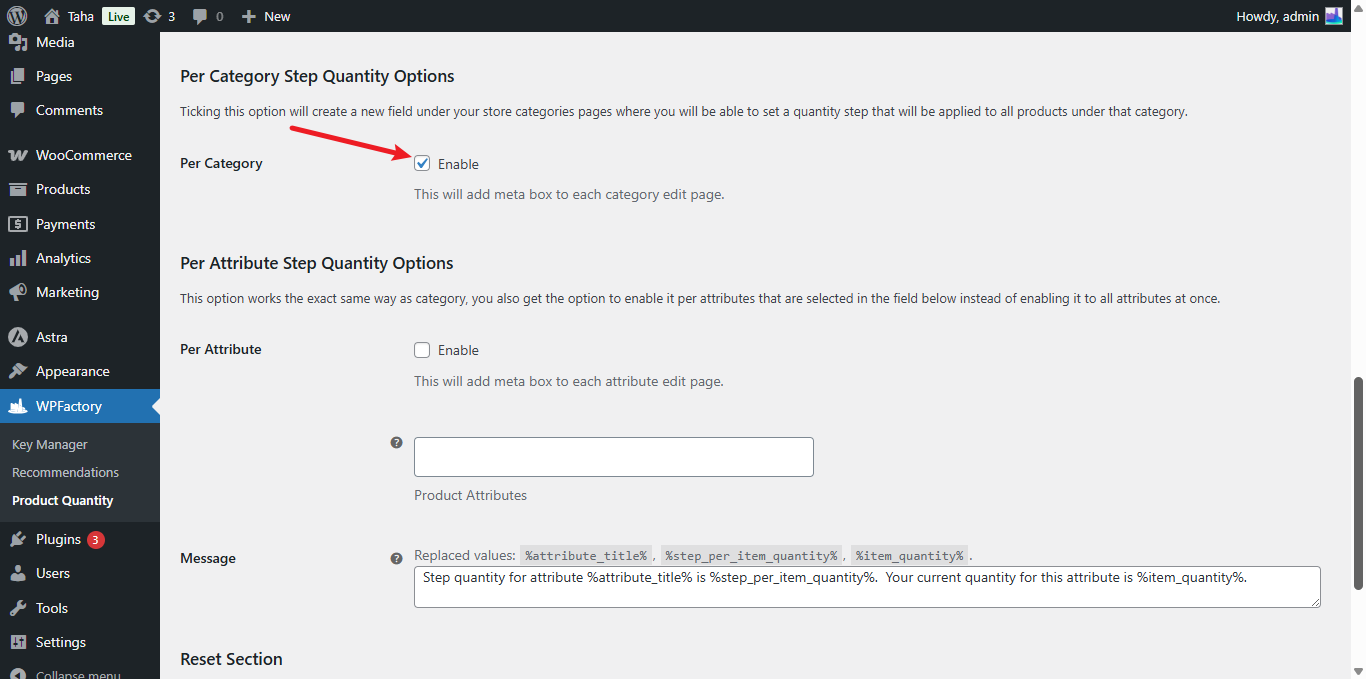
- Under Per Category Step Quantity Options, tick Per Category (
wpfmmsq_step_per_cat_item_quantity_per_product). This adds a step field to every product category’s edit page. - Click Save changes.
Set the step on a category #
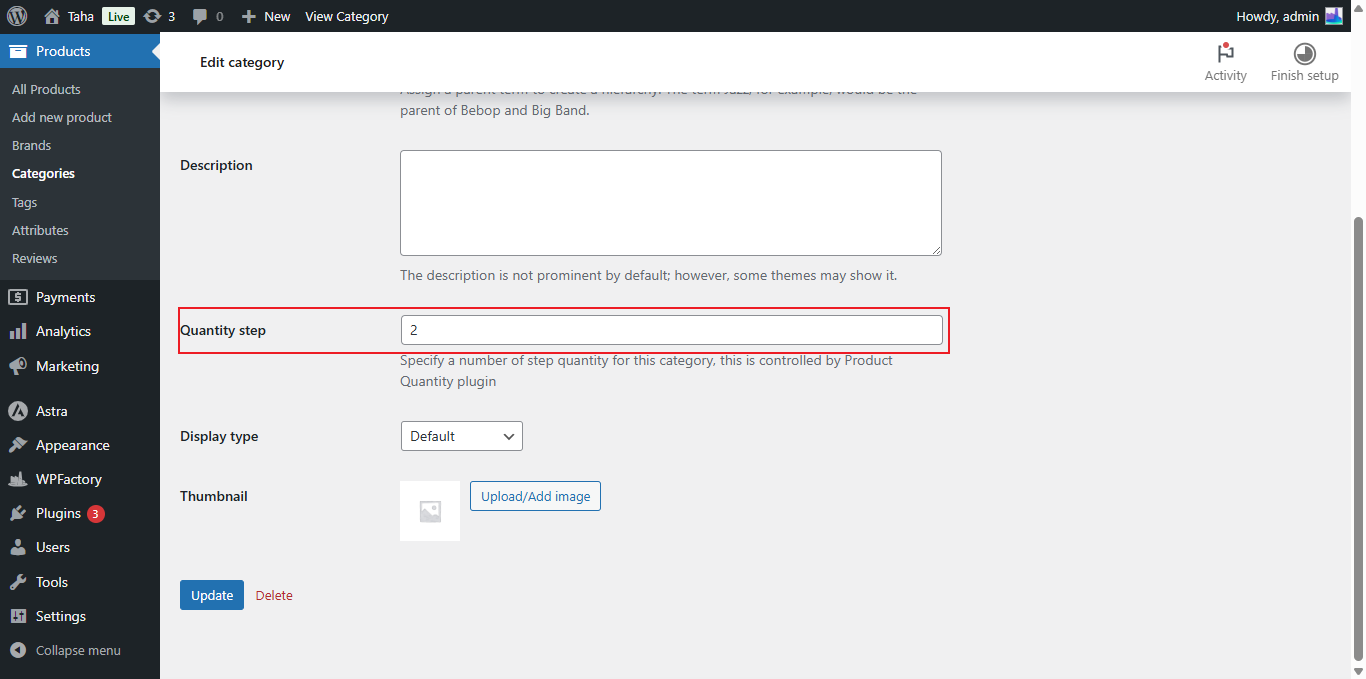
- Go to Products > Categories and edit the category you want.
- Enter the value in the Quantity step field, for example
5. Customers can then buy products in that category in multiples of 5. Leave it at0to use the global step. - Update the category.
Tip: if you also want customers to start at that increment, set a matching minimum quantity. A step of 6 with a minimum of 1 produces 1, 7, 13; a step of 6 with a minimum of 6 produces 6, 12, 18.
Quantity Step options #
| Label | Option ID | Default | Free/Pro |
|---|---|---|---|
| Quantity step (enable section) | wpfmmsq_step_section_enabled |
No | Free |
| Cart total quantity | wpfmmsq_step_cart_total_quantity |
0 (off) | Free |
| All products | wpfmmsq_step |
0 (off) | Free |
| Per product | wpfmmsq_step_per_product_enabled |
No | Free |
| Allow changing Step Quantity if stock is less than 2x of Step | wpfmmsq_step_per_item_quantity_per_product_less2x |
No | Pro |
| Allow adding all quantity in stock (skip step restriction) | wpfmmsq_step_per_item_quantity_allow_all_remaining |
No | Pro |
| Per Category | wpfmmsq_step_per_cat_item_quantity_per_product |
No | Pro |
| Per Attribute | wpfmmsq_step_per_attribute_item_quantity |
No | Pro |
Which step wins #
Quantity Manager checks for a step in this order and uses the first value above 0:
- The product’s own Quantity step (when Per product is on).
- The product’s category step. If the product is in several categories, the first category with a step is used.
- The attribute step (when Per Attribute is on).
- The All products step.
What the customer sees #
On the product page, the quantity arrows move in steps of the category value. If a quantity that does not fit the step reaches checkout, the order is stopped with the Message from the Quantity Step section, by default “Quantity step for %product_title% is %quantity_step%. Your current quantity is %quantity%.” To warn earlier, tick General > Cart notices (shown on the cart page) or set General > “Add to cart” validation to Validate and add notices. With Validate and auto-correct quantities, the quantity is rounded to a valid step instead.
If it does not work #
- No step field on the category page: the Quantity step section or the Per Category box is not enabled, or Pro is not active.
- A product ignores its category step: the product has its own step, or it sits in another category that is listed first and has a different step.
- Steps start at an odd number: steps count from the minimum quantity. Set the minimum to the same value as the step.
FAQ #
Can I set a step per product for free? #
Yes. Tick Per product in the Quantity Step section and set Quantity step in the product’s Product Quantity box. See How to sell products in multiples with a quantity step.
Can I set a minimum quantity per category too? #
Yes, in Pro. Enable Per Category in the Minimum Quantity section and the category page gets a minimum for all its products and a grouped minimum for the category. See How to set a maximum quantity per category for how the two fields differ.
Does the step apply to the cart total? #
The category step applies to each product. For a step on the whole cart, use Cart total quantity in the Quantity Step section.
Ready to set this up? #
This is a Pro feature of Quantity Manager. If you are still on the free version, upgrading unlocks per-category and per-attribute rules. Get Quantity Manager Pro.
Need a hand? Our team answers every ticket on the Quantity Manager support forum.