To set minimum and maximum purchase limits in WooCommerce, install Order Minimum/Maximum Amount Limits for WooCommerce and choose which order values to control. Order Min/Max Amount can limit an order by its total, its item quantity, weight, volume, dimensions, or the number of different products, categories, or tags in the cart. This guide covers install, where the settings live, and the core options on the General tab.
Before you start #
- WooCommerce, active.
- The free version from, or the Pro version from your account.
Step 1: Install and activate #
- For the free version: in your dashboard go to Plugins > Add New, search for Order Minimum/Maximum Amount for WooCommerce, then click Install Now and Activate.
- For Pro: download the ZIP from your WPFactory account, then go to Plugins > Add New > Upload Plugin, choose the ZIP, install, and activate.
Step 2: Open the settings #
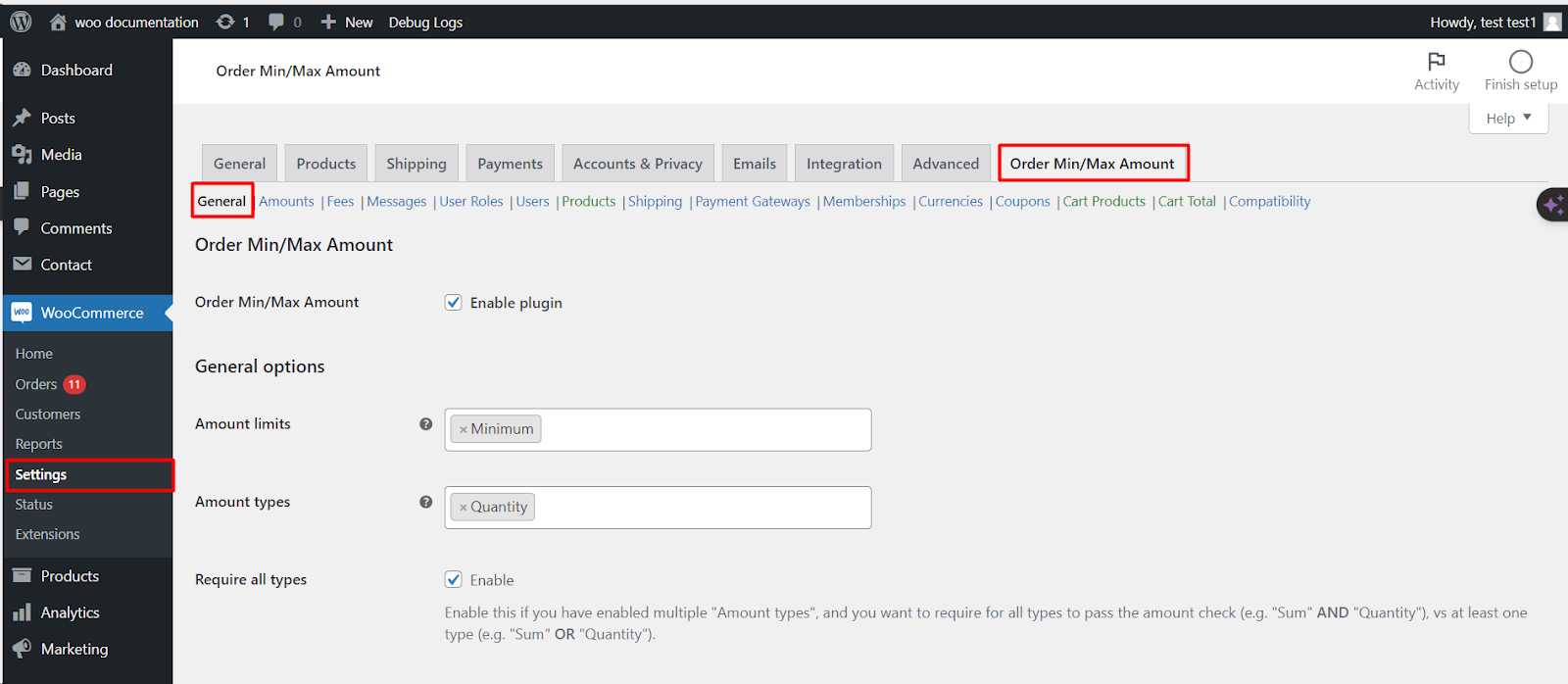
Go to WPFactory > Order Min/Max (also reachable at WooCommerce > Settings > Order Min/Max Amount). The settings open on the General tab.
Step 3: Set the core options on the General tab #
| Label | Option ID | Default | What it does |
|---|---|---|---|
| Plugin | alg_wc_oma_plugin_enabled |
Yes | Master on/off switch for all limits. |
| Amount limits | alg_wc_oma_amount_limits |
Minimum, Maximum | Whether you set a minimum, a maximum, or both. |
| Amount types | alg_wc_oma_amount_types |
Sum, Quantity | Which order values are measured (see the list below). |
| Require all | alg_wc_oma_require_all_types |
Yes | Require every selected type to pass, or just one of them. |
The amount types you can limit by #
Under Amount types you can pick any combination of: Sum (order total or subtotal), Quantity (number of items), Weight, Volume, Length, Width, Height, Area, Products (number of different products), Product categories, and Product tags. Weight, volume, and dimension limits only work when the products in the cart have those values set in their Product data > Shipping fields.
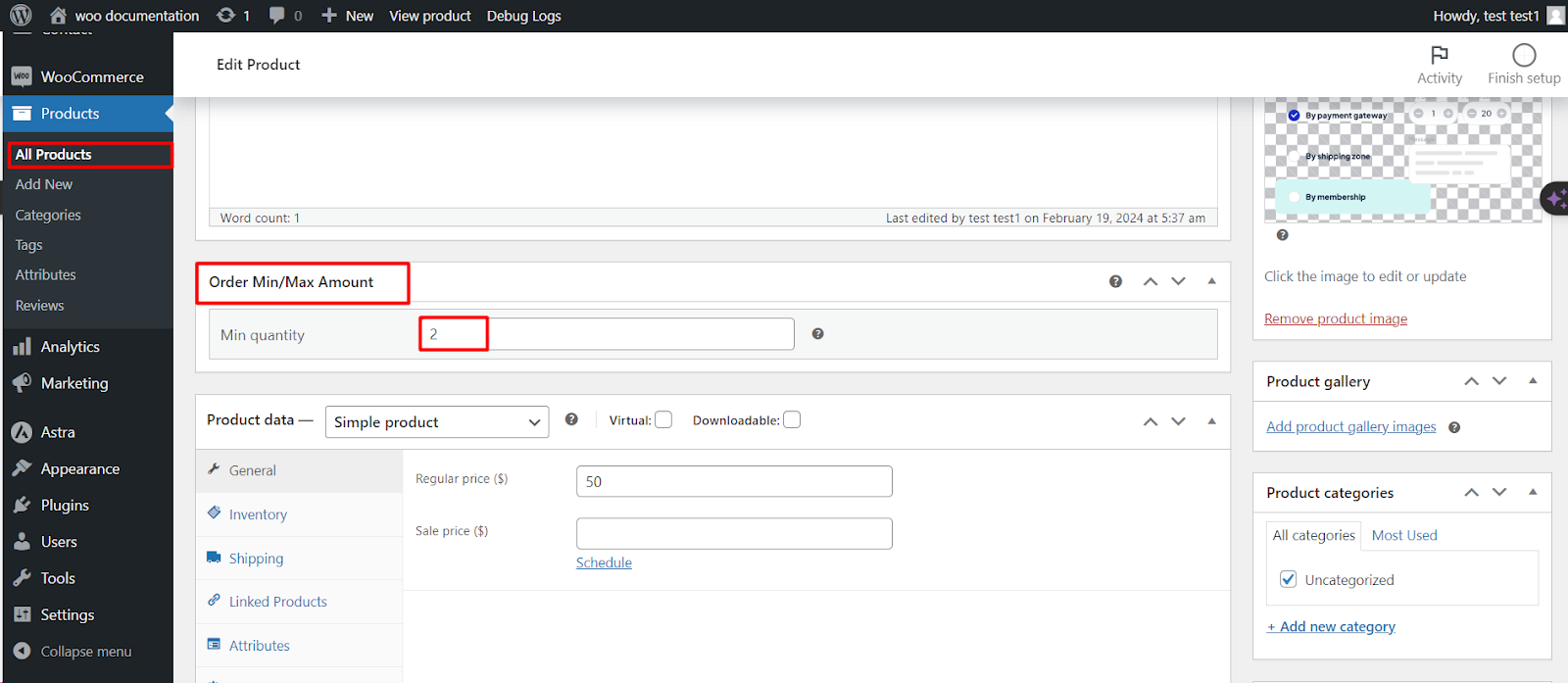
Step 4: Enter your limits and save #
- Open the Amounts sub-tab. You will see a field for each enabled limit and type, for example Minimum sum or Maximum quantity.
- Enter your values. A value of 0 means “ignored”, so only the limits you actually fill in are enforced.
- Click Save changes.
With Require all on, an order must satisfy every selected type (for example Sum and Quantity). With it off, meeting any one type is enough (Sum or Quantity).
Get more control #
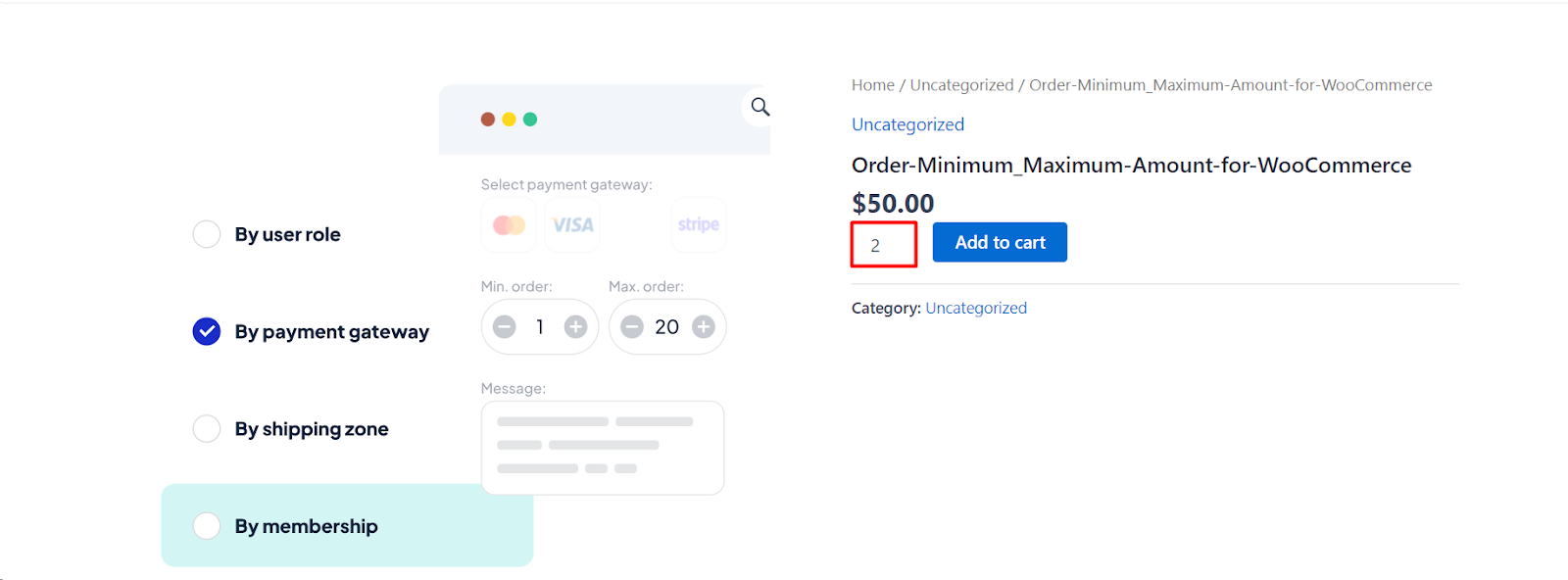
Global limits are free. Order Minimum/Maximum Amount Limits for WooCommerce Pro adds limits per user, per user role, per product, category, and tag, per shipping method, per payment gateway, per currency, and more. See what Pro unlocks.