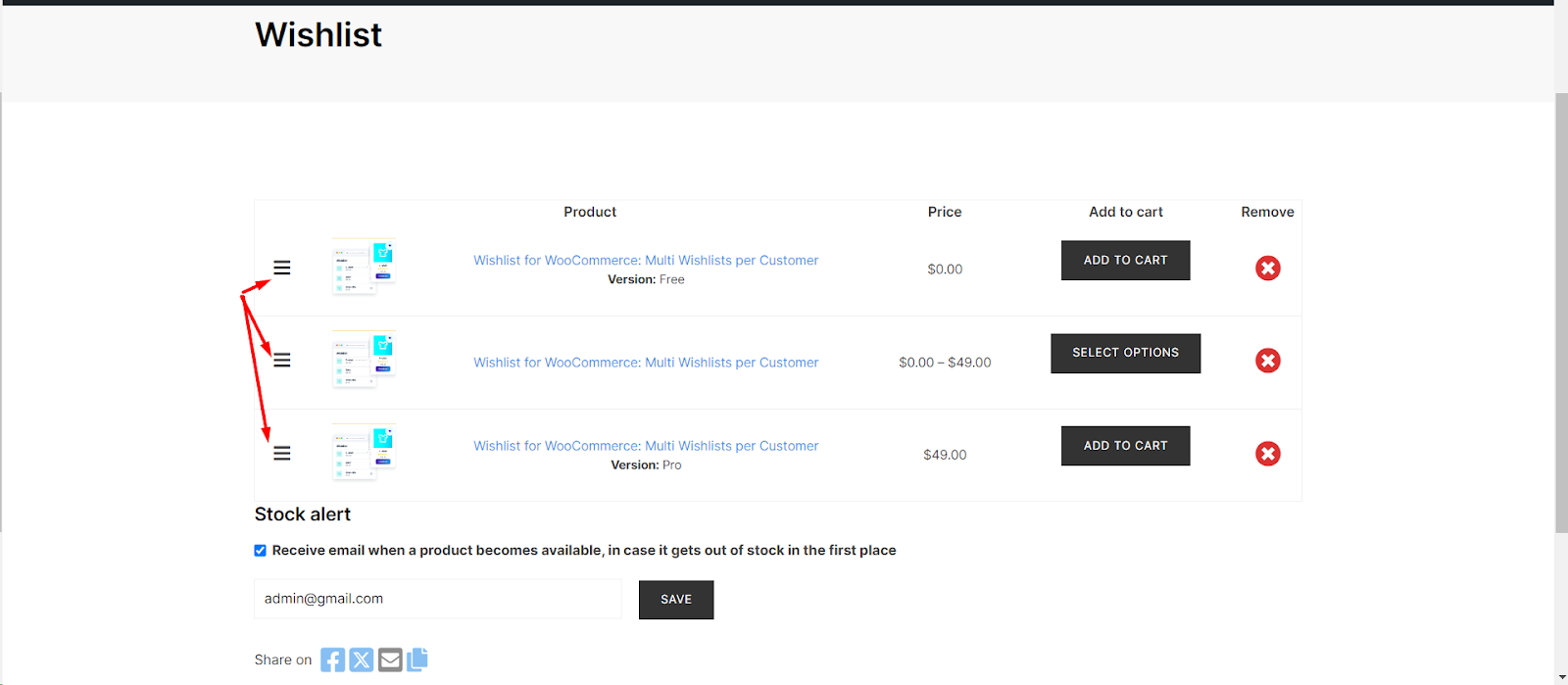
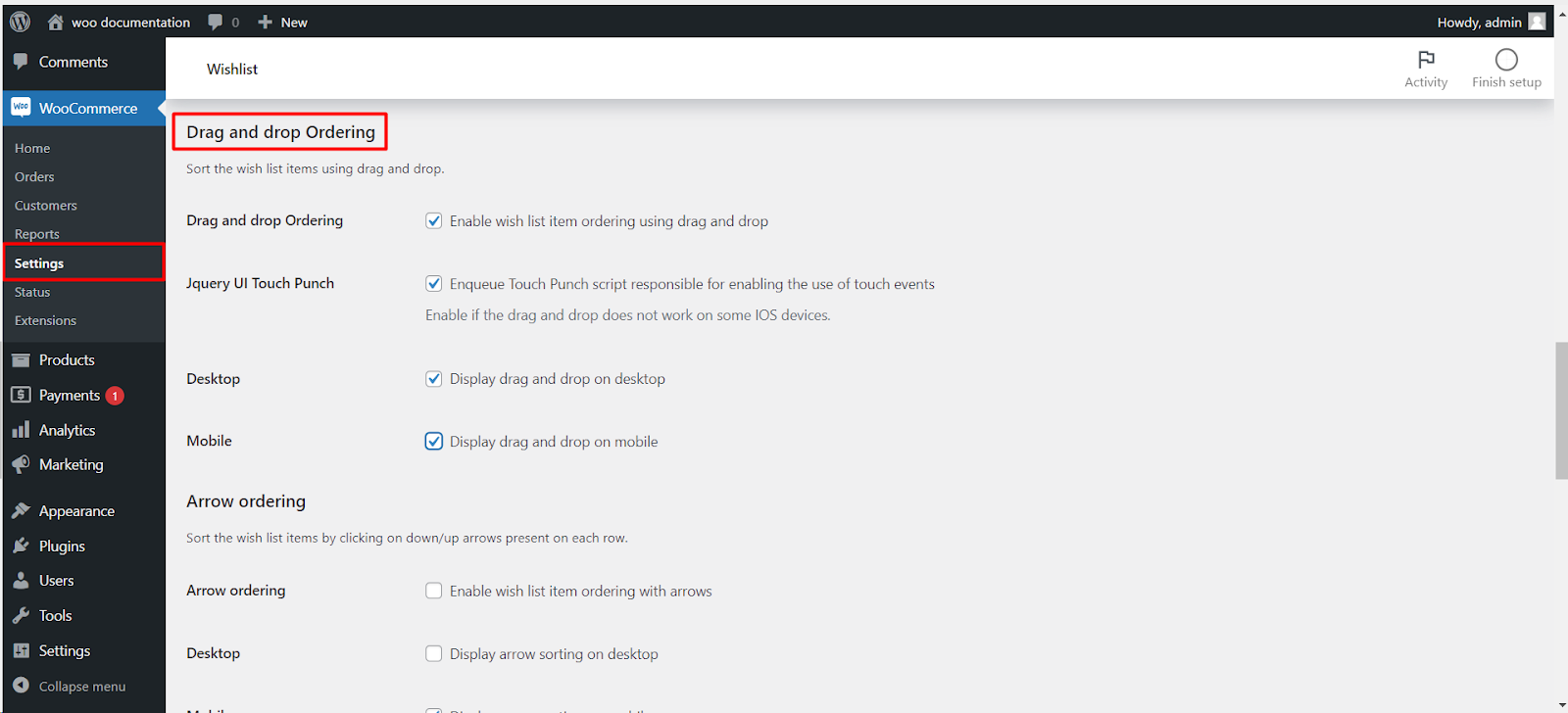
To let customers reorder their wishlist by dragging items, go to WPFactory > Wishlist > Wishlist Page in Wishlist for WooCommerce Pro and tick Drag and drop Ordering. A handle appears on each row of the wishlist page, and the new order is saved automatically. Arrow ordering, in the same tab, adds up and down arrows instead.
Before you start #
- Wishlist for WooCommerce Pro. Both sorting methods are Pro features.
- A wishlist page selected under Wishlist Page > Wishlist page. The sorting scripts load on that page and on the My Account wishlist tab.
Step-by-step #
- Go to WPFactory > Wishlist (also reachable at WooCommerce > Settings > Wishlist).
- Open the Wishlist Page tab (not the Buttons tab) and scroll to Drag and drop Ordering.
- Tick Drag and drop Ordering (Enable wish list item ordering using drag and drop).
- Choose where the handle shows: Desktop (on by default) and Mobile (off by default).
- If dragging does not work on some iOS devices, tick Jquery UI Touch Punch.
- Save changes, then visit your wishlist page.
Sorting options #
| Label | Option ID | Default | Free/Pro |
|---|---|---|---|
| Drag and drop Ordering | alg_wc_wl_drag_drop_sorting |
No | Pro |
| Jquery UI Touch Punch | alg_wc_wl_drag_drop_touch_punch |
No | Pro |
| Desktop (drag and drop) | alg_wc_wl_drag_drop_sorting_desktop |
Yes | Pro |
| Mobile (drag and drop) | alg_wc_wl_drag_drop_sorting_mobile |
No | Pro |
| Arrow ordering | alg_wc_wl_arrow_sorting |
No | Pro |
| Desktop (arrows) | alg_wc_wl_arrow_sorting_desktop |
No | Pro |
| Mobile (arrows) | alg_wc_wl_arrow_sorting_mobile |
Yes | Pro |
The defaults pair well: drag and drop on desktop, arrows on mobile, where dragging a table row is harder. “Mobile” follows the breakpoint in General > Responsiveness.
What the customer sees #
- A column with a handle icon on each row. The customer clicks, holds and moves a product to a new position.
- With arrows, an up and a down arrow on each row move the product one position.
- The order is saved as soon as a row is moved, for logged-in customers and for guests, and is kept when a guest logs in.
- Sorting controls are hidden when someone views a shared wishlist.
If it does not work #
- No handle on the page: the page is not the one selected in Wishlist page, or you are below the mobile breakpoint with Mobile unticked.
- Dragging fails on iPhone or iPad: tick Jquery UI Touch Punch, or enable arrow sorting for mobile.
- Order resets after reload: clear the page cache and check the browser console for errors.
FAQ #
Is drag and drop available in the free version? #
No. Drag and drop and arrow ordering are Pro. The free Sorting option offers Latest to bottom and Alphabetical order.
Can I use drag and drop and arrows together? #
Yes, they are separate options, each with its own desktop and mobile switch.
Does it work with multiple wishlists? #
Yes. The order is saved for the list tab the customer is viewing.
Related guides #
- Drag and drop with arrows
- Add dropdown sorting to the wishlist page
- Set up the wishlist page and its columns
Ready to set this up? #
This is a Pro feature of Wishlist for WooCommerce. If you are still on the free version, upgrading takes a couple of minutes and unlocks this along with the rest of the Pro toolkit. Get Wishlist for WooCommerce Pro.
Need a hand? Our team answers every ticket on the Wishlist for WooCommerce support forum.
