To skip WooCommerce order minimums and maximums when certain products are in the cart, use Order Minimum/Maximum Amount Limits for WooCommerce Pro. Go to WPFactory > Order Min/Max > Cart Products, tick Cart products, add the products, categories or tags to Exclude, and save.
Before you start #
- WooCommerce, active.
- Order Minimum/Maximum Amount Limits for WooCommerce Pro: the Cart Products section is a Pro feature.
Step-by-step #
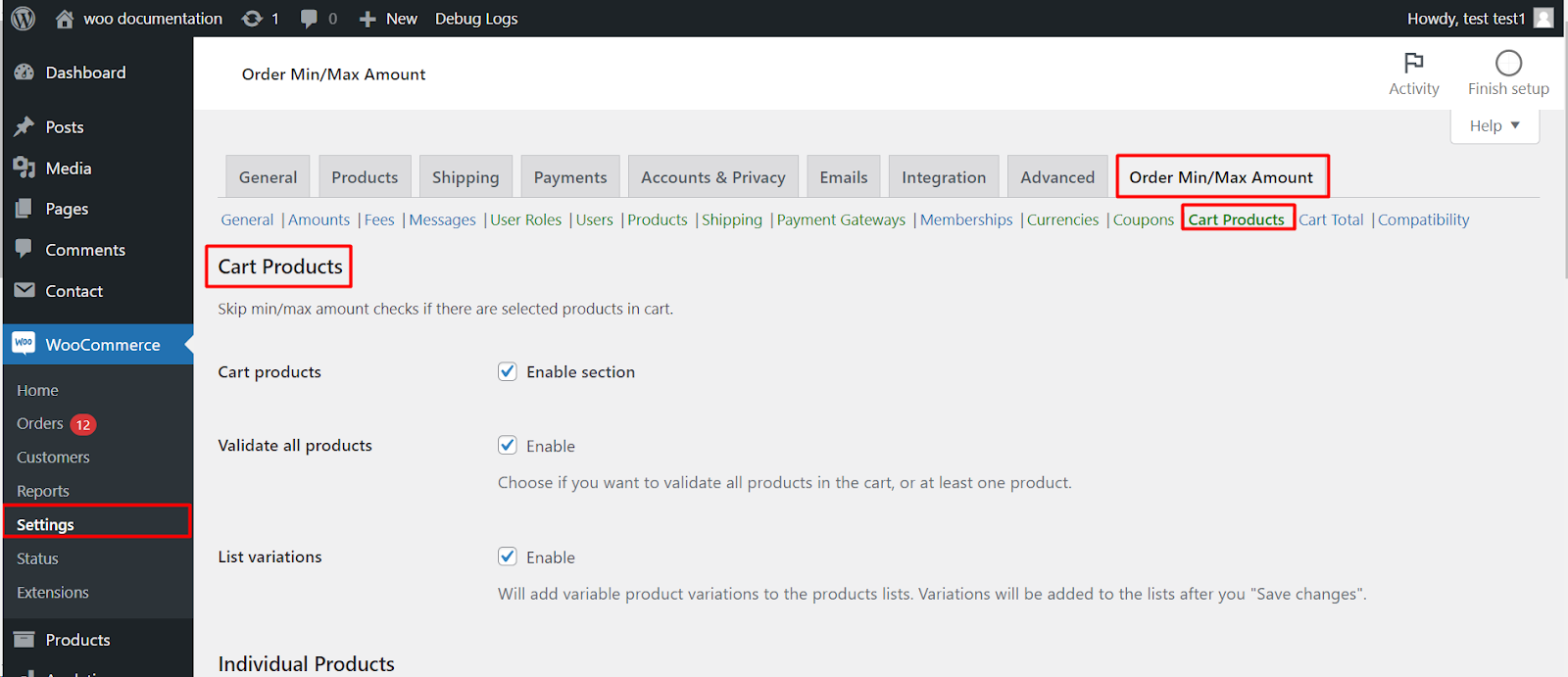
- Go to WPFactory > Order Min/Max (also reachable at WooCommerce > Settings > Order Min/Max Amount) and open the Cart Products sub-tab.
- Tick Cart products to enable the section, then click Save changes.
- In the Individual Products, Product Categories or Product Tags block, add the items that should switch the limits off to Exclude. Use Require instead if the limits should only apply to carts made of the selected items.
- Leave Validate all products on (the default) unless you need the “at least one product” behavior described below, then save.
Options in this section #
| Label | Option ID | Default |
|---|---|---|
| Cart products (enable section) | alg_wc_oma_products_enabled |
No |
| Validate all products | alg_wc_oma_products_validate_all_products |
Yes |
| List variations | alg_wc_oma_cart_products_list_variations |
No |
| Individual Products: Require / Exclude | alg_wc_oma_product_include, alg_wc_oma_product_exclude |
None |
| Product Categories: Require / Exclude | alg_wc_oma_product_cat_include, alg_wc_oma_product_cat_exclude |
None |
| Product Tags: Require / Exclude | alg_wc_oma_product_tag_include, alg_wc_oma_product_tag_exclude |
None |
Note: the enable option is stored internally as alg_wc_oma_products_enabled (a legacy name), even though the section is “Cart Products”. You do not normally need this id unless you are scripting the option directly.
How the check works #
Order Min/Max Amount looks at every item in the cart. An item “breaks” the rule when it is in an Exclude list, or when a Require list has entries and the item is not in it. Categories and tags of a variation are read from its parent product.
- Validate all products on (default): one breaking item is enough to skip the limits. With Exclude, a single excluded product in the cart switches the limits off for the whole order. With Require, the limits apply only when every item in the cart is on the Require list.
- Validate all products off: the limits apply as long as at least one item passes, and are skipped only when no item passes.
When the limits are skipped, the customer sees no min/max message and can check out, for every amount type.
Common uses #
- Gift cards or subscriptions: Exclude them so a customer buying one is never blocked by the minimum.
- Samples category: Exclude the “Samples” category so sample orders are free of limits.
- Limits only for a wholesale range: Require the wholesale category, so mixed or retail carts are not limited.
If it does not work #
- The Cart products checkbox is off, or you are on the free version.
- A variation is not in the list. Tick List variations, save, and the variations appear in the product lists.
- You used Require expecting it to skip limits. Require does the opposite: it keeps the limits only for carts of the selected items.
- You only want the product left out of the total, not the limits removed. Use Cart Total instead.
FAQ #
Can I skip limits for a whole category? #
Yes. Add the category to Product Categories > Exclude. Any product in that category skips the limits when it is in the cart.
Does this affect per-product minimums? #
Yes. The check runs on every min/max limit, including per-product, category and tag limits from the Products section.
Can I skip limits with a coupon instead? #
Yes, with the Coupons section. See applying or skipping order limits with coupons.
Ready to set this up? #
Cart-product rules are part of Order Min/Max Amount Pro. Get Order Min/Max Amount Pro.
Need a hand? Our team answers every ticket on the Order Min/Max Amount support forum.