To include your custom field values in WooCommerce order emails, use the email settings on the General tab of Custom Checkout Fields for WooCommerce. You can add fields to admin and customer emails and control exactly how each field is formatted.
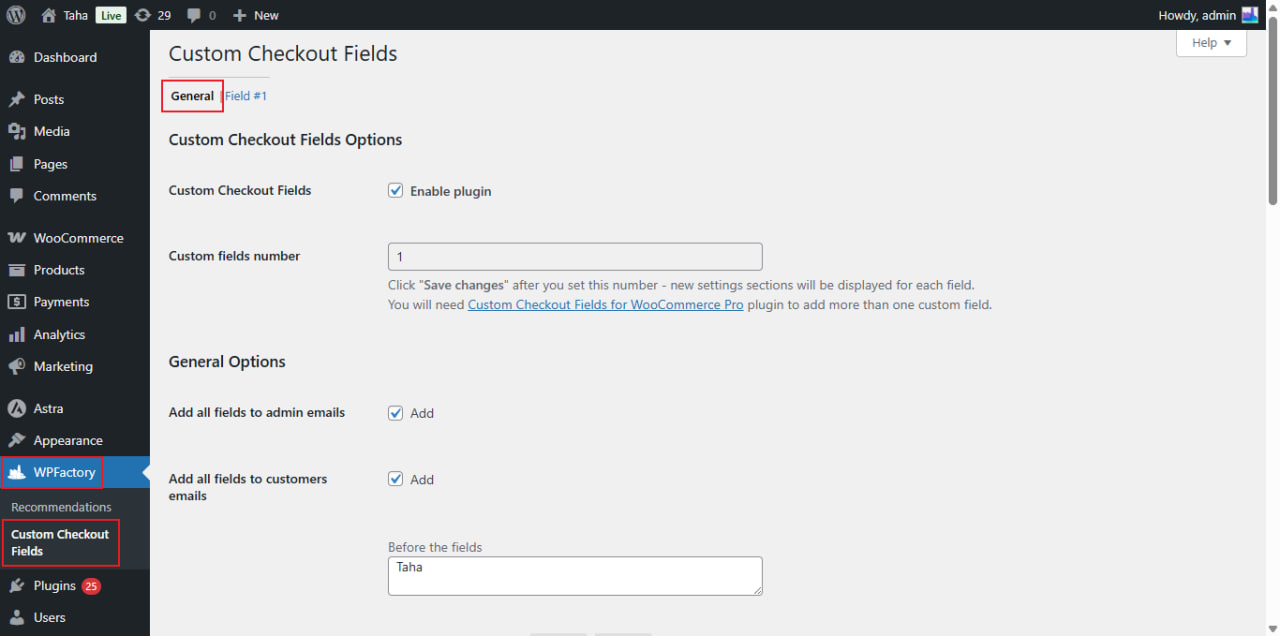
Open the email settings #
Go to WPFactory > Custom Checkout Fields (also reachable at WooCommerce > Settings > Custom Checkout Fields) and look in the General Options group on the General tab.
Options reference #
| Label | Option ID | Default |
|---|---|---|
| Add all fields to admin emails | alg_wc_ccf_email_all_to_admin |
Yes |
| Add all fields to customers emails | alg_wc_ccf_email_all_to_customer |
Yes |
| Before the fields | alg_wc_ccf_emails_template_before |
Empty |
| Each field | alg_wc_ccf_emails_template_field |
<p><strong>%label%:</strong> %value%</p> |
| After the fields | alg_wc_ccf_emails_template_after |
Empty |
Formatting each field #
The Each field template controls how a single field is rendered in the email. It accepts two placeholders:
| Placeholder | Outputs |
|---|---|
%label% |
The field’s label |
%value% |
The value the customer entered |
Use Before the fields and After the fields to wrap the whole block, for example a heading before and a divider after.
Related #
- Show custom fields on the Order Received and View Order pages
- Email and order-page templates and placeholders reference
Need a hand? #
Our team answers every ticket on the Custom Checkout Fields support forum.