Positioning and display options #
Positioning options decide where the “Related categories” section sits on a single product page, and the template and image options control how it looks. Related Categories for WooCommerce keeps all of these on the Single sub-tab, at WPFactory > Related Categories (also reachable at WooCommerce > Settings > Related Categories).
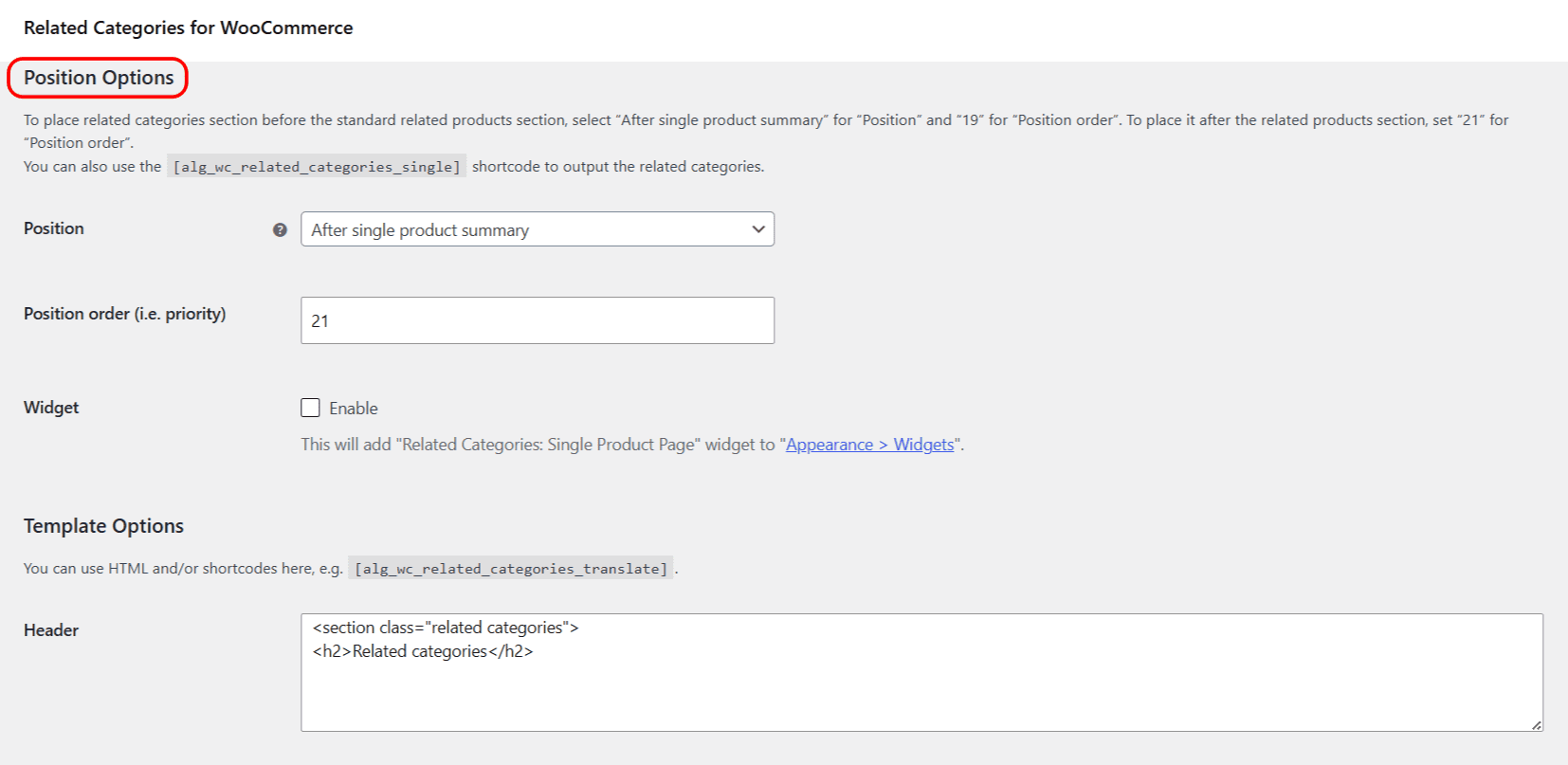
Position Options #
- Position: where the section is hooked into the page. The options are Before single product, Before single product summary, Inside single product summary, After single product summary (the default), After single product, and Disable. Choose “Disable” if you would rather output the section with the shortcode or widget.
- Position order (i.e. priority): the hook priority. A higher number places the section later on the page. The default is 21. To show the section before the standard “Related products” block, set the position to “After single product summary” and the priority to 19; to show it after, use 21.
- Widget: adds a “Related Categories: Single Product Page” widget under Appearance > Widgets. Its sub-option, Override “Relate Options” in widget settings, lets each widget carry its own relate options.
| Label | Option ID (array key) | Default | Free/Pro |
|---|---|---|---|
| Position | position |
After single product summary | Free |
| Position order (i.e. priority) | position_priority |
21 | Free |
| Widget | widget |
No | Free |
Using the shortcode #
You can output the section anywhere with the [alg_wc_related_categories_single] shortcode. Set Position to “Disable” if you only want the shortcode or widget to place it.
Using the widget #
Enabling the Widget option registers the “Related Categories: Single Product Page” widget, which you add from Appearance > Widgets to a sidebar or other widget area.
Template Options #
The template options are free. They control the HTML wrapped around the category list.
- Header: the HTML shown before the list. Defaults to a
<section>wrapper with a “Related categories” heading. - Footer: the HTML shown after the list. Defaults to
</section>. - Template type: Default (uses the built-in WooCommerce category grid) or Custom (your own markup).
- Template type: Custom: your custom HTML, using placeholders such as
%category_name%and%category_link%. Ignored unless “Template type” is set to Custom. - Template type: Custom: Glue: a separator placed between items, for example a pipe (
|). This is a free option.
For the full placeholder list see the custom template placeholders reference.
Image Options #
The image options are free.
- Image size: the registered image size used for category thumbnails. Defaults to
woocommerce_thumbnail. - Placeholder image: an attachment ID or image URL used for categories that have no image. Left empty, the default WooCommerce placeholder is used.
- Remove image: hides the thumbnails entirely. Applies only when “Template type” is set to Default.
Advanced Options #
- Hide “Related products”: hides the standard WooCommerce “Related products” section on single product pages, so only your related categories show. This is a free option.
Reset section settings #
Every sub-tab has a Reset section settings checkbox at the bottom. Ticking it and saving resets every option on the current sub-tab (all of the Single settings above), not just the position options, back to their defaults.
Get more control #
Positioning, templates and images are all free. Related Categories for WooCommerce Pro adds hand-picked related categories per product, category, tag and custom taxonomy. See what Pro unlocks.