Single product page options #
To configure the Related categories section on product pages in Related Categories for WooCommerce, go to WPFactory > Related Categories and stay on the Single sub-tab. There you can turn Display on Single Product Page on or off (it is on by default) and set the limit, columns, hide empty, and sort order.
Go to WPFactory > Related Categories (also reachable at WooCommerce > Settings > Related Categories) and stay on the Single sub-tab, which is open by default.
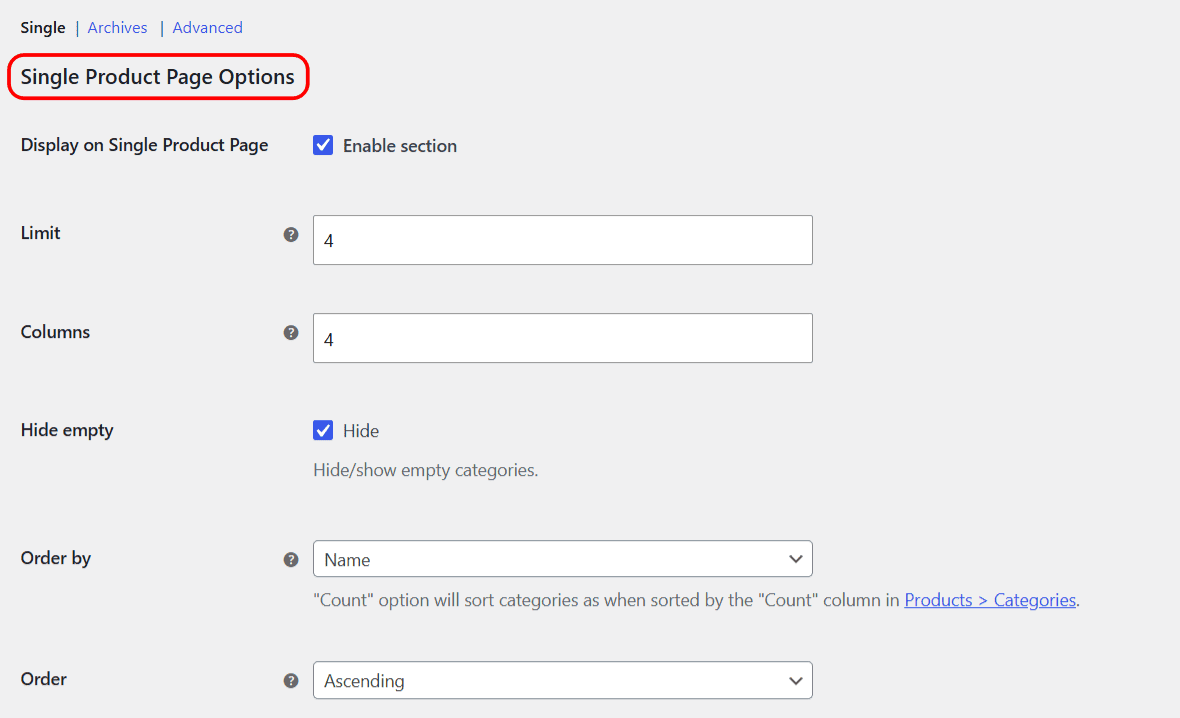
Single Product Page Options #
- Display on Single Product Page: turns the whole “Related categories” section on or off for single product pages. It is on by default.
- Limit: the number of categories to display.
- Columns: the number of columns to display them in.
- Hide empty: hides categories that have no products assigned. On by default.
- Order by: how the categories are sorted. Choose Name, ID, Slug, Menu order, None (keeps the order of the IDs found), Random, or Count. Count sorts by number of products, the same as the Count column in Products > Categories.
- Order: Ascending or Descending, applied to the “Order by” method above.
Options reference: Single Product Page Options #
| Label | Option ID (array key) | Type | Default | Free/Pro |
|---|---|---|---|---|
| Display on Single Product Page | enabled |
Checkbox | Yes | Free |
| Limit | limit |
Number | 4 | Free |
| Columns | columns |
Number | 4 | Free |
| Hide empty | hide_empty |
Checkbox | Yes | Free |
| Order by | orderby |
Select | Name | Free |
| Order | order |
Select | Ascending | Free |
All of these settings are stored inside the alg_wc_related_categories_options_single option array, so the full option key for “Limit” is alg_wc_related_categories_options_single[limit].
Relate Options: how categories are picked #
The Relate Options group decides which categories count as “related” to the current product. You can enable one or combine several. All of these are free.
- Siblings: categories that share the same parent as the product’s category. Sub-options: Include grandparents (default on), Include top-level (default off), Include grandchildren (default on).
- Parents: the parent category. Sub-option: Include grandparents (default on); with it off, only the single direct parent is shown.
- Children: the child categories. Sub-option: Include grandchildren (default on).
- Current: the category or categories the product is directly assigned to. Off by default.
Siblings, Parents and Children are all enabled by default, so out of the box a product shows its sibling, parent and child categories.
Relate Manually (Pro) #
The Relate Manually group lets you hand-pick related categories instead of relying on the automatic rules above. These options are a Pro feature: Per category, Per tag, Per custom taxonomy and Per product (with its Override sub-option). In the free version these fields are shown but disabled. For a full walkthrough see manually relating categories.
Ready to hand-pick categories? #
Automatic relating is free. Related Categories for WooCommerce Pro adds the Relate Manually options, so you can set exact related categories per product, category, tag and custom taxonomy. Get Related Categories Pro.