The Relate Options decide which categories count as “related” to the current product or category in Related Categories for WooCommerce. They relate categories automatically from your category tree, and they are free. You can turn on one rule or combine several.
Go to WPFactory > Related Categories (also reachable at WooCommerce > Settings > Related Categories). The Relate Options sit on both the Single and Archives sub-tabs, so you can set them separately for product pages and for shop or category pages.
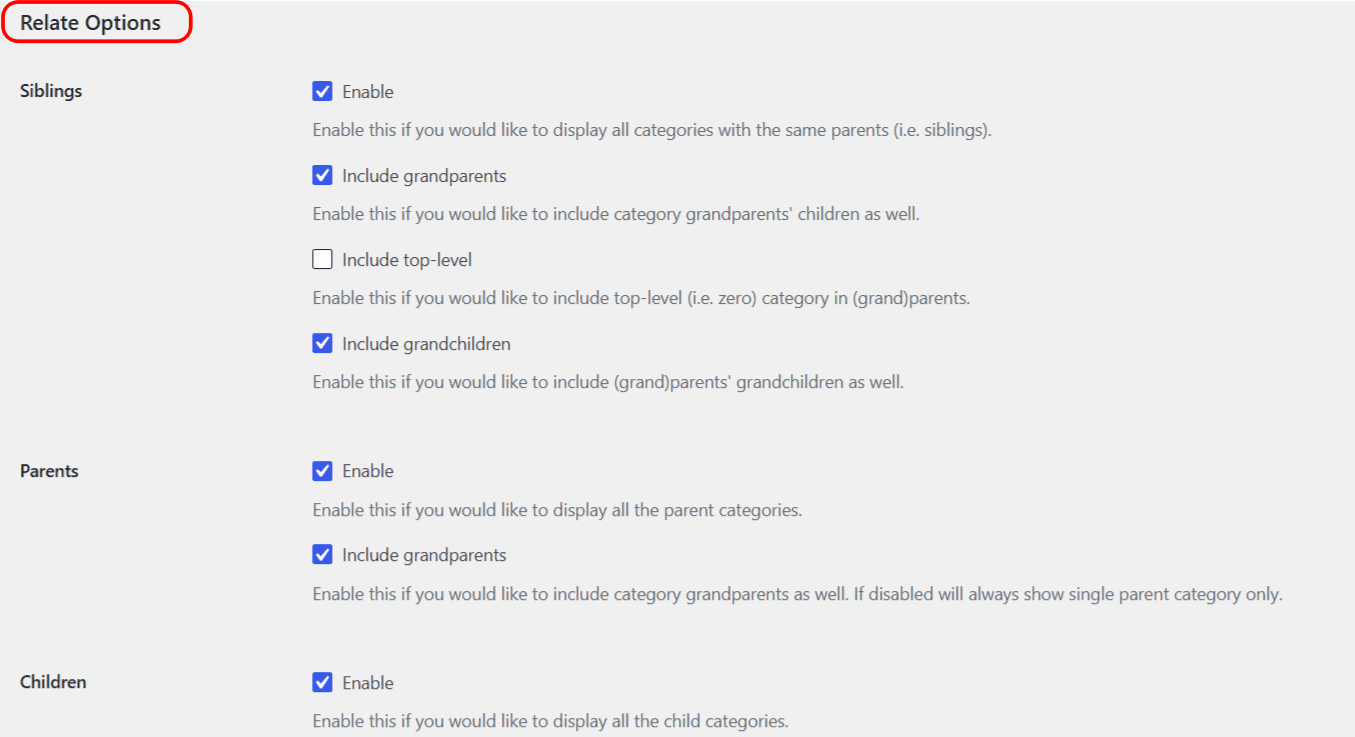
The four rules #
- Siblings: categories that share the same parent as the product’s category. Enabled by default.
- Parents: the parent category of the product’s category. Enabled by default.
- Children: the child categories of the product’s category. Enabled by default.
- Current: the category or categories the product is directly assigned to. Off by default.
Out of the box, Siblings, Parents and Children are all on, so a product shows its sibling, parent and child categories.
Include sub-options #
Each rule has one or more include options that widen or narrow how far it reaches through the tree:
| Label | Option ID (array key) | Default |
|---|---|---|
| Siblings | relate_siblings |
Yes |
| Siblings: Include grandparents | relate_siblings_include_grandparents |
Yes |
| Siblings: Include top-level | relate_siblings_include_top_level |
No |
| Siblings: Include grandchildren | relate_siblings_include_grandchildren |
Yes |
| Parents | relate_parents |
Yes |
| Parents: Include grandparents | relate_parents_include_grandparents |
Yes |
| Children | relate_children |
Yes |
| Children: Include grandchildren | relate_children_include_grandchildren |
Yes |
| Current | relate_current |
No |
Notes on the include options:
- Parents: Include grandparents: with this off, only the single direct parent is shown.
- Siblings: Include top-level: includes the top-level (zero) category as a parent when gathering siblings.
- All of the option keys above are stored inside the
alg_wc_related_categories_options_singleandalg_wc_related_categories_options_loopoption arrays, so the full key for Siblings on single pages isalg_wc_related_categories_options_single[relate_siblings].
Archives-only sub-option: Always show first #
On the Archives sub-tab, Current gains an extra sub-option, Always show first (relate_current_always_first, default No), which places the current category in the first position. It works with the Custom template type only.
Tuning tips #
- To show only categories that sit next to the product’s category, keep Siblings on and turn Parents and Children off.
- If the section shows more categories than you expect, disable the include options one at a time to narrow the reach.
- If nothing shows for a product in a single top-level category, there are no siblings, parents or children to relate. Enable Current to confirm output, then re-tune.
Relate manually instead #
Tip: if you also need to hand-pick related categories rather than derive them from the tree, that is the Pro Relate Manually feature, see manually relating categories.
Get more control #
Automatic relating is free. Related Categories for WooCommerce Pro adds hand-picked related categories per product, category, tag and custom taxonomy. See what Pro unlocks.