Archives options add the “Related categories” section to your shop and category (archive) pages, guiding shoppers to nearby categories as they browse. Related Categories for WooCommerce keeps these on the Archives sub-tab, at WPFactory > Related Categories (also reachable at WooCommerce > Settings > Related Categories).
Unlike the Single section, the Archives section is off by default, so you enable it here first.
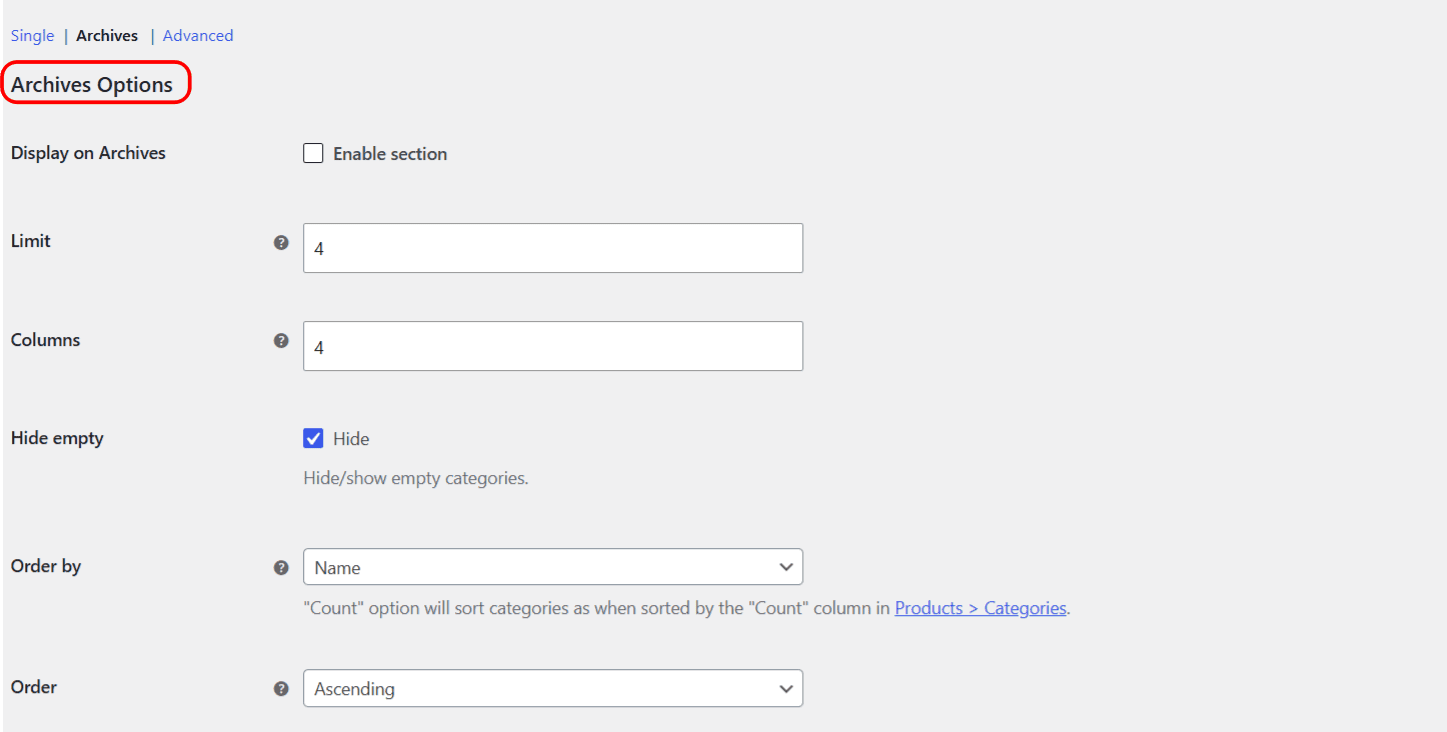
Display and sorting #
- Display on Archives: turns the section on for archive pages. Off by default.
- Limit and Columns: the number of categories and the number of columns.
- Hide empty: hides categories with no products.
- Order by and Order: the same sorting choices as on single product pages (Name, ID, Slug, Menu order, None, Random, Count; Ascending or Descending).
Relate Options (automatic) #
This works just like the single product page: choose Siblings, Parents, Children and Current, each with the same include sub-options. On archives, Current has one extra sub-option, Always show first, which places the current category in first position (it works with the Custom template type only). All of these are free.
Relate Manually (Pro) #
The Pro version adds hand-picked related categories on archive pages:
- Per category: set related categories on each category edit page (Products > Categories > Edit category).
- Per tag: set them on each tag edit page (Products > Tags > Edit tag).
- Per custom taxonomy: set them for terms of any custom taxonomy. Enter the taxonomy slugs as a comma-separated list, for example
product_brand,product_color.
Note that “Per product” is a single-product-page feature and does not appear on the Archives sub-tab.
Position Options #
- Position: where the section appears on archive pages. The options are Before main content, Before shop loop, After shop loop (the default), After main content, and Disable.
- Position order (i.e. priority): the hook priority. The default is 9. A higher number places the section later on the page.
- Widget: registers the “Related Categories: Archives” widget under Appearance > Widgets.
You can also output the section with the [alg_wc_related_categories_loop] shortcode; set Position to “Disable” if the shortcode or widget will place it instead.
Template and Image Options #
These are free and match the single product page options: Header, Footer, Template type (Default or Custom), Template type: Custom, Template type: Custom: Glue, plus Image size, Placeholder image and Remove image.
Advanced Options: Visibility #
The Archives sub-tab adds one advanced option, Visibility, which decides which category archives show the section:
- Show for all categories (default).
- Show for categories with children only.
- Show for categories with no children only.
Reset section settings #
The Reset section settings checkbox at the bottom of the sub-tab resets every Archives option back to its default, not just one group.
Get more control #
Showing related categories on archives is free. Related Categories for WooCommerce Pro lets you hand-pick related categories per category, tag and custom taxonomy. See what Pro unlocks.