Form header, footer, and customer notice options #
To set the form header, footer, and customer notice in Name Your Price: Make Your Own Offer for WooCommerce, go to WPFactory > Price Offers, open the Form section, and scroll to Form and Notice Options. There you edit the form header, submit button label and style, footer, required marker, and confirmation notice. All of these options are free.
Go to WPFactory > Price Offers (also reachable at WooCommerce > Settings > Price Offers), open the Form section, and scroll to Form and Notice Options.
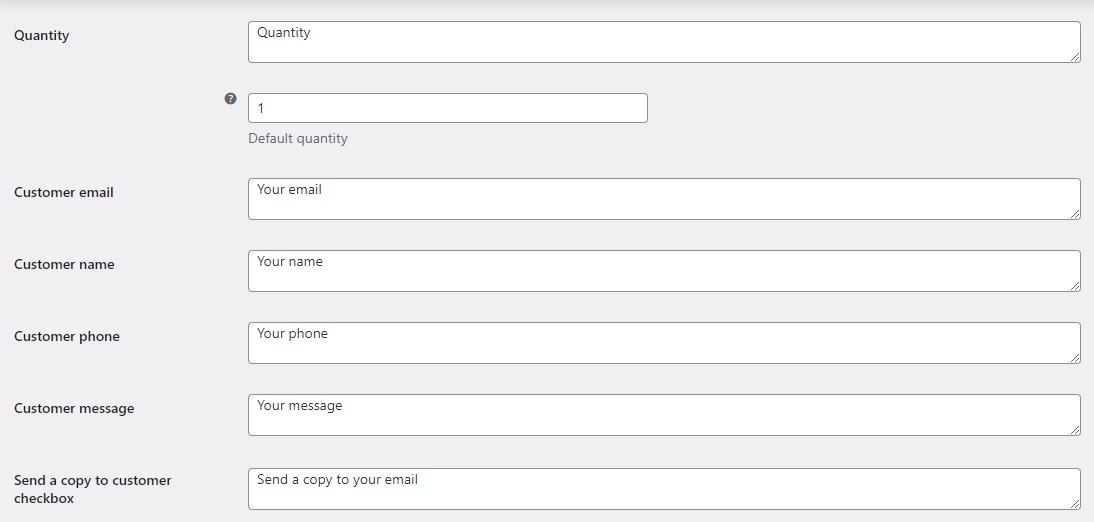
Options (all free) #
| Label | Option ID | Default |
|---|---|---|
| Form header | alg_wc_price_offerings_form[header_template] |
<h3>Suggest your price for %product_title%</h3> |
| Form button label | alg_wc_price_offerings_form[button_label] |
Send |
| Form button HTML style | alg_wc_price_offerings_form[button_style] |
Empty |
| Form footer | alg_wc_price_offerings_form[footer_template] |
Empty |
| Required HTML | alg_wc_price_offerings_form[required_html] |
<abbr class=”required” title=”required”>*</abbr> |
| Customer notice | alg_wc_price_offerings_customer_notice[message] |
Your price offer has been sent. |
How each one works #
- Form header: the heading at the top of the popup. Use the
%product_title%placeholder to insert the product name. - Form button: the label and inline style of the submit button inside the form (separate from the Make an offer button that opens the form).
- Form footer: any HTML you want below the form, for example a note or disclaimer.
- Required HTML: the marker appended to required field labels.
- Customer notice: the confirmation message shown after an offer is submitted.
Each section has a Reset section settings checkbox to restore its defaults.
Get more control #
The form header, footer, and notice text are all free. Name Your Price: Make Your Own Offer for WooCommerce Pro adds product-level and category-level targeting plus automatic accept and reject rules. See what Pro unlocks.