To edit WooCommerce notice messages, go to WPFactory > Popups > Messages in Popups for WooCommerce: Add to Cart, Checkout & More Pro, tick Customize Messages, enter the original text to match and your new text, or add content before or after it, then save. This is a Pro feature.
Before you start #
- WooCommerce, active.
- Popups for WooCommerce: Add to Cart, Checkout & More Pro.
Step-by-step #
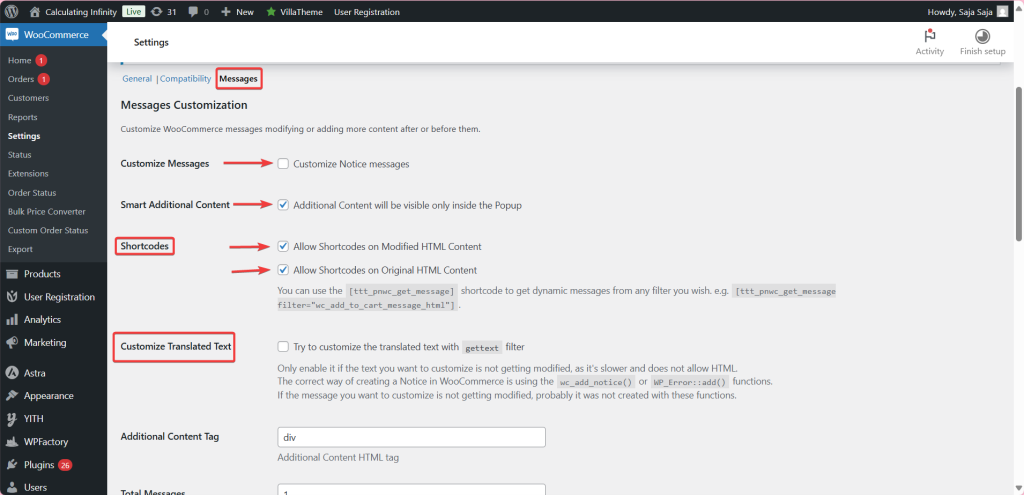
- Go to WPFactory > Popups (also reachable at WooCommerce > Settings > Pop-up Notices) and open the Messages section.
- Enable Customize Messages.
- Set Total Messages to the number of messages you want to edit. A block appears for each.
- For each message, tick Enable, then fill Original HTML Content with the text to match.
- Use Modified HTML Content to replace the text, or leave it empty and add Additional Content Before / After instead.
- Set Comparison method to Contains (match part of the message, the default) or Equality (match the whole message).
- To delete a message entirely, tick Remove instead of editing it.
- Save changes.
Messages section options #
| Setting | Option ID | Default |
|---|---|---|
| Customize Messages | ttt_pnwc_opt_message_customization_enable |
No |
| Smart Additional Content (visible only inside the pop-up) | ttt_pnwc_opt_message_customization_smart_content |
Yes |
| Shortcodes (on Modified HTML Content) | ttt_pnwc_opt_message_customization_shortcodes |
Yes |
| Allow Shortcodes (on Original HTML Content) | ttt_pnwc_opt_message_customization_shortcodes_original_content |
Yes |
| Customize Translated Text | ttt_pnwc_opt_message_customization_gettext |
No |
| Additional Content Tag | ttt_pnwc_opt_message_customization_content_tag |
div |
| Total Messages | ttt_pnwc_opt_message_customization_amount |
1 |
Message #1 comes pre-filled as an example: it matches WooCommerce’s “Please read and accept the terms and conditions to proceed with your order.” error and adds an Accept button after it. The button uses the enable-terms-checkbox class, which ticks the terms checkbox, and the data-micromodal-close attribute, which closes the pop-up.
Dynamic content #
- Template variables such as
{{product_id}}and{{cart_permalink}}work in Modified HTML Content. See Template variables in pop-up messages. - Shortcodes are allowed on both original and modified content. The
[ttt_pnwc_get_message filter="wc_add_to_cart_message_html"]shortcode pulls the current text of a WooCommerce message. See the Shortcodes guide. - Customize Translated Text uses the
gettextfilter for text-only changes. It is slower and does not allow HTML; use it only when the normal method does not reach the string.
Examples #
- Modify the “Add to cart” message: put
[ttt_pnwc_get_message filter="wc_add_to_cart_message_html"]in Original HTML Content. - Modify the “Cannot add another” message: use
[ttt_pnwc_get_message filter="woocommerce_cart_product_cannot_add_another_message"].
What the customer sees #
Customization changes the WooCommerce message itself, so the new wording appears in the pop-up and in any inline notice you have not hidden. With Smart Additional Content on, the extra content before and after the message shows only inside the pop-up. A message with Remove ticked disappears from both.
If a message does not change #
- Customize Messages is off, or the message block’s Enable box is unticked.
- Original HTML Content does not match. With Equality it must match exactly, including HTML; switch to Contains and use a short, unique part of the text.
- Total Messages is lower than the block number you edited, so that block is ignored.
- The message is not created through WooCommerce’s notice functions. As the plugin notes, messages not added with
wc_add_notice()orWP_Error::add()are not reached; try Customize Translated Text, which works on text only.
More fixes: customization issues (Pro version).
FAQ #
Can I edit WooCommerce notice messages without code? #
Yes, with Pro. Match the message in Original HTML Content and type the new text in Modified HTML Content. No template or PHP changes are needed.
Can I add a checkout button to the add to cart message? #
Yes. Match the add to cart message with [ttt_pnwc_get_message filter="wc_add_to_cart_message_html"] and put a link to {{checkout_permalink}} in Additional Content After.
Is message customization free? #
No. The whole Messages section is a Pro feature. Turning notices into pop-ups, choosing notice types and hiding the inline notices are free.
Ready to set this up? #
Message customization is a Pro feature of Popup Notices. Get Popup Notices Pro.
Need a hand? Our team answers every ticket on the Popup Notices support forum.