Customizing how limits appear to customers #
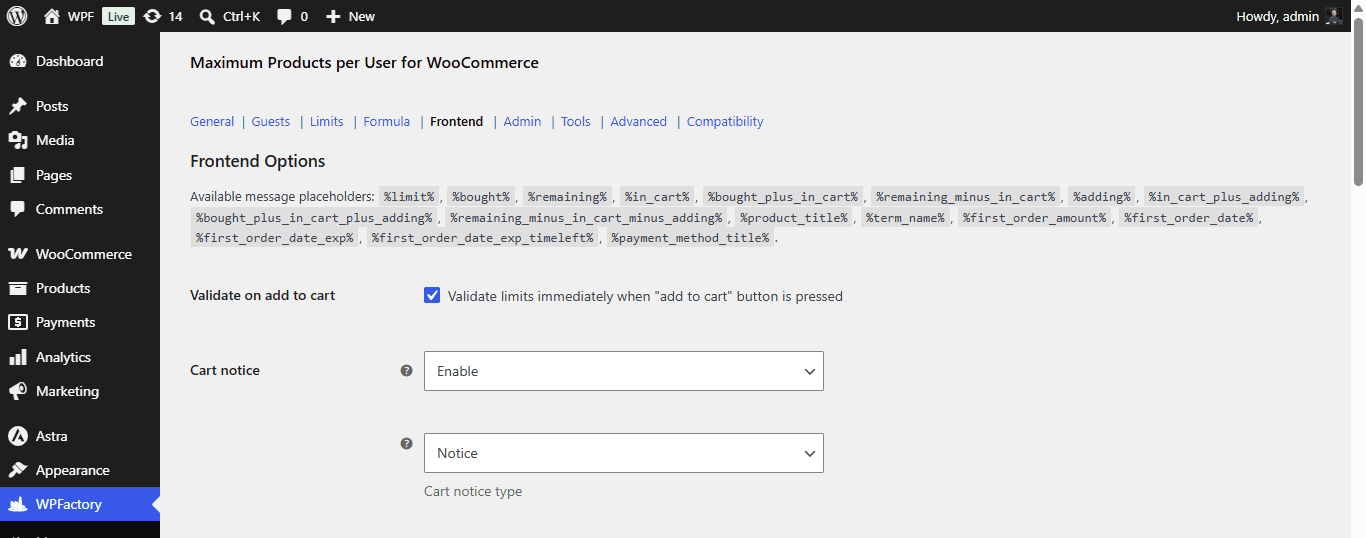
The Frontend section of Maximum Products per User for WooCommerce controls the messages and validation customers see: cart notices, checkout blocking, a single product limit message and a My Account tab. These options are free.
Where to find it #
Go to WPFactory > Max Products per User (also reachable at WooCommerce > Settings > Maximum Products per User), then open the Frontend section.
Message placeholders #
Your messages can include placeholders such as %limit%, %bought%, %remaining%, %in_cart%, %product_title%, %term_name% and more. See the full message placeholders reference.
Key options #
| Label | Option ID | Default |
|---|---|---|
| Validate on add to cart | alg_wc_mppu_validate_on_add_to_cart |
Yes |
| Cart notice (Disable / Enable / As text) | alg_wc_mppu_cart_notice |
Enable |
| Cart notice type (notice / error / success) | alg_wc_mppu_cart_notice_type |
Notice |
| Multiple notices (one per product) | alg_wc_mppu_multiple_notices |
Yes |
| Block checkout page | wpjup_wc_maximum_products_per_user_stop_from_seeing_checkout |
No |
| Product limit message (single product page) | alg_wc_mppu_permanent_notice |
Disable |
Customer messages #
The per-product and per-term customer messages use the [wpfmppu_customer_msg] shortcode with bought_msg, not_bought_msg and bought_msg_min. You can gate the single-product message with a Condition such as %remaining% == 0.
Note: the current shortcode tag is [wpfmppu_customer_msg]; the old [alg_wc_mppu_customer_msg] tag is deprecated as of 4.5.0.
My Account tab #
Enable My account tab (alg_wc_mppu_my_account_enabled) to add a “Product limits” tab. Its content uses [wpfmppu_user_product_limits] and [wpfmppu_user_terms_limits]. See the My Account tab how-to.
How to Enforce Purchase Limits at Cart and Checkout #
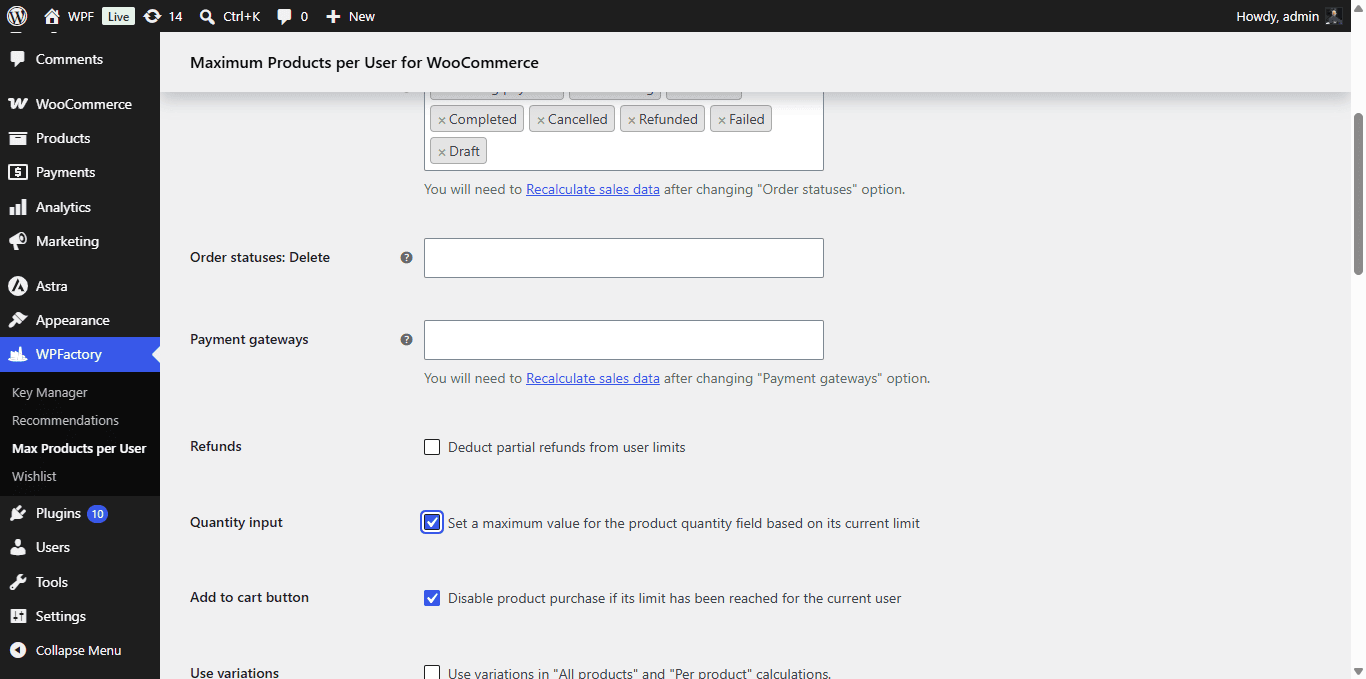
Maximum Products per User for WooCommerce can stop a customer before they overshoot a limit, at add to cart, on the cart page, and at checkout. These enforcement options are free and live in the Frontend and General sections.
Where to find it #
Go to WPFactory > Max Products per User (also reachable at WooCommerce > Settings > Maximum Products per User).
The enforcement chain #
- Add to cart validation: in the Frontend section, keep Validate on add to cart (
alg_wc_mppu_validate_on_add_to_cart) on so customers are stopped as soon as they try to exceed a limit. - Quantity field cap: in the General section, enable Quantity input (
alg_wc_mppu_set_qty_field_max_attr) to cap the quantity selector at the remaining limit. - Disable add to cart: in the General section, enable Add to cart button (
alg_wc_mppu_disable_product_purchase_by_limit) to disable purchasing once the limit is reached. - Cart notice: show remaining limits on the cart with Cart notice and choose the tone with Cart notice type.
- Block checkout: enable Block checkout page (
wpjup_wc_maximum_products_per_user_stop_from_seeing_checkout) to redirect over-limit carts back to the cart page.
Additional validation actions #
The Additional validation actions field (alg_wc_mppu_validation_actions) lets you list WordPress action hooks, one per line, on which limits are re-checked. For example, add woocommerce_review_order_before_submit to re-validate when the checkout updates.
Tip: if you count by payment method, you may want Validate on add to cart and Block checkout page off, so customers can switch payment method when a limit is hit.
Showing limits to customers #
Pair enforcement with a clear message. Use the single product Product limit message and the My Account tab shortcodes [wpfmppu_user_product_limits] and [wpfmppu_user_terms_limits] (current tags; the alg_wc_mppu_* versions are deprecated as of 4.5.0).
Get more control #
These frontend options are free. Maximum Products per User for WooCommerce Pro adds per-product, per-category and formula limits. See what Pro unlocks.