When only one of two attributes changes a variable product’s price or data, import one row per value of that attribute and tick Assign Attribute to product even if value is null in WooCommerce Products Import & Export with Excel at WPFactory > Product Import/Export. The other attribute stays selectable without a variation per combination.
Example: price changes by color, not by size #
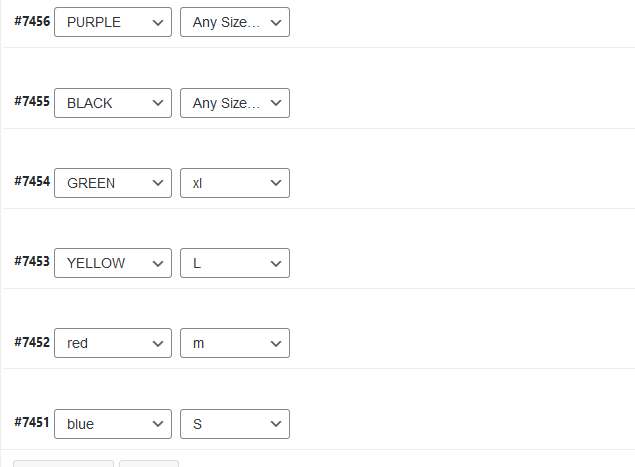
Suppose a product comes in several sizes and colors, but the price depends only on the color. You want six variations, one per color, while size stays selectable on the product page. There is no need for a distinct variation such as Size: M, Color: Red.
Step by step #
- Build an Excel file with one row per variation for the attribute that drives the data. In this example, color has the most values and defines the number of variations, so there is one row per color.
- For the attribute that should be selectable but does not change the data (size), fill in its values across the rows.
- Upload the file on the Import/Update Products tab and map the columns, including both attributes in PRODUCT TAXONOMIES – ATTRIBUTES.
- Tick Used in Variations for both attributes so shoppers can select them.
- On the mapping screen, tick the checkbox Assign Attribute to product even if value is null.
- Click Upload.
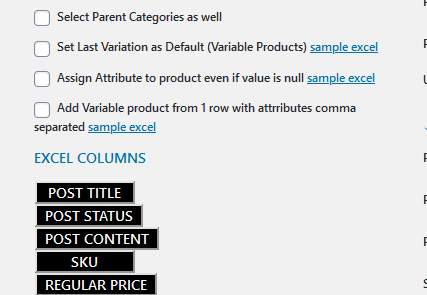
The result is a product where shoppers can select both color and size, but you avoid adding duplicate rows for combinations that do not need different pricing.
What the option does #
The on-screen hint describes it as “used in cases for adding multiple attribute combinations without having double rows for same attribute value that has been already imported”. Rows with an empty cell for an attribute still assign that attribute to the product instead of skipping it.
Choosing the right approach #
| Situation | Use |
|---|---|
| All variations share the same data | Add Variable product from 1 row… (see one-row import) |
| Only one attribute changes the data | Assign Attribute to product even if value is null (this guide) |
| Every combination has its own data | One row per variation with PARENT Product SKU |
If it does not work #
- Size is not selectable: Used in Variations is not ticked for it.
- Duplicate variations: the same color appears on more than one row. Keep one row per data-driving value.
- Wrong attributes used: see How to Select Which Attributes Are Used for Variations on Import.
FAQ #
Where can I get a sample file? #
A sample Excel file is linked next to the checkbox on the mapping screen.
Does this change existing products? #
It applies to the rows you import. Update runs by ID hide some of these checkboxes.
How is this different from the one-row import? #
The one-row import builds every combination from one row with shared data. This method keeps one variation per value of the attribute that changes the data.
Get the most from Products Import & Export with Excel #
WooCommerce Products Import & Export with Excel gives you fine control over how attributes and variations are built on import. See everything it can do.
Need a hand? Our team answers every ticket on the Products Import & Export with Excel support forum.