To manage WooCommerce stock with Excel, install Products Stock Manager with Excel for WooCommerce and go to WPFactory > Stock Manager. Choose what to update in the Settings tab, export your products from Export, edit the file, then upload it on the Update tab.

What Stock Manager does #
- Updates stock quantity, stock status, regular price and sale price for many products at once from one Excel (.xlsx) file.
- Finds each product by its product ID or its SKU. SKUs are used to identify products, they are not changed.
- Exports your products to Excel in the exact column layout the update expects, with optional extra fields such as title, description, dimensions and categories.
- Adds up the stock of several rows for the same product when you need a total.
- Updates stock automatically on a schedule from a remote Excel file, including a published Google Sheet.
- Shows a stock report that highlights low-stock products and their sales.
Before you start #
- WooCommerce active, and PHP 8.1 or newer.
- An Administrator account. Other roles can open the screen but cannot run updates, exports or save settings.
- For stock quantities to show in your store, Manage stock? must be enabled on each product (or variation) in WooCommerce. Stock Manager writes the quantity but does not switch stock management on.
- Back up your database before your first bulk update. Updates are written directly to your products and cannot be undone from the plugin.
How to get started #
- Install and activate the plugin. Download the ZIP from your WPFactory account, go to Plugins > Add New > Upload Plugin, upload it and click Activate. If the free edition is active, it is deactivated automatically. Add your license key under WPFactory > Key Manager to receive updates.
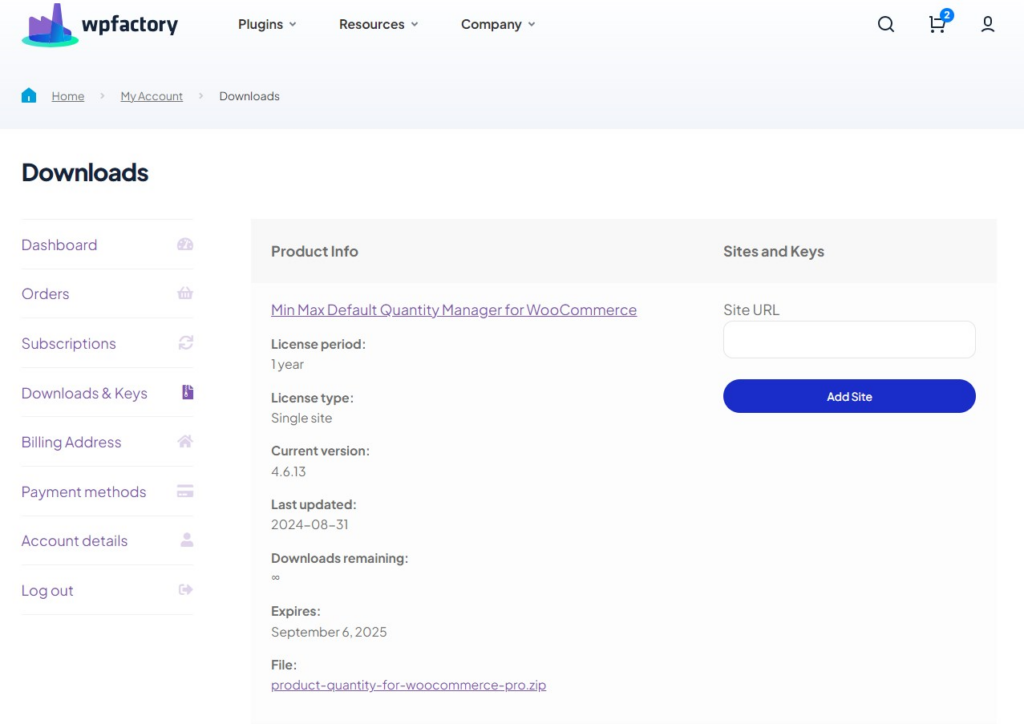
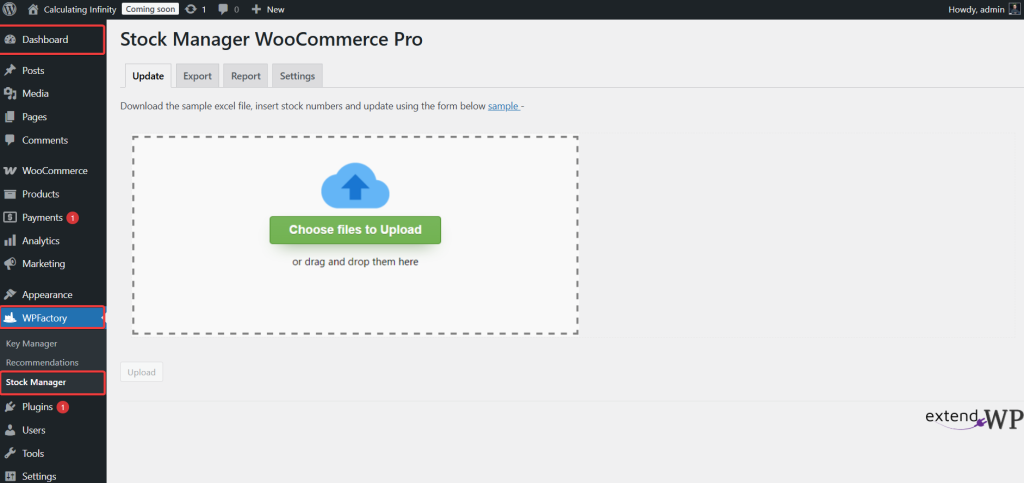
- Open Stock Manager. Go to WPFactory > Stock Manager. The screen has four tabs: Update, Export, Report and Settings. You can also click Settings under the plugin name on the Plugins screen.
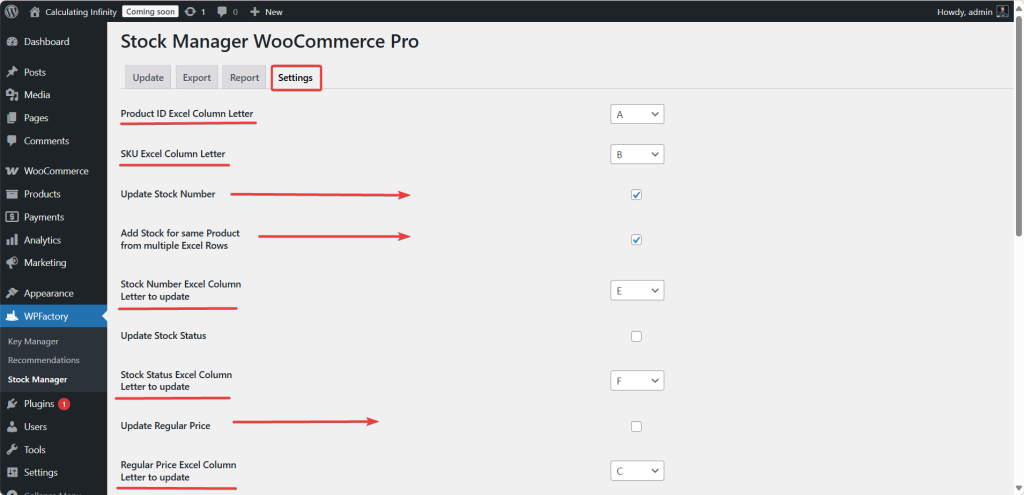
- Choose what the update may change. Open the Settings tab and tick Update Stock Number, Update Stock Status, Update Regular Price and/or Update Sale Price. All four are off by default, and an update with none of them ticked changes nothing. Click Save Changes.
- Export your products. Open the Export tab, click Search and download the file as xlsx. It already has the product IDs, SKUs, prices, stock and stock status in the right columns.
- Edit the file. Change the stock, status or prices in Excel or Google Sheets and save it as an .xlsx file.
- Upload it. Open the Update tab, choose your file, confirm, and read the result list. Each updated row shows “[ID] updated successfully”.
- Check the Report tab. Review products that are low on stock.
The Settings tab #
The Settings tab tells Stock Manager which fields to update and where to find them in your file. By default the columns follow the sample file:
| Column | Content | Used for |
|---|---|---|
| A | ID | Finding the product (takes priority over SKU) |
| B | SKU | Finding the product when the ID cell is empty |
| C | REGULAR PRICE | Update Regular Price |
| D | SALE PRICE | Update Sale Price |
| E | STOCK | Update Stock Number |
| F | STOCK STATUS | Update Stock Status (instock or outofstock) |
If your file uses other columns, pick the letters in the … Excel Column Letter fields. The main options are:
- Update Stock Number: updates the stock quantity from the file.
- Add Stock for same Product from multiple Excel Rows: when the same product appears on several rows, their quantities are added up instead of the last row replacing the others. For example, rows with 5 and 10 for the same product set the stock to 15.
- Update Stock Status: updates the stock status from the file.
- Update Regular Price: updates the regular price.
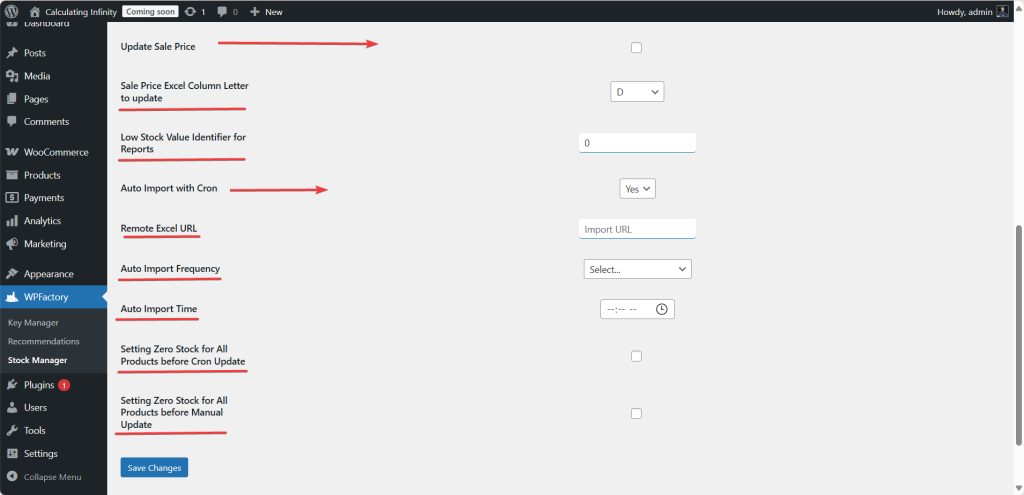
- Update Sale Price: updates the sale price. A sale price of 0 removes the sale price.
- Low Stock Value Identifier for Reports: the low stock threshold for the Report tab. For example, set 3 and products with no sales are listed only when they have 3 or fewer in stock. The default is 5.
- Auto Import with Cron, Remote Excel URL, Auto Import Frequency and Auto Import Time: update your stock automatically from an online Excel file, for example a published Google Sheet, on a schedule such as every hour or every day.
- Setting Zero Stock for All Products before Cron Update: sets every product to 0 and Out of stock before each automatic update, so only products in the file end up in stock.
- Setting Zero Stock for All Products before Manual Update: the same, before each file you upload on the Update tab.
Every option, with its ID and default, is in the Stock Manager settings reference.
The Update tab and the sample file #
The Update tab is where you upload your file. It also links to a sample Excel file that shows the expected format.
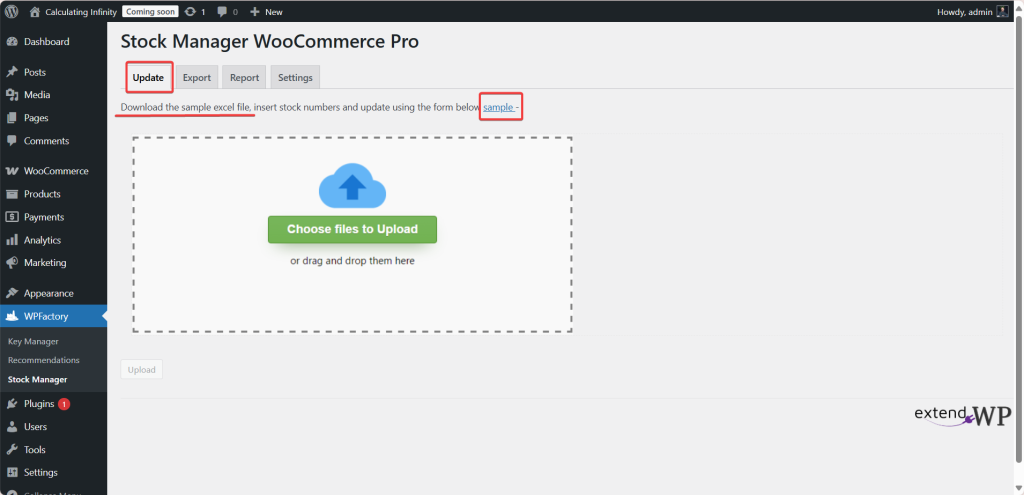
The sample contains the main columns: ID, SKU, REGULAR PRICE, SALE PRICE, STOCK and STOCK STATUS. Row 1 holds the headings, and products start on row 2. Fill in either the ID or the SKU on each row.
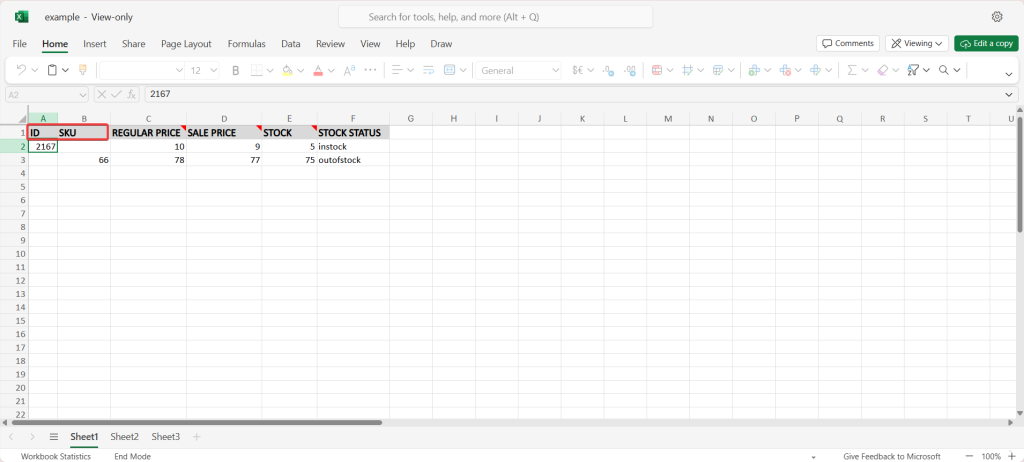
Step-by-step instructions: how to update WooCommerce stock in bulk with Excel.
The Export tab #
The easiest way to build a correct file is to export it. The Export tab creates a file with your real product IDs and SKUs, already in the column order the update expects. Open Filter & Fields to Show to filter by keyword, SKU or price, and to add extra columns such as category, description, upsells, cross-sells or title.
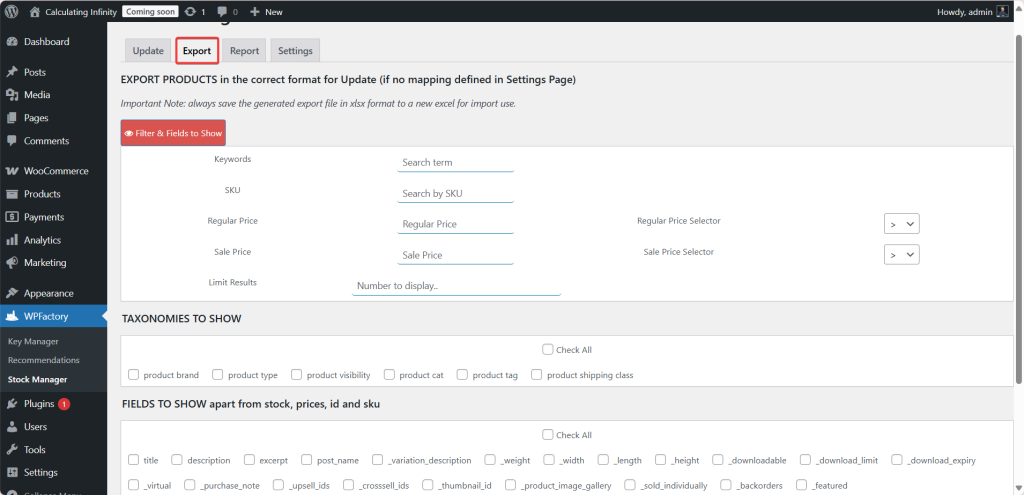
Click Search to load the list of products.
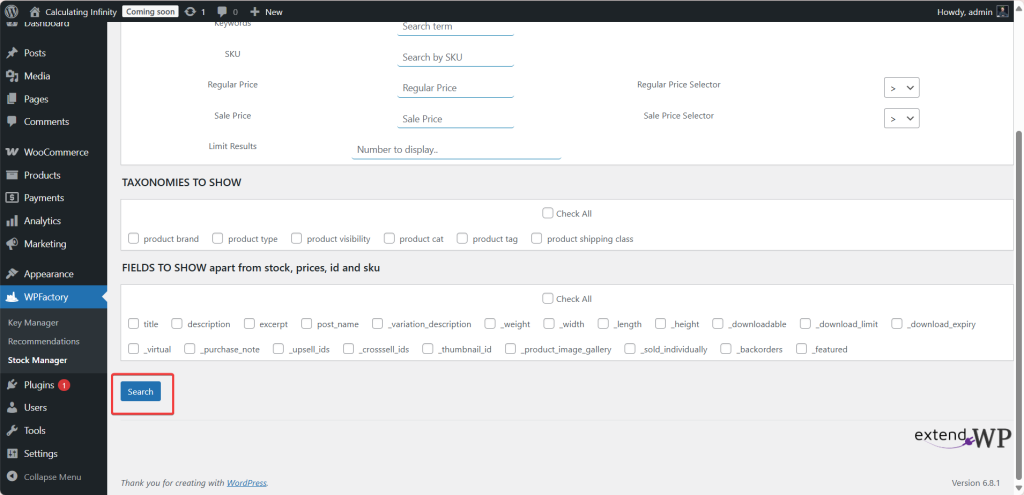
When the products are loaded, click the export button for the format you want. Choose xlsx if you plan to upload the file back.
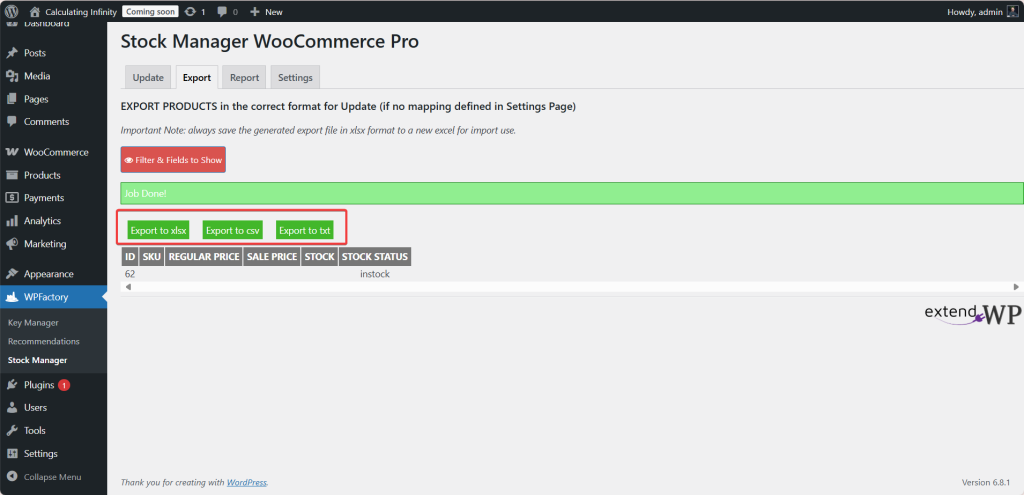
Edit the downloaded file, save it as .xlsx, then upload it on the Update tab. The new stock and prices then show on your product pages.
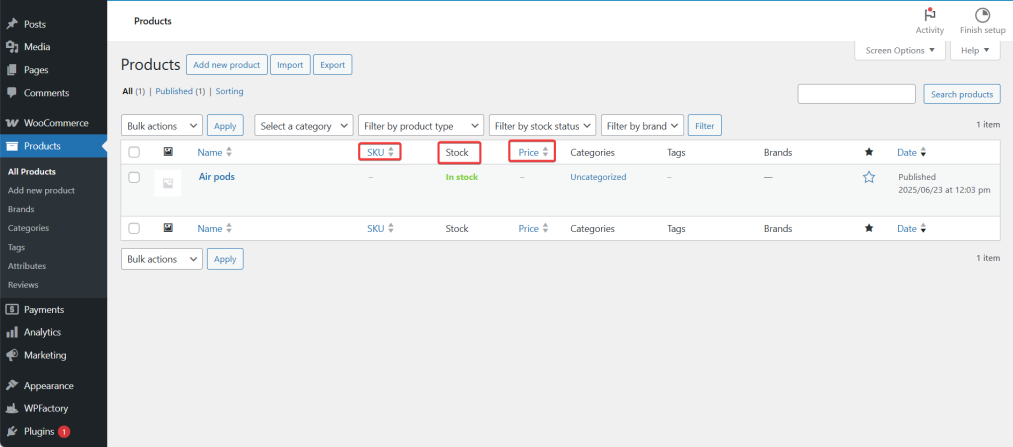
More detail: how to export WooCommerce products and stock to Excel.
The Report tab #
The Report tab lists your stock-managed products from the lowest stock up, with the sales total from completed orders. Products without sales only appear when they are at or below your low stock value. Use the search box to shortlist products.
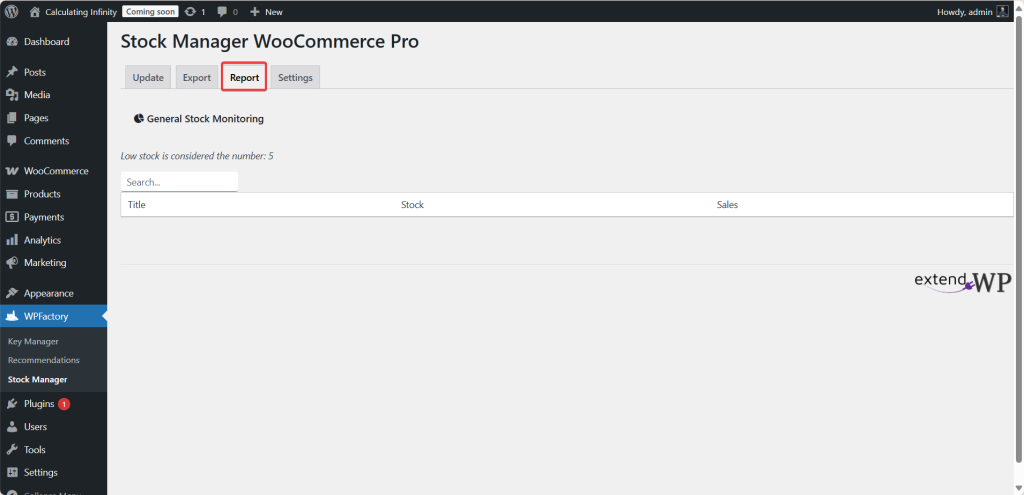
See how to check low stock with the stock report.
FAQ #
Why did the upload say “updated successfully” but nothing changed? #
None of the Update … checkboxes are ticked in the Settings tab. The upload still runs through each row, but it only changes the fields you enabled. Tick the fields, save, and upload again.
Can I update SKUs or product titles with Stock Manager? #
No. The update changes stock quantity, stock status, regular price and sale price. SKU and ID only identify the product, and extra export columns such as title are for reference.
Does it work with variable products? #
Yes. The export lists each variation on its own row with its variation ID, and the update accepts variation IDs or SKUs.
Does Stock Manager send low-stock email alerts? #
No. Low stock is shown on the Report tab, which you check from wp-admin.
Prefer watching? This short video summarizes the article in just a few minutes.
Get more control #
Scheduled updates from a remote file, column mapping and variation support are part of Products Stock Manager with Excel for WooCommerce Pro. Compare editions in Stock Manager Free vs Pro.
Need a hand? Our team answers every ticket on the Stock Manager support forum.