The WooCommerce sales report on the General tab gives you a single dated view of revenue, orders, customers, products and more. It is the main report in WooCommerce Advanced Reporting and Statistics, and this guide explains the headline totals and every table it produces.
Open the report #
- Go to WPFactory > Reporting & Statistics.
- Stay on the General tab (it is selected by default).
- Pick a period under Dates Selection and, optionally, a single status under Choose Status.
- Click Filter Orders.
If you do not choose a status, the report uses the Selected default status set on the Settings tab. Out of the box that is Completed, Processing, On hold and Refunded.
The overview totals #
After the report loads, a row of summary cards appears. Each one is a store-wide total for the period you selected.
| Card | What it means |
|---|---|
| NET SALES | Sales before taxes and shipping, after discounts and refunds. |
| GROSS SALES | Sales before taxes, shipping, discounts and refunds. |
| TOTAL SALES | Sales before discounts and refunds, after taxes and shipping. |
| SHIPPING | Total shipping collected. |
| TAXES | Total tax collected. |
| REFUNDS | Total refunded in the period. |
| DISCOUNTS | Total discounts applied. |
| #PRODUCTS PURCHASED | Number of line items across all orders. |
| #ORDERS | Number of orders in the period. |
| AVG NET SALES / day | Average net sales per day across the period. |
| SALES EVERY | The average gap, in days, between days that had a sale. |
For the exact arithmetic behind Net, Gross and Total sales, see the reporting metrics glossary.
The detailed tables #
Below the totals, the report is split into tabs, each with its own searchable table:
| Tab | Columns |
|---|---|
| Orders | The order fields you selected under Orders Custom Report (see below). |
| Customers | Customer Name, Phone, Email, Country, State, City, Company, # of Orders, Total Sales. |
| Products | Product, SKU, Items Sold, Net Sales, Gross Sales. |
| Categories | Category, Items Sold, Net Sales, Gross Sales. |
| Countries | Country, # of Orders, Total Sales. |
| Payment Methods | Payment Method, Orders, Total Sales. |
| Coupons | Coupon, Total. |
The Products, Countries, Payment Methods, Categories and Coupons tabs also draw a chart next to the table, so you can see the breakdown visually. Every table has a search box, and an Export button that saves it as an Excel (.xlsx) file.
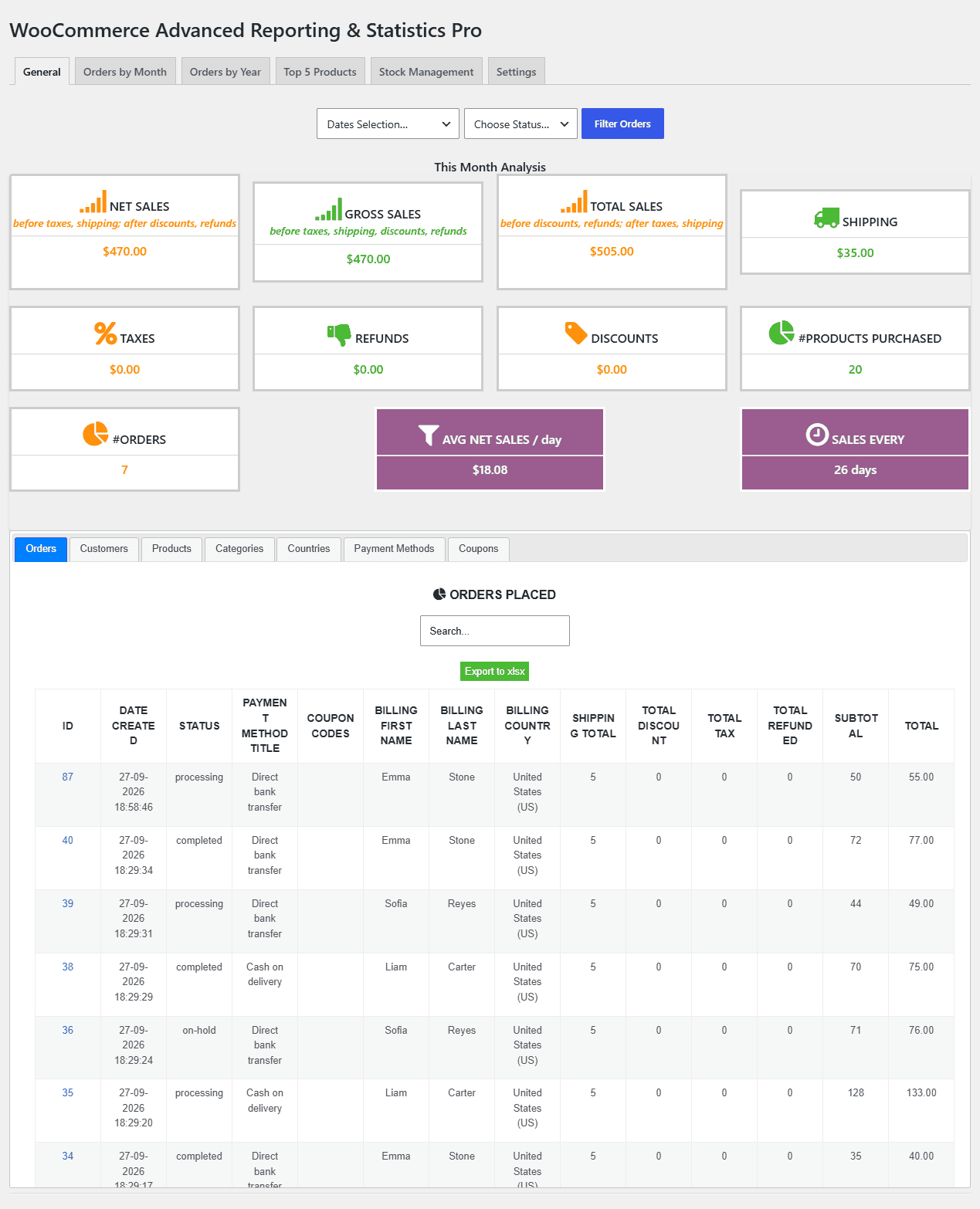
The Orders table needs setup #
The Orders tab is empty until you tell the plugin which order fields to show. If you see “Please check the settings page for fields to display,” open Settings > Orders Custom Report and tick the fields you want. See the custom orders report guide.
Use cases #
- Month-end review. Set the period to This Month and read Net Sales, Orders and top Products in one screen.
- Find your best market. Open the Countries tab to see where orders come from.
- Check coupon impact. The Coupons tab shows how much each code cost you.
- Export for accounting. Export any table to Excel and hand it to your bookkeeper.
Troubleshooting #
- No data appears: confirm the date range covers orders, and that the statuses you expect are in Selected default status (or pick one under Choose Status).
- The Orders table is empty: select fields in Orders Custom Report.
- Totals look lower than expected: refunds and the chosen statuses both affect the figures. Check which statuses are included.
Get the full picture #
WooCommerce Advanced Reporting and Statistics turns your store data into clear, exportable reports, sales forecasts and stock alerts. See everything it can do.