To see WooCommerce sales grouped by month or by year, with a forecast for the next period, use the Orders by Month and Orders by Year tabs in WooCommerce Advanced Reporting and Statistics. These reports are built for spotting growth trends over time rather than a single date range.
Open the report #
- Go to WPFactory > Reporting & Statistics.
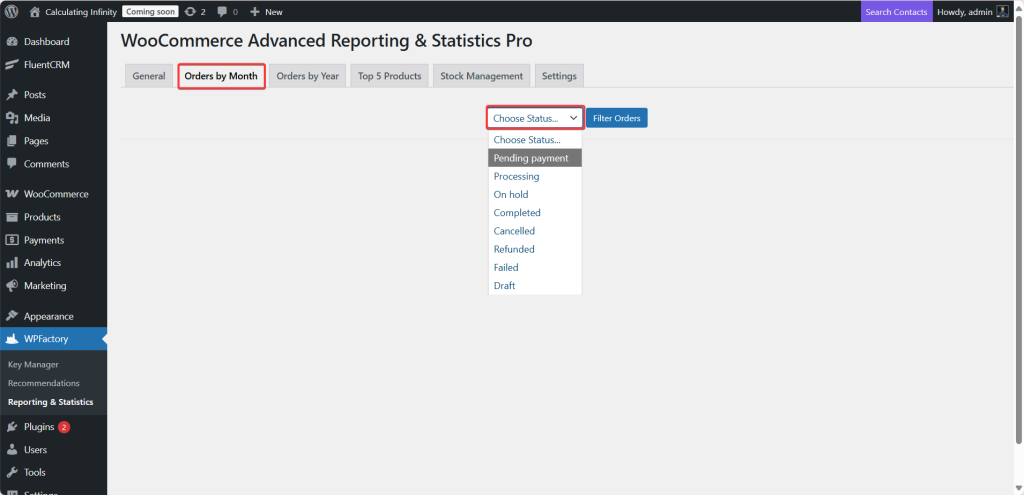
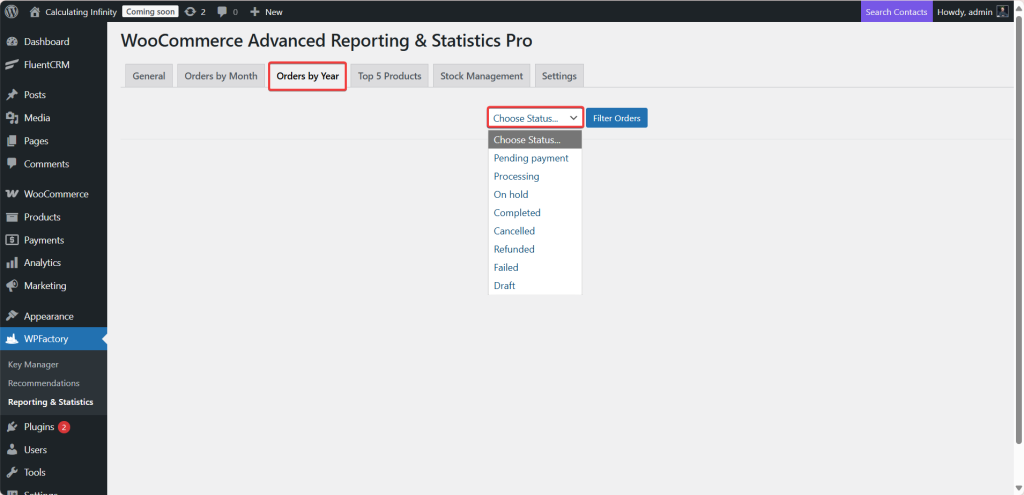
- Click Orders by Month or Orders by Year.
- Optionally narrow the data with the filters at the top (status, and any filters you have enabled such as country or category), then click Filter Orders.
The columns #
Each row is one month (or one year) and shows:
| Column | Meaning |
|---|---|
| Month / Year | The period. |
| # Orders | Orders placed in the period. |
| Tax | Tax plus shipping tax. |
| Shipping | Shipping collected. |
| Discount | Discounts applied. |
| Refunds | Amount refunded. |
| Net Sales | Before taxes and shipping, after discounts and refunds. |
| Gross Sales | Before taxes, shipping, discounts and refunds. |
| Total Sales | Before discounts and refunds, after taxes and shipping. |
A Totals row sums every column, and a chart plots the trend. See the reporting metrics glossary for the exact definitions.
Average and forecast #
Below the table, two widgets summarize the trend:
- Average Sales: the mean sales value across the completed periods. The current, still-running period is left out so it does not drag the average down.
- Next Month / Next Year Sales Forecast: a growth-based projection. The plugin looks at how sales changed from one period to the next, averages that growth rate, and applies it to the average. When the trend is not flat, the widget also shows the growth rate it used, for example “(growth rate: 1.12)”.
The forecast needs at least two completed periods to measure growth. With only one period of history, it simply shows the average.
Pagination #
When there are more periods than fit on one page, the report paginates. You control how many rows appear per page from Settings > General Settings:
| Setting | Option ID | Default |
|---|---|---|
| Months per page | wpfactory_wc_ars_pro_month_limit |
10 |
| Years per page | wpfactory_wc_ars_pro_year_limit |
10 |
Export #
Use the Export button above the table to save the monthly or yearly figures as an Excel (.xlsx) file.
Troubleshooting #
- The forecast equals the average: there is only one completed period, or growth is flat. Add more history or a wider range.
- The latest period looks low: the current month or year is still in progress and is excluded from the average and forecast, but it still appears as a row.
- Numbers differ from the General tab: the two reports can use different status filters. Check the status you selected.
Get the full picture #
WooCommerce Advanced Reporting and Statistics turns your store data into clear, exportable reports, sales forecasts and stock alerts. See everything it can do.