The cost you record for each product travels with the standard WooCommerce product CSV, so you can export your costs to a spreadsheet and import them back in bulk. This is a free feature of Cost of Goods: Product Cost & Profit Calculator for WooCommerce: it adds a Cost column to the built-in WooCommerce importer and exporter.
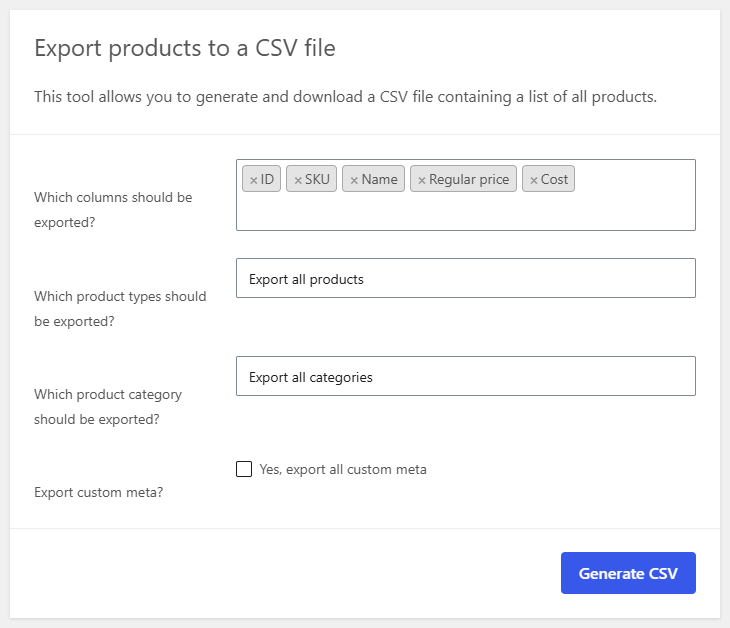
Export costs to a CSV #
- Go to Products > All Products and click Export.
- Leave the columns set to export everything, or pick specific columns and include Cost.
- Click Generate CSV. The downloaded file has a Cost column alongside the usual product data.
The exporter reads the plugin’s cost meta (_alg_wc_cog_cost) into the column mapped as alg_wc_cog_cost.
Import costs from a CSV #
- Go to Products > All Products and click Import.
- Choose your CSV and continue to the column-mapping step.
- Map your cost column to Cost. If the header is already named Cost, the importer selects it automatically.
- Run the import. Costs are written to each matched product and profit updates automatically.
Handling number formats #
Spreadsheets and other plugins format numbers in different ways: some use a comma as the decimal separator, some wrap the value in a currency symbol. The plugin has a Cost sanitization group to keep those imports clean. Find it at WPFactory > Cost of Goods (also reachable at WooCommerce > Settings > Cost of Goods), on the Products sub-tab.
| Label | Option ID | Default | What it does |
|---|---|---|---|
| Cost update | alg_wc_cog_replace_cog_comma_by_dots |
Depends on your store locale | Replaces commas with dots when the cost meta is saved. |
| Cost import: get only number | alg_wc_cog_import_csv_get_only_cost_number |
No | Strips everything except the number when importing with the WooCommerce Importer. |
| Cost import: normalize | alg_wc_cog_import_csv_normalize_cost |
No | Normalizes the imported cost so mixed separators resolve to a valid number. |
| Product export | alg_wc_cog_product_export_csv_convert_cost_to_number |
No | Converts the cost to a plain number in the exported CSV. |
If an import brings in costs that look wrong (for example everything reads as a whole number when it should have decimals), enable get only number and normalize and import again.
Which tool should I use #
- Use the CSV import and export here when you manage costs in a spreadsheet or receive a supplier price list.
- Use Tools > Bulk Edit Costs to edit costs directly in the admin, without a file.
- Use Tools > Import Costs to copy costs in from another plugin’s meta key.
Get more from Cost of Goods #
CSV import and export of costs is free. Cost of Goods: Product Cost & Profit Calculator for WooCommerce Pro adds cost and profit in WooCommerce Analytics, order-email cost and profit, and multicurrency support. See what Pro unlocks.