To delete WooCommerce products in bulk, upload an Excel file listing the products on the Delete Products screen of WooCommerce Products Import & Export with Excel. You can identify products by ID or by title, which makes it easy to clear out a batch you no longer sell.
Before you start #
Warning: deletion is permanent. Keep a recent database backup and test on a staging site before deleting on a live store. Consider exporting the products first so you have a copy of their data.
Prepare the Excel file #
- Create an Excel file with a single column.
- In that column, list either the product ID or the product TITLE of each product you want to remove, one per row.
A ready-made sample is linked on the screen as SAMPLE EXCEL FILE. Use it to match the expected layout.
Run the deletion #
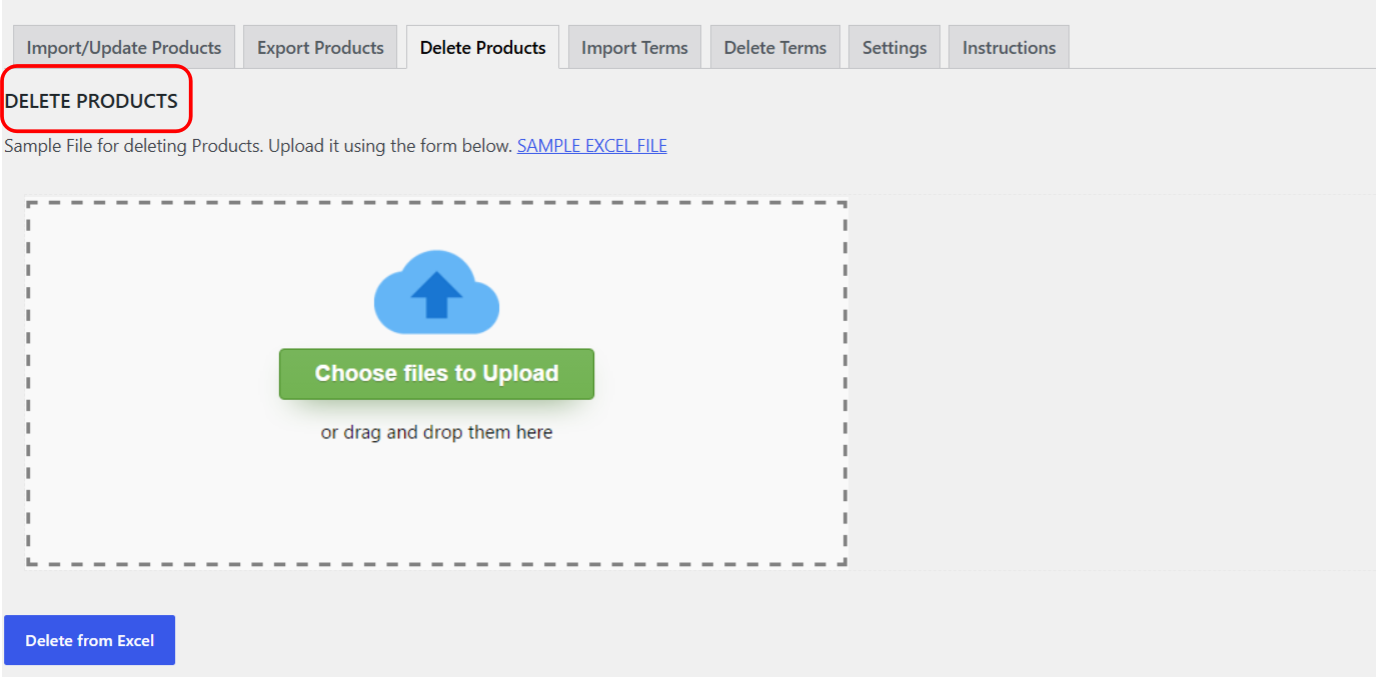
- Go to WPFactory > Product Import/Export > Delete Products.
- Click the upload control and choose your Excel file.
- Click Delete from Excel.
- The plugin processes the file and reports which products were removed.
Who can run deletions #
By default only administrators can delete products. Access can be extended to one additional role under WPFactory > Product Import/Export > Settings > Main > Who can use the plugin beside Admin?.
Related articles #
Get more from Products Import & Export with Excel #
Bulk deletion is one of the catalog tools in WooCommerce Products Import & Export with Excel, alongside importing, updating, and exporting products from Excel. See everything it can do.