Table of Contents
The Buy all stock button lets a customer add every available unit of a product to the cart in one click. It is handy for clearance and wholesale lots. This feature is free in the Min Max Step Quantity Limits Manager for WooCommerce and works with products that have managed stock.
Before you start #
- The product must have Manage stock enabled (WooCommerce Inventory tab) with a stock quantity set.
Steps #
- Go to WPFactory > Quantity Manager (also reachable at WooCommerce > Settings > Product Quantity).
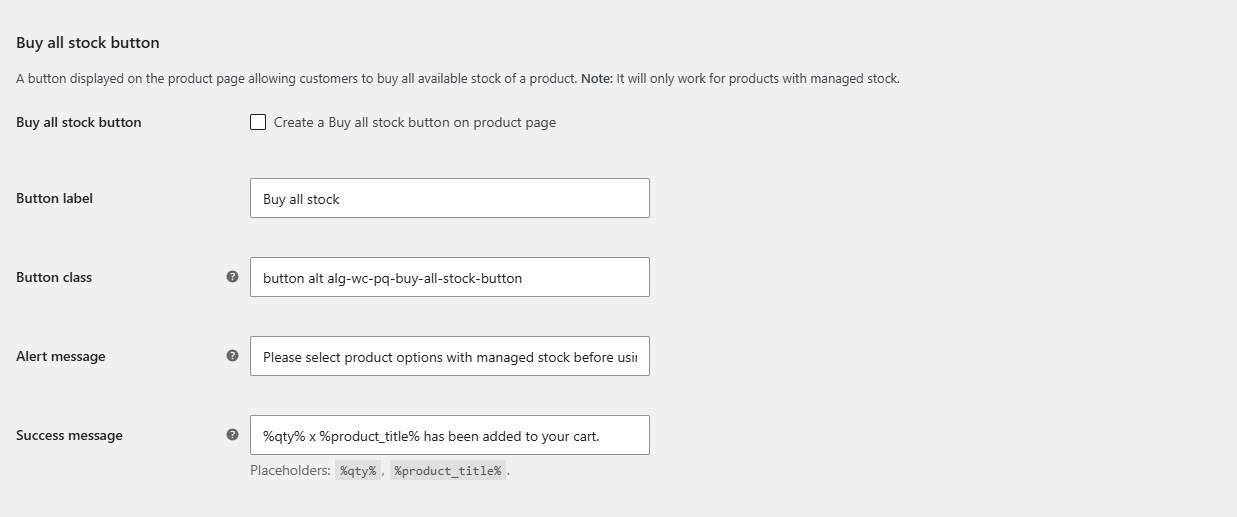
- Open the General section and find Buy all stock button.
- Tick Create a Buy all stock button on product page (
wpfmmsq_buy_all_stock_button_enabled). - Optionally set the Button label, Button class, Alert message and Success message.
- Click Save changes.
Options reference #
| Label | Option ID | Default | Free/Pro |
|---|---|---|---|
| Buy all stock button (enable) | wpfmmsq_buy_all_stock_button_enabled |
No | Free |
| Button label | wpfmmsq_buy_all_stock_button_label |
Buy all stock | Free |
| Success message | wpfmmsq_buy_all_stock_button_success_msg |
%qty% x %product_title% has been added to your cart. | Free |
Note: the button only works on products (or selected variations) with managed stock. On a variation without managed stock, the Alert message is shown instead. The Success message accepts %qty% and %product_title%.
Get more control #
This feature is free. Min Max Step Quantity Limits Manager for WooCommerce Pro adds per-category and per-attribute quantity rules alongside it. Per-product minimum, maximum and step are free. See what Pro unlocks.