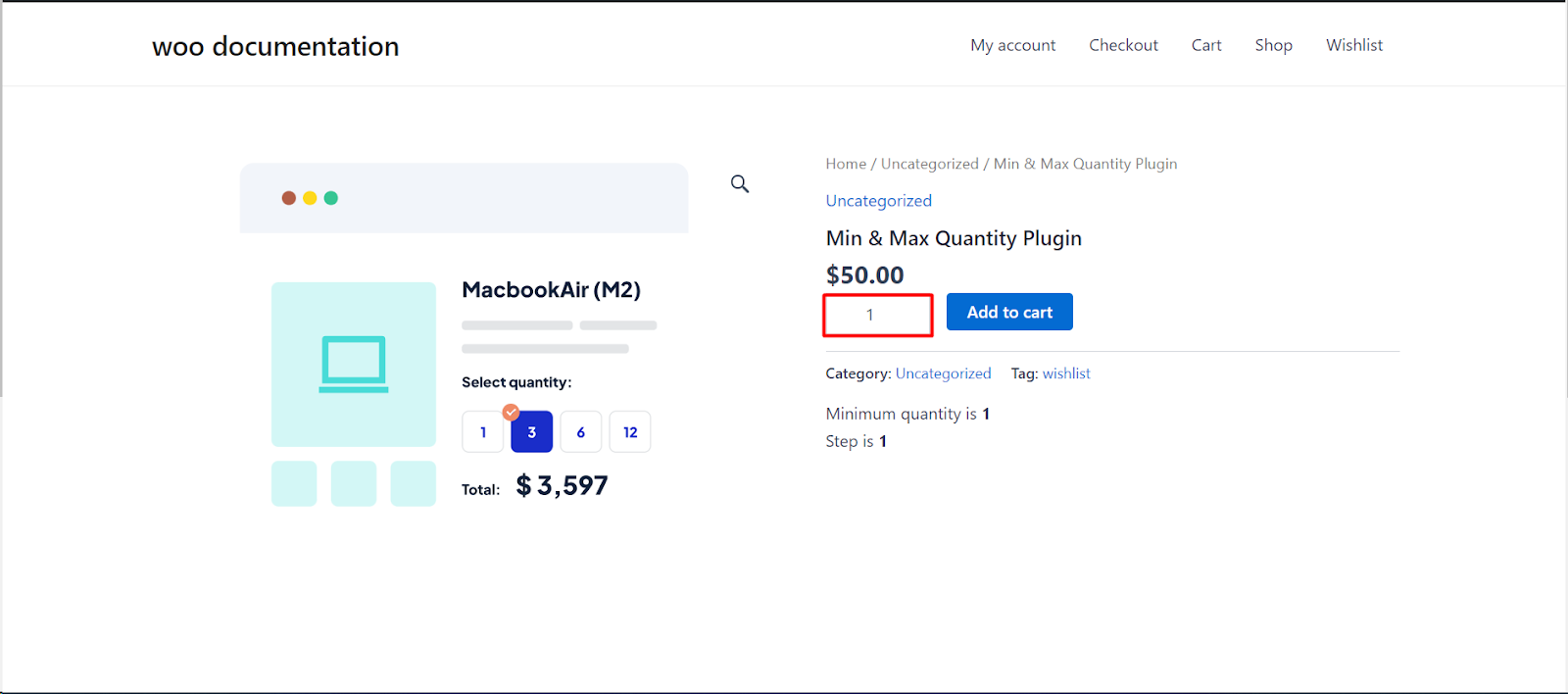
To change the style of the WooCommerce quantity input field, for example its width, enter CSS declarations in Quantity input style at WPFactory > Quantity Manager > Styling in Min Max Step Quantity Limits Manager for WooCommerce. The plugin applies them to every quantity box and quantity dropdown on your store. This feature is free.
Step by step #
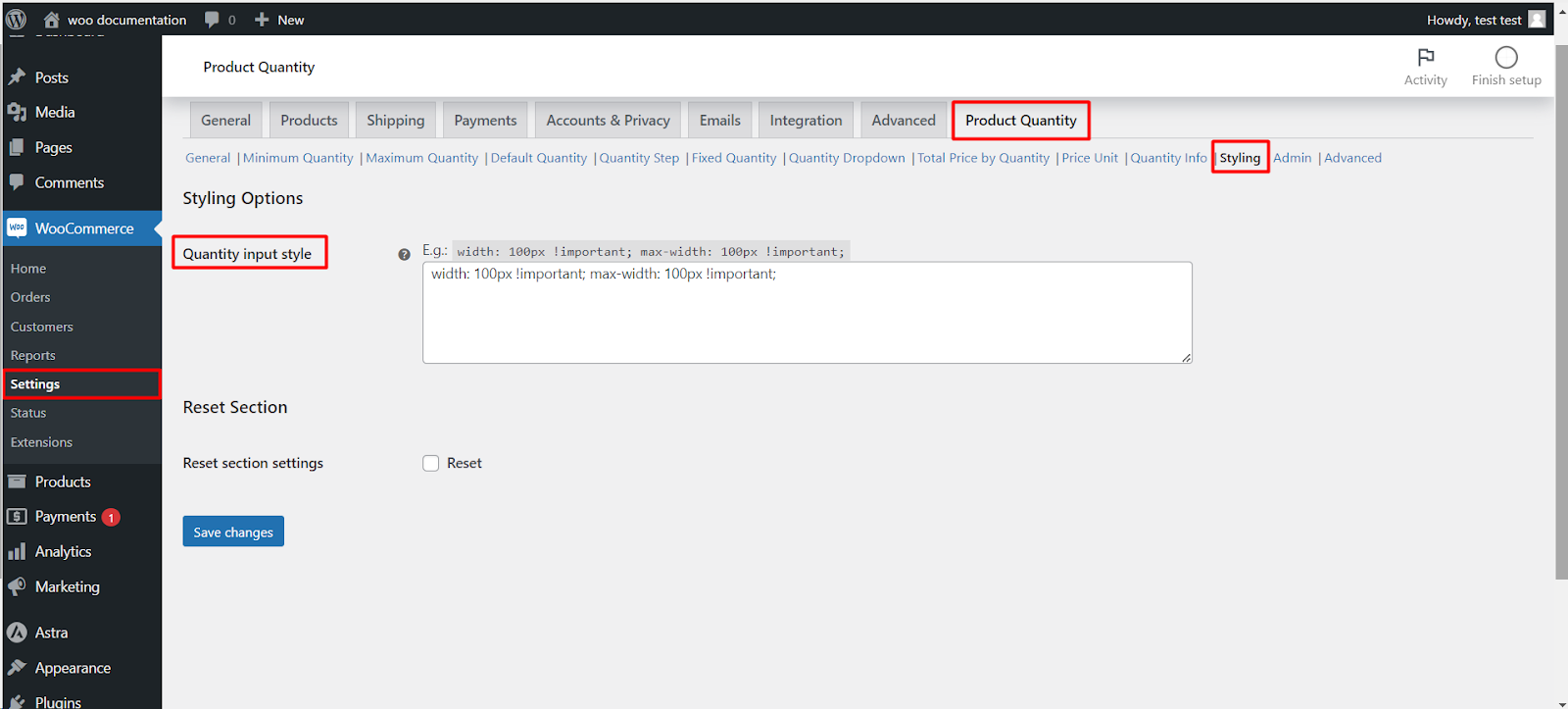
- Go to WPFactory > Quantity Manager (also reachable at WooCommerce > Settings > Product Quantity).
- Open the Styling section.
- In Quantity input style, enter your CSS declarations.
- Click Save changes.
- Reload a product page (clear any page cache) to see the new style.
Examples #
To fix the width at 100px:
width: 100px !important; max-width: 100px !important;A larger, centered box with a border:
height: 44px; font-size: 18px; text-align: center; border: 2px solid #333; border-radius: 4px;How it works #
Quantity Manager prints your declarations inside a CSS rule for input.qty and select.qty in the page head. That means:
- Enter declarations only (
property: value;). Do not add selectors or curly braces. - The style applies everywhere the quantity field appears: product pages, the cart, and shop pages when a quantity box is shown there.
- It also styles the quantity dropdown, since the dropdown uses the same
qtyclass. - Avoid quotation marks, for example in
font-familynames, because they are escaped when printed.
Options reference #
| Label | Option ID | Default | Free/Pro |
|---|---|---|---|
| Quantity input style | wpfmmsq_qty_input_style |
(empty, ignored) | Free |
| Hide “Update cart” button (Advanced section) | wpfmmsq_qty_hide_update_cart |
No | Free |
Change the input type instead #
If you want a dropdown of quantities rather than a styled number box, enable the Quantity Dropdown section. The dropdown only appears for products that have a maximum quantity, a fixed (allowed) quantity, or a Max value fallback. See How to enable the WooCommerce quantity dropdown.
If it does not work #
- No visible change: your theme’s CSS is more specific. Add
!importantto each declaration, as in the width example. - The style is ignored: you entered a selector or braces, or a declaration contains quotation marks. Keep only plain declarations.
- Plus and minus buttons are not styled: those buttons come from your theme, not from the quantity field. Style them in your theme’s custom CSS.
- Old style still shows: clear your page cache and any CSS optimization cache.
FAQ #
Is quantity input styling free? #
Yes. The Styling section is part of the free version.
Can I style the field differently on the cart page? #
Not from this setting, which applies store-wide. Use your theme’s custom CSS with a cart selector, such as .woocommerce-cart input.qty, for page-specific styles.
How do I hide the quantity box completely? #
Tick Sold individually in General, which removes the box so customers buy one unit. See How to restrict customers to a single product purchase.
Get more control #
This feature is free. Min Max Step Quantity Limits Manager for WooCommerce Pro adds per-category and per-attribute quantity rules on top of the styling controls. Per-product minimum, maximum and step are free. See what Pro unlocks.
Need a hand? Our team answers every ticket on the Quantity Manager support forum.