Table of Contents
Show a total price that updates with quantity #
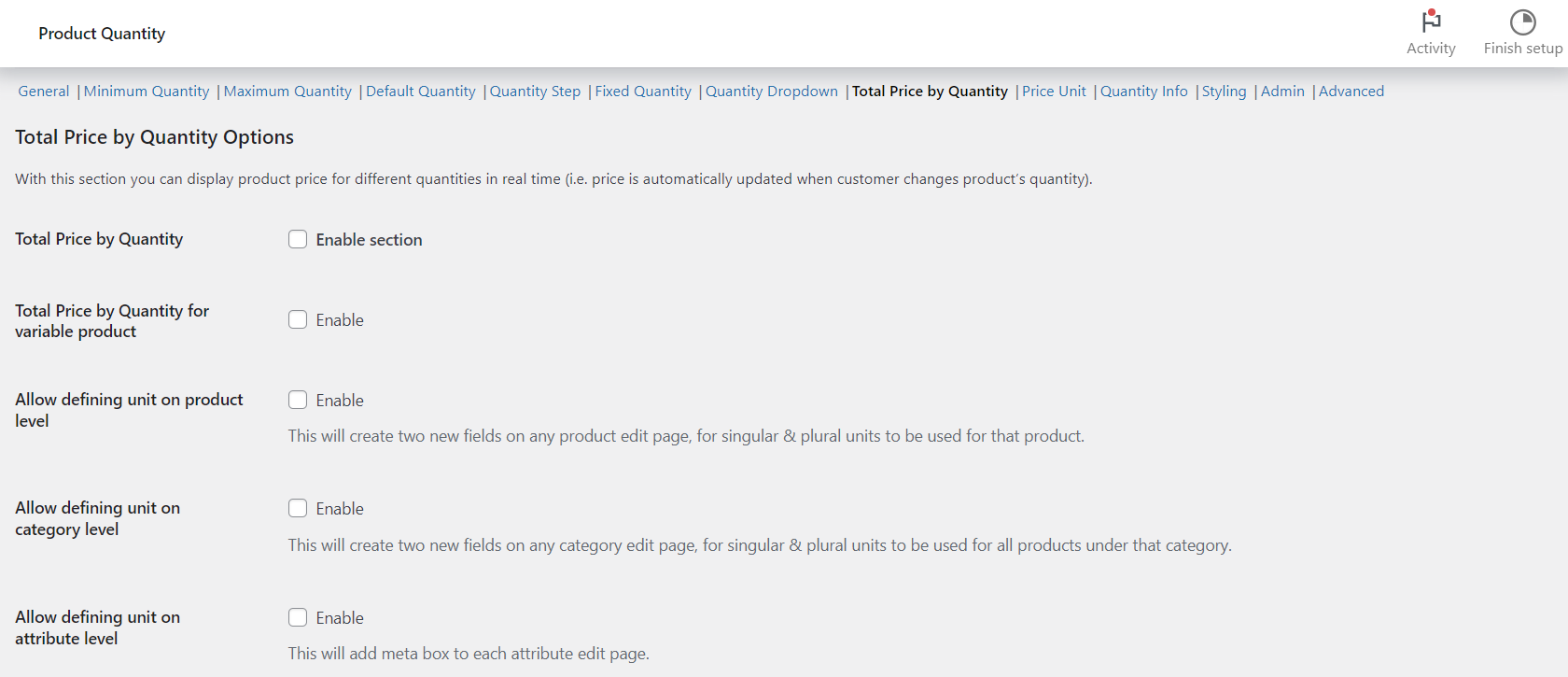
Total Price by Quantity displays the running total for the chosen quantity and updates it live as the customer changes the amount. It is ideal for products sold by weight or length. You enable it in the Min Max Step Quantity Limits Manager for WooCommerce, and the core feature is free for simple products.
Steps #
- Go to WPFactory > Quantity Manager (also reachable at WooCommerce > Settings > Product Quantity).
- Open the Total Price by Quantity section and tick Total Price by Quantity (
wpfmmsq_qty_price_by_qty_enabled). - For variable products, also tick Total Price by Quantity for variable product.
- Edit the Template (default
%price% for %qty% %unit%.) and choose a Position (before, instead of, or after the price, or before/after add to cart). - Click Save changes.
Template placeholders #
| Placeholder | Shows |
|---|---|
%price% |
The calculated total for the current quantity. |
%qty% |
The selected quantity. |
%unit% |
The unit label (product, then category, then global). |
Note: if Position is set to Instead of the price, the separate Price Unit feature is overridden by this template.
Options reference #
| Label | Option ID | Default | Free/Pro |
|---|---|---|---|
| Total Price by Quantity (enable) | wpfmmsq_qty_price_by_qty_enabled |
No | Free |
| Template | wpfmmsq_qty_price_by_qty_template |
%price% for %qty% %unit%. | Free |
| Position | wpfmmsq_qty_price_by_qty_position |
Instead of the price | Free |
| Unit on product / category level | wpfmmsq_qty_price_by_qty_unit_input_enabled |
No | Pro |
Get more control #
The core feature is free. Min Max Step Quantity Limits Manager for WooCommerce Pro adds per-product, per-category and per-attribute units, and price by quantity on shop and category pages. See what Pro unlocks.