To restrict payment methods by postcode or ZIP code in WooCommerce, use Conditional Payment Methods by Location for WooCommerce: go to WPFactory > Payment Gateways by Customer Location > Postcodes, enter postcodes, wildcards or ranges in Include postcodes or Exclude postcodes for each gateway and save.
Examples: allow Cash on delivery only in your local delivery area, or hide a gateway for remote postcodes where you cannot collect payment on delivery.
Before you start #
- Payment Methods by Location installed and active.
- Postcode rules read the postcode from the classic checkout form. Use the classic checkout (the
[woocommerce_checkout]shortcode) for postcode rules, see troubleshooting for the block checkout.
Restrict payment methods by postcode #
- Go to WPFactory > Payment Gateways by Customer Location (also reachable at WooCommerce > Settings > Payment Gateways by Customer Location) and open General.
- Set Detect postcode by to Billing postcode (default) or Shipping postcode, and save.
- Open the Postcodes section and make sure Gateways by postcode: Enable section is ticked.
- For each gateway, enter one postcode, wildcard or range per line in Include postcodes (gateway shows ONLY there) or Exclude postcodes (gateway is hidden there).
- Click Save changes.
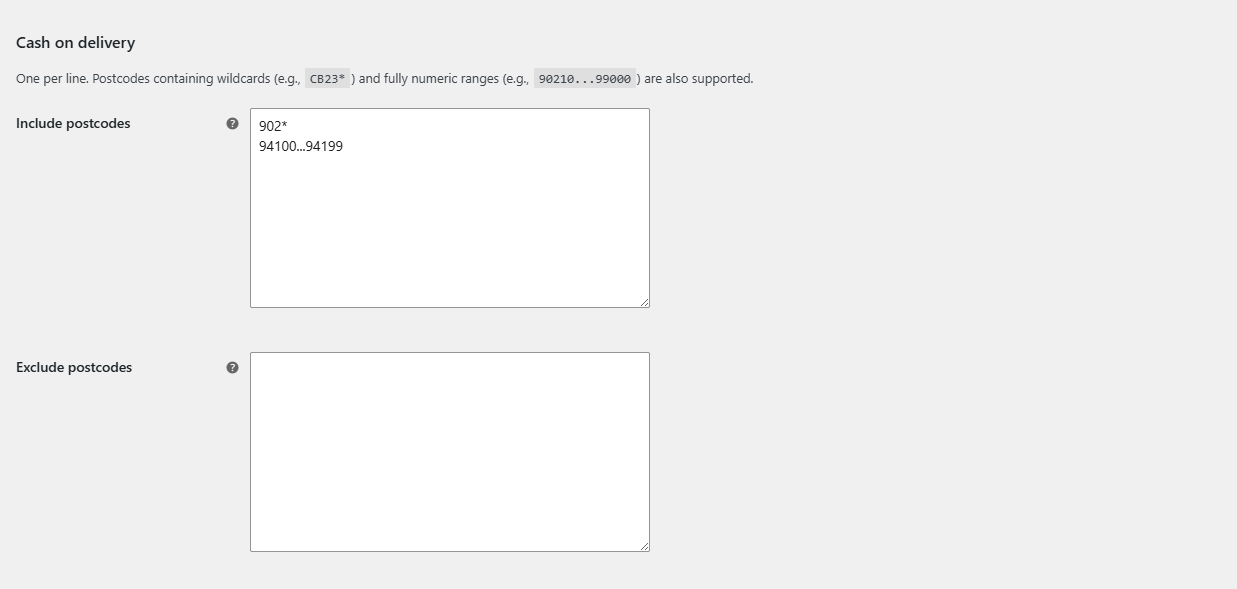
Postcode formats #
| Format | Example | Matches |
|---|---|---|
| Exact postcode | 10115 |
That postcode only. |
| Wildcard | CB23* |
Every postcode starting with CB23. |
| Numeric range | 90210...99000 |
Every numeric postcode from 90210 to 99000, inclusive. Use three dots, and numbers only. |
Matching ignores letter case, but spaces count: SW1A 1AA and SW1A1AA are different values. Enter postcodes in the format your customers use, or add both forms. A wildcard such as SW1A* covers both.
FAQ #
Can I use ranges for UK or Canadian postcodes? #
Ranges are for fully numeric postcodes. For alphanumeric postcodes, use wildcards, for example M5V*.
What postcode is used before the customer types one? #
Your store’s postcode from WooCommerce > Settings > General. Once the customer enters a postcode and the checkout refreshes, their postcode is used.
The payment methods do not update while the customer types the postcode. #
Add Billing postcode or Shipping postcode under General > Advanced Options > Force JavaScript checkout update.
Get Payment Methods by Location #
All location rules in this guide work with any payment gateway, including third-party and custom gateways. See Conditional Payment Methods by Location for WooCommerce.
Need a hand? Our team answers every ticket on the Payment Methods by Location support forum.