WooCommerce Cost of Goods: The Complete Profit Tracking Guide

Quick Answer: WooCommerce Cost of Goods
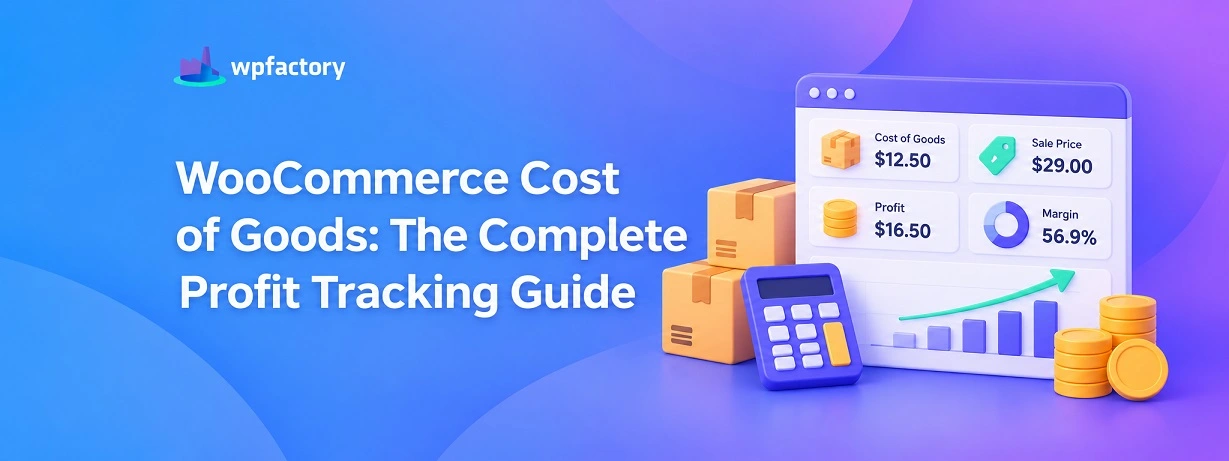
Cost of goods in WooCommerce is what each product actually costs you to sell, so you can subtract it from revenue and see real profit rather than just sales.
WooCommerce reports revenue out of the box but has no idea what your products cost, which means the profit number you care about most is missing until you add it. A cost of goods plugin fills that gap.. you record a cost per product, add the fees and shipping that eat into each sale, and the store shows profit per order and margin reports you can act on.
- Revenue is not profit: A store can grow sales while margin quietly shrinks, and default reports hide it.
- Cost lives per product: You record what each item costs, including variations, fees, and shipping.
- Profit becomes visible: Once costs are in, WooCommerce can show profit per order and margin by product, category, and date.
This guide is the map for the whole topic. Below you will find a worked example, a free profit calculator, and links to a deep guide for every part of cost of goods tracking. Start with the free setup checklist.
Free Download: WooCommerce Profit Tracking Checklist (PDF)
A one-page, print-ready checklist with 18 practical steps.. set up costs, capture the fees and shipping most stores miss, turn on profit reports, and act on the numbers. Built for WooCommerce store owners who want the whole profit picture, not just sales.
Your dashboard shows a strong month. Revenue is up, orders are up, the graph points the right way.
Then you sit down to work out what you actually made, and the confidence drains.
Between product costs, the cut Stripe took, the shipping you absorbed on free-delivery orders, and a couple of refunds, the real number is a mystery.
This is the blind spot at the center of most WooCommerce stores. The platform is excellent at telling you what you sold. It tells you nothing about what it cost you to sell it.
Cost of goods tracking closes that blind spot.
Once every product carries its true cost, and the fees and shipping around each sale are counted, your revenue turns into a profit figure you can actually trust when you set prices or plan a promotion.
This guide is the complete map. It explains what cost of goods means in WooCommerce, walks a real profit calculation, and points you to a focused guide for every part of the job.
What Cost of Goods Means in WooCommerce
Cost of goods, sometimes written COGS for cost of goods sold, is the direct cost of the products you sell.
For a reseller it is what you paid your supplier. For a maker it is materials plus the direct cost of production.
Profit is what is left after you subtract that cost, and the related costs of selling, from your revenue. Two levels of profit matter.
Gross profit is revenue minus the product cost alone. It tells you whether the product itself makes money.
Net profit goes further and subtracts the costs of the sale: payment fees, shipping you cover, and similar. It tells you whether the order made money once everything is counted.
WooCommerce does not track any of this natively.
It knows the sale price because that is what it charged. It has no field for what the product cost you, so it cannot calculate either kind of profit.
That single missing input is why a dedicated plugin is needed.
A Worked Example: The Profit Inside One Order
Numbers make the gap obvious. Take a single order: one product sold for $50.
| Line | Amount | Running Result |
|---|---|---|
| Sale price (revenue) | $50.00 | $50.00 |
| Product cost | − $20.00 | $30.00 (gross profit) |
| Shipping you cover | − $5.00 | $25.00 |
| Payment fee (2.9%) | − $1.45 | $23.55 (net profit) |
The order sold for $50, but you kept $23.55. That is a net margin of about 47 percent, and you would never see it from the WooCommerce sales report, which stops at the $50.
Now imagine the product cost were $38 instead of $20.
The same $50 order would net just $5.55. Sell a hundred of them and the sales report looks identical, while your actual profit is a fraction of what you assumed.
That is the difference cost tracking reveals.
The Five Pillars of Cost of Goods Tracking
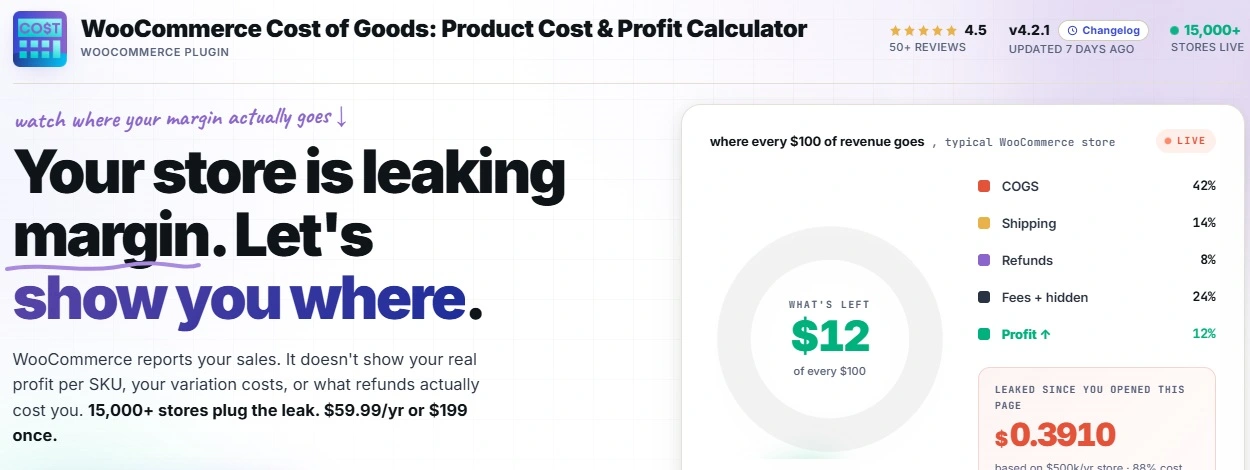
Getting the full profit picture breaks into five parts. Each one has a focused guide, and together they cover everything from your first cost entry to acting on the numbers. The plugin behind all of them is Cost of Goods for WooCommerce, used by 15,000+ stores.
Pillar 1: Setting Your Costs
Everything starts with an accurate cost on every product. You enter it once per product, and for variable products you set a cost for each variation, since a small and a large size rarely cost the same.
For a large catalog, entering costs one by one is not realistic, so costs can be set in bulk or imported from a supplier CSV.
The plugin also keeps a timestamped history, so when a supplier raises prices your old orders keep their old cost and your reports stay honest.
Pillar 2: Tracking Profit per Order
Once costs are in, each order shows its own profit, broken down line by line. You can even have profit appear in the new-order email, so you see the margin on an order before you pack it.
This is the pillar most store owners feel first. Seeing profit next to every order changes how you think about discounts, free shipping, and which orders are actually worth chasing.
Pillar 3: Profit Reports
Individual orders are the detail. Reports are the pattern.
You can read profit by product to find your real earners, by category to see which parts of the catalog carry the store, and across date ranges to watch margin trend over time.
A product can top your sales chart and still sit near the bottom of your profit chart. Reports are how you catch that.
Pillar 4: Capturing Fees and Shipping
Product cost is only part of the story. Payment gateways take a percentage of every sale, and shipping you absorb comes straight out of margin.
Both can be folded into the cost calculation, so profit reflects what the order truly netted.
Refunds and multi-currency sales also change the real cost, and each can be handled so the numbers stay accurate when money flows backward or in another currency.
Pillar 5: Acting on the Numbers
Tracking is only useful if it changes decisions. With costs and margins visible, you can find products selling below a target margin, work out the break-even price where an item stops losing money, and flag orders that lost money outright.
This is where cost tracking pays for itself.. not in the reports, but in the pricing and product decisions the reports make obvious.
Track Profit on Every WooCommerce Order
The Cost of Goods for WooCommerce plugin records costs, payment fees, and shipping, then shows profit per order and margin reports by product, category, and date. Trusted by 15,000+ stores. It turns your sales dashboard into a profit dashboard.
Free Tool: Profit per Order Calculator
Enter a sale price, your costs, and the payment fee to see the net profit and margin on a single order.
Comparison: Gross Profit vs Net Profit
These two numbers get used interchangeably, and that costs stores money.
They answer different questions, and a healthy gross profit can hide a net loss.
Read the last row carefully. It is the case that catches people out.. a product that looks profitable on gross terms but loses money once the fees and shipping of the actual sale are counted.
| Factor | Gross Profit | Net Profit |
|---|---|---|
| What it subtracts | Product cost only | Product cost plus fees, shipping, refunds |
| Question it answers | Does the product itself make money? | Did the order make money once everything is counted? |
| Best for | Setting base prices and margins | Judging real profitability per order |
| Where it can mislead | Looks healthy even when fees erase the profit | Needs fee and shipping data to be accurate |
Cost of Goods by Store Type
What you track most closely depends on how your store makes money. Here is where each type should focus first.
Dropshipping Stores
Margins are thin and supplier prices move often, so cost accuracy and cost history matter most.
A supplier price change that is not recorded turns a slim margin into a silent loss. Payment fees also loom large when the base margin is small.
Makers and Manufacturers
The product cost is built from materials and production, and variations often differ in cost.
Per-variation costs and accurate material inputs are the priority, so each size or version reports its own real margin.
Retailers and Resellers
Catalogs are large, so bulk cost setting and CSV import save hours. The payoff is category-level profit reports that show which parts of the range earn their shelf space.
Cross-Border and Multi-Currency Stores
When you buy in one currency and sell in others, conversion changes the real cost of every sale.
Handling currency in the cost calculation keeps profit honest across markets, rather than distorted by the exchange rate on the day.
Common Mistakes in Cost of Goods Tracking
A few errors quietly undermine the numbers.
- Tracking gross profit and calling it profit
Product cost alone ignores the fees and shipping that come out of every order. A store that watches only gross margin can run a net loss without noticing.
- Ignoring payment and shipping costs
A 2.9 percent gateway fee and absorbed shipping are small per order and large across a month. Left out of the cost, they inflate every profit figure you look at.
- One cost for all variations
A single cost applied to a variable product misreports the margin on every size but one. Variations that cost more to make will look more profitable than they are.
- Never updating costs
Supplier prices drift upward. A cost entered a year ago and never revised means today’s profit reports are built on yesterday’s numbers.
Related Resources
- How to Calculate Cost of Goods Sold (COGS) in WooCommerce – the formula and a full plugin setup walkthrough
- How to Set Up Cost of Goods and Calculate Profits in WooCommerce – step-by-step configuration of the plugin
- Best WooCommerce Cost of Goods and Profit Calculator Plugins – how the options compare
- FIFO Gross Profit: Calculation and WooCommerce COGS Tracking – inventory valuation and its effect on reported profit
- How to Calculate Profit Margin – the margin fundamentals behind these reports
Ready to See Real Profit on Every WooCommerce Order?
The Cost of Goods for WooCommerce plugin records product costs, payment fees, and shipping, then shows profit per order and margin reports by product, category, and date. Pricing is $59.99 per year or $199 for a lifetime license on unlimited sites, and All Access covers 50+ plugins for $499 once.
Every purchase comes with a 14-day money-back guarantee. And before you install anything, grab the free Profit Tracking Checklist to plan your setup.
FAQs About WooCommerce Cost of Goods
What is cost of goods in WooCommerce?
Cost of goods is the direct cost of the products you sell, recorded per product so WooCommerce can subtract it from revenue and show profit.
WooCommerce tracks the sale price on its own but has no native field for what the product cost you, so a cost of goods plugin adds that data and calculates profit and margin from it.
Does WooCommerce track profit by default?
No. WooCommerce reports revenue and orders, but it does not know what your products cost, so it cannot calculate profit.
To see profit per order or margin reports, you add a cost to each product with a plugin such as Cost of Goods for WooCommerce, which then does the profit math for you.
What is the difference between gross profit and net profit in WooCommerce?
Gross profit subtracts only the product cost from the sale price. Net profit goes further and subtracts the costs of the sale, such as payment gateway fees and shipping you absorb.
Gross profit tells you if the product makes money, net profit tells you if the order made money once everything is counted.
Can I include payment and shipping fees in my WooCommerce cost of goods?
Yes. The Cost of Goods for WooCommerce plugin lets you add payment gateway fees and per-shipping-class costs to the calculation, so profit reflects the true net of each order rather than just revenue minus product cost.
This is the difference between a rough margin and an accurate one.
How do I set cost of goods for variable products in WooCommerce?
You set a separate cost for each variation. A variable product’s sizes or versions usually cost different amounts to buy or make, so a single shared cost would misreport their margins.
The plugin adds a cost field to each variation, and reports then show accurate profit per variation.
Is there a free WooCommerce cost of goods plugin?
Cost of Goods for WooCommerce has a free version on WordPress.org that covers core cost entry and profit calculation.
More advanced capabilities, such as detailed reporting and fee handling, are part of the Pro version. For basic profit tracking, the core plugin is enough to start.