Exporting customer sales data #
Maximum Products per User for WooCommerce can export the sales figures it calculates for every customer to a CSV file, so you can audit limits or analyze buying behavior outside WordPress. This feature is free and lives in the Admin section.
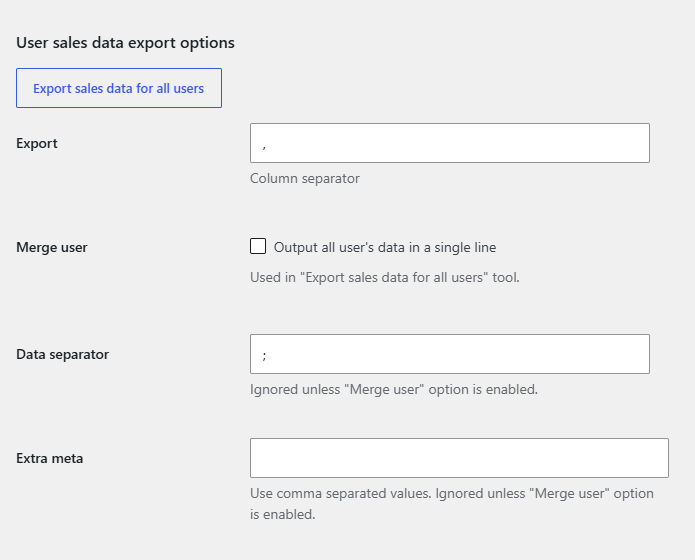
Where to find it #
Go to WPFactory > Max Products per User (also reachable at WooCommerce > Settings > Maximum Products per User), then open the Admin section and scroll to User sales data export options.
Export options #
| Label | Option ID | Default |
|---|---|---|
| Column separator | alg_wc_mppu_user_export_sep |
, |
| Merge user (one line per user) | alg_wc_mppu_user_export_merge_user |
No |
| Data separator (within a merged line) | alg_wc_mppu_user_export_data_sep |
; |
| Extra meta (comma-separated meta keys) | alg_wc_mppu_user_export_meta |
Empty |
Step by step #
- Set your Column separator (use a semicolon or tab if your spreadsheet expects it).
- To get one row per customer, enable Merge user, then set the Data separator and any Extra meta keys you want included.
- Save the settings.
- Click Export sales data for all users at the top of the export options. The CSV downloads immediately.
Tip: the export reflects the data the plugin has calculated. On a new install, run Tools > Recalculate sales data first so past orders are included.
Related #
To view and edit a single customer’s figures, enable User’s sales data in the Admin section and open that user’s profile page.
Get more control #
Sales-data export is free in Maximum Products per User for WooCommerce. Pro adds per-product and per-category limits to act on what the data reveals. See what Pro unlocks.