The general settings in Conditional Shipping for WooCommerce: Restrict Shipping Options by Anything control how all of your shipping rules behave. This article covers every option on the General section, plus the Available Conditions list and the per-section reset.
Where to find the settings #
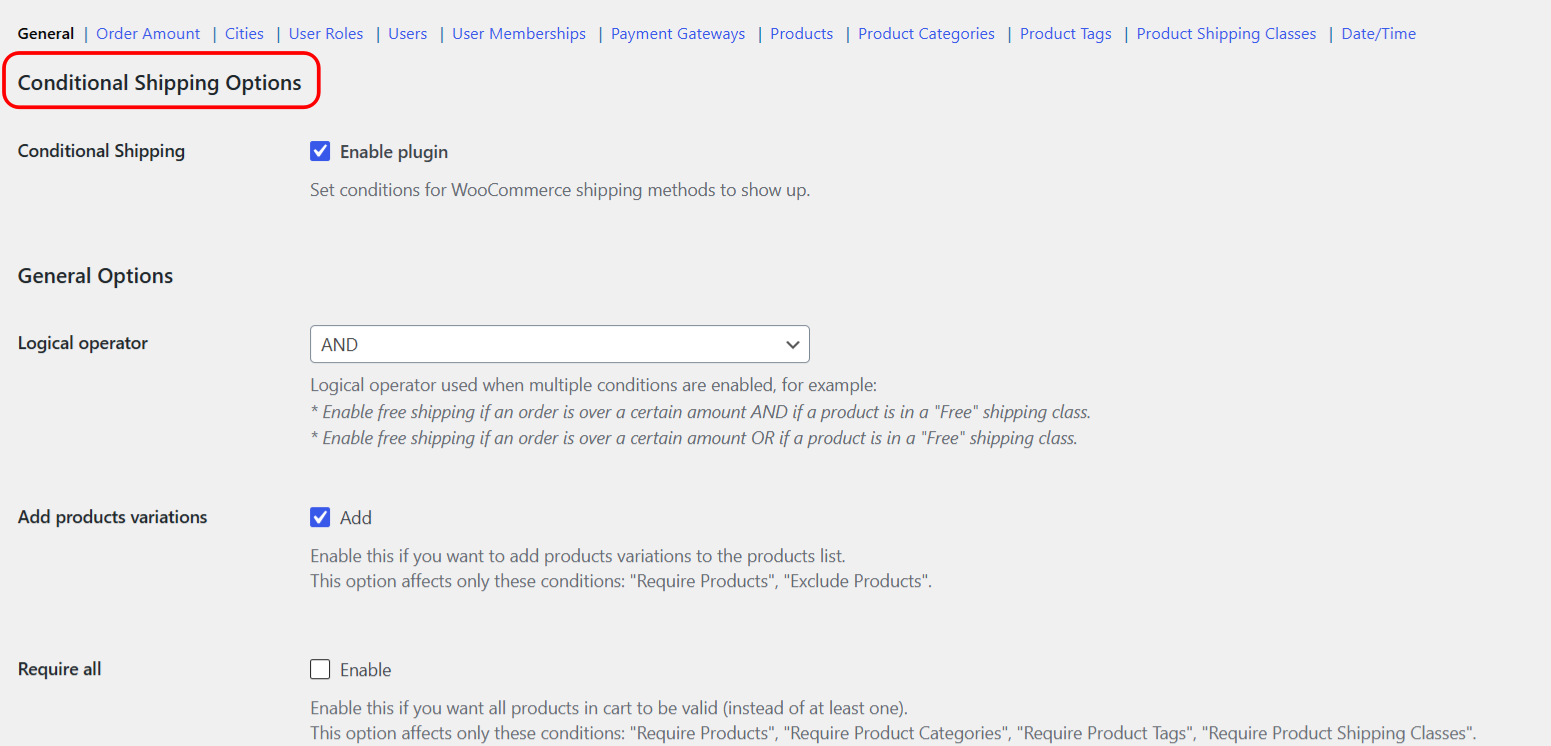
Go to WPFactory > Conditional Shipping (also reachable at WooCommerce > Settings > Conditional Shipping). The settings open on the General section. Each condition (Order Amount, Cities, User Roles, and so on) then has its own section along the same tab.
General options reference #
| Label | Option ID | Type | Default | Free/Pro |
|---|---|---|---|---|
| Conditional Shipping (enable plugin) | wpjup_wc_cond_shipping_plugin_enabled |
Checkbox | Yes (enabled) | Free |
| Logical operator | alg_wc_cond_shipping_logical_operator |
Select (AND / OR) | AND | Free |
| Add products variations | wpjup_wc_cond_shipping_add_variations |
Checkbox | Yes | Free |
| Require all | wpjup_wc_cond_shipping_validate_all |
Checkbox | No | Free |
| Cart instead of package | wpjup_wc_cond_shipping_cart_not_package |
Checkbox | No | Free |
| Checkout notice | wpjup_wc_cond_shipping_checkout_notice |
Text | %shipping_method% is not available. |
Free |
| Use shipping instances | wpjup_wc_cond_shipping_use_instances |
Checkbox | No | Pro |
| Debug | wpjup_wc_cond_shipping_debug |
Checkbox | No | Free |
What each option does #
- Conditional Shipping (enable plugin): the master switch. It is on by default. Turn it off to disable all rules without deleting them.
- Logical operator: used when more than one condition is enabled. AND means every enabled condition must pass for the method to show. OR means the method shows if any one enabled condition passes. The default is AND.
- Add products variations: adds product variations to the Products search list. It affects only the Require Products and Exclude Products conditions.
- Require all: when on, all cart items must match instead of at least one. It affects only Require Products, Require Product Categories, Require Product Tags and Require Product Shipping Classes.
- Cart instead of package: checks the whole cart instead of the current shipping package. It affects Order Amount, the Products conditions, the Product Categories conditions, the Product Tags conditions and the Product Shipping Classes conditions.
- Checkout notice: the message shown when a customer had selected a method that became unavailable during checkout, for example after a Date/Time window passed. Use the
%shipping_method%placeholder to insert the method name. - Use shipping instances: the only Pro general option. It lets you set conditions per shipping-method instance, for example a specific Flat rate instance inside a specific shipping zone, instead of globally per method type.
- Debug: writes a log to WooCommerce > Status > Logs (source
conditional-shipping-for-woocommerce). This is a free option. Note that debug currently logs only the Cities and Date/Time conditions (Require and Exclude Cities, Require and Exclude Date/Time); it does not log the other conditions.
Available Conditions #
The General section also shows an Available Conditions group: one checkbox per condition (wpjup_wc_cond_shipping_{condition}_enabled). Ticking a condition here is the same as enabling it inside its own section. It is a quick way to turn conditions on and off from a single place.
Resetting a section #
Every settings section, General and each condition, has its own Reset section settings checkbox (alg_wc_cond_shipping_{section}_reset). Tick it and click Save changes to reset that section’s options to their defaults. The reset is per-section, not global, so it only clears the section you are on, and a confirmation notice appears once it runs.
Get more control #
These general options are free, and so is every condition. Conditional Shipping for WooCommerce: Restrict Shipping Options by Anything Pro adds the Use shipping instances option, letting you set conditions per shipping-method instance inside a specific zone. Get Conditional Shipping Pro.