Multicurrency cost and profit calculation lets you keep accurate WooCommerce cost and profit figures when orders come in currencies other than your shop base currency. Cost of Goods: Product Cost & Profit Calculator for WooCommerce converts each order’s values back to your base currency using rates you set. This is a Pro feature.
Before you start #
- Cost of Goods: Product Cost & Profit Calculator for WooCommerce Pro. The Multicurrency section is Pro-only.
- A separate currency plugin to actually charge customers in other currencies. Cost of Goods does not convert prices at checkout; it converts cost and profit for reporting.
Key rule: all cost and profit data is stored in the shop base currency. Always enter product costs (and any cost fields on orders) in your base currency.
Step-by-step #
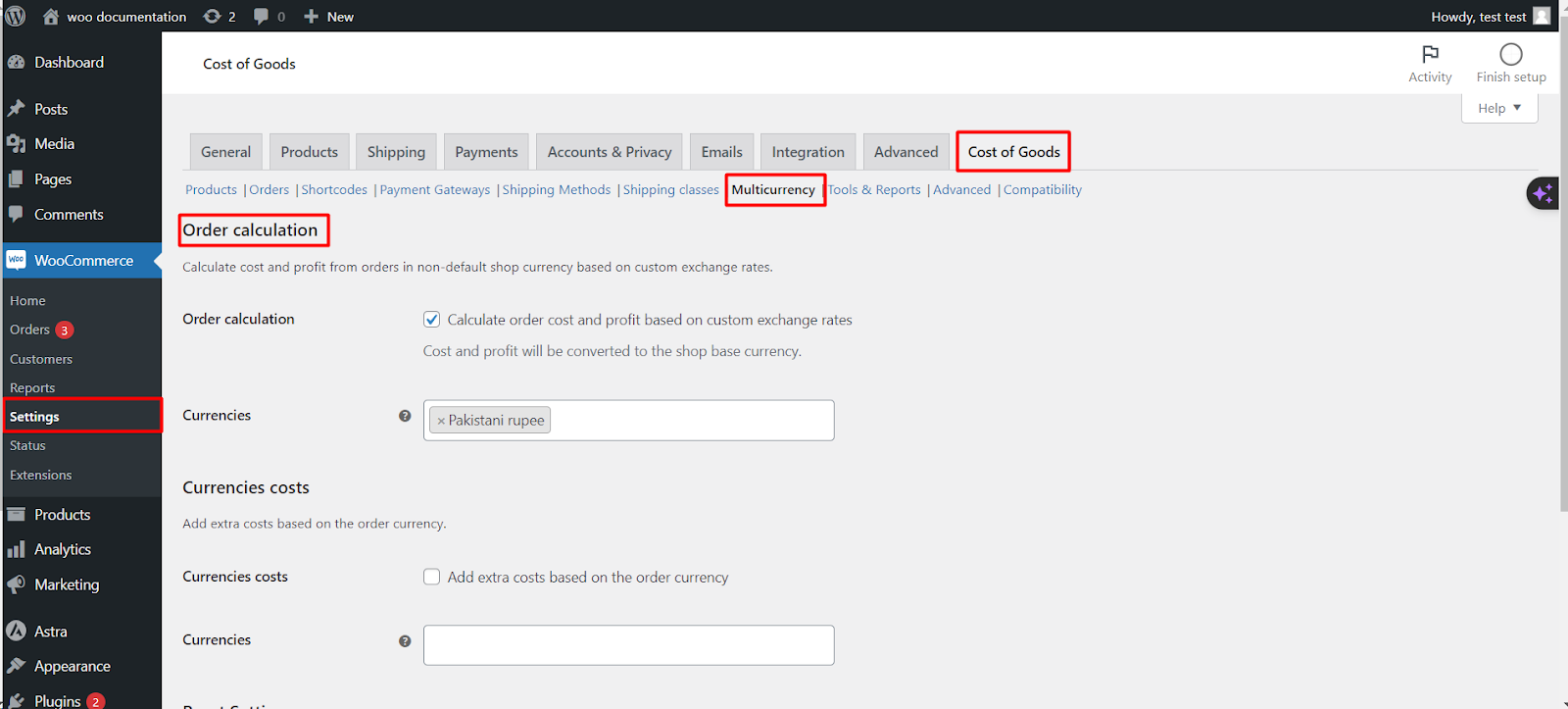
- Go to WPFactory > Cost of Goods (also reachable at WooCommerce > Settings > Cost of Goods).
- Open the Multicurrency sub-tab.
- Tick Multi-currency management to enable the feature.
- In Currencies, select the currencies you accept, then Save changes so a rate field appears for each.
- Enter the exchange rate for each currency pair, then save again.
Options reference #
| Label | Option ID | Default |
|---|---|---|
| Multi-currency management (enable) | alg_wc_cog_currencies_enabled |
no |
| Order values (show in order currency) | alg_wc_cog_currencies_display_order_currency_values |
yes |
| Currencies (to set rates for) | alg_wc_cog_currencies |
empty |
| Exchange rate (per pair) | alg_wc_cog_currencies_rates[{pair}] |
0 |
Automatic rates #
Cost of Goods can pull rates automatically from ExchangeRate-API or the CURCY plugin. See the Compatibility sub-tab and the third-party compatibility reference.
Ready to set this up? #
This is a Pro feature of Cost of Goods. If you are still on the free version, upgrading unlocks multicurrency cost and profit. Get Cost of Goods Pro.