In Payment Gateway Currency for WooCommerce, use Convert Currency when a gateway must charge in a specific currency: it converts the cart and order totals by a rate you set. Use Restrict Currency when a gateway supports only certain currencies: it shows or hides the gateway by cart currency. Each mode has its own sub-tab, and you can use both.
The two modes at a glance #
| Mode | What it does | Use it when |
|---|---|---|
| Convert Currency | Charges each gateway in a currency you choose, converting the cart and order totals by a rate you set or fetch automatically. | A gateway needs to settle in a specific currency, for example charging a local bank transfer in EUR while your shop runs in USD. |
| Restrict Currency | Shows or hides each gateway depending on the cart currency, using an allowed or denied currency list per gateway. | A gateway only supports certain currencies and you want it to disappear for carts in any other currency. |
Convert Currency #
On the Convert Currency sub-tab you enable the section, then give each payment gateway a target currency, a conversion rate, and optionally a symbol and decimal count. When a customer picks that gateway, the totals are converted to its currency at checkout. It has its own sub-sections for General settings, frontend Info display, Admin display, third-party Compatibility, and Advanced behavior. See the how-to on setting a different currency per payment gateway for the full walkthrough.
Restrict Currency #
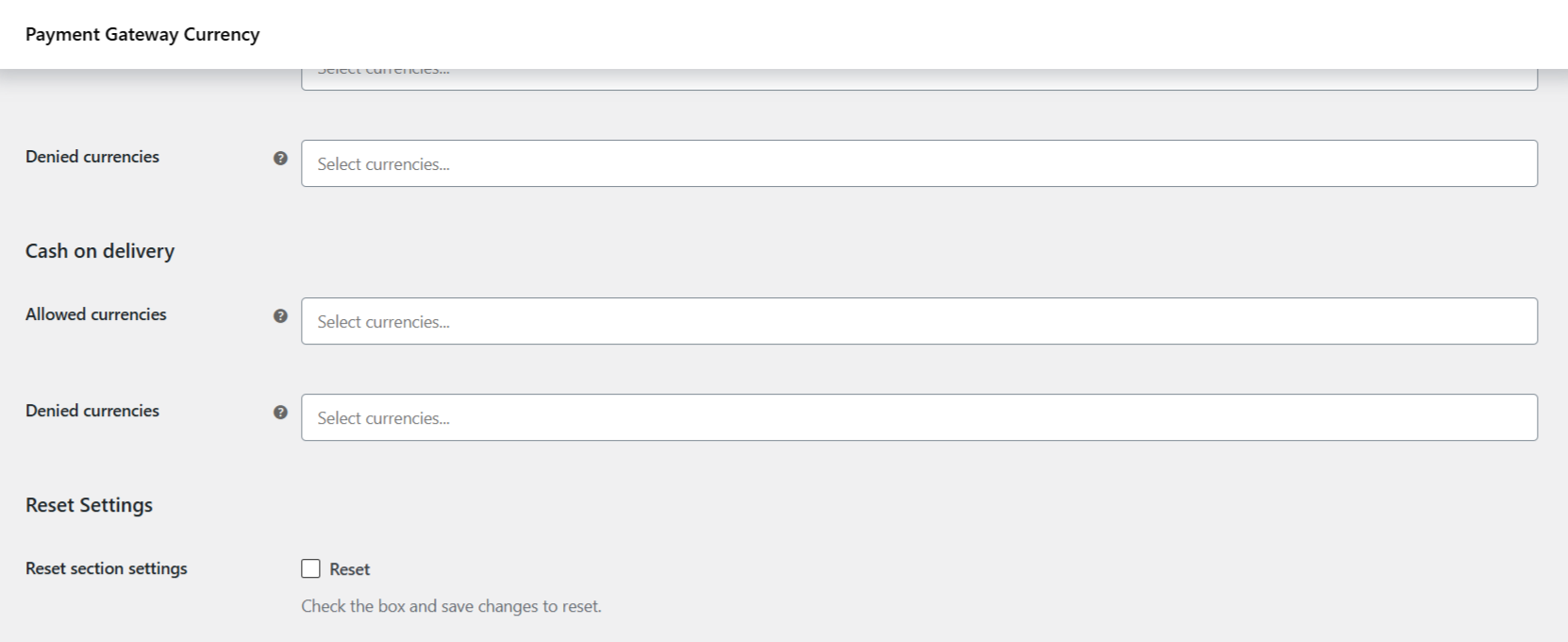
On the Restrict Currency sub-tab you enable the section, then for each gateway set Allowed currencies (the gateway shows only for those currencies) or Denied currencies (the gateway is hidden for those currencies). An empty list is ignored, so a gateway with no lists set is always available. Nothing is converted in this mode; it only controls which gateways appear.
Where to find both #
Both modes live under WPFactory > Payment Gateway Currency (also reachable at WooCommerce > Settings > Payment Gateway Currency). Convert Currency is the default sub-tab; Restrict Currency is the second sub-tab.
Free and Pro #
Both modes work in the free version for the five standard gateways: Direct bank transfer, Check payments, Cash on delivery, PayPal, and WooCommerce PayPal Payments. Pro unlocks both modes for every other payment gateway on your store. That gateway coverage is the entire difference between Free and Pro; there is no cap on currencies or feature tiering beyond it.
Get more from Payment Gateway Currency #
Start with the mode that fits your checkout, or combine them. To apply either mode to any gateway beyond the five standard ones, unlock them all with Payment Gateway Currency for WooCommerce Pro. See what Pro unlocks.