To see converted order details in the WordPress admin, open WPFactory > Payment Gateway Currency > Convert Currency > Admin in Payment Gateway Currency for WooCommerce. There you control the order page conversion box and its recalculate and convert buttons, an original total column, admin decimals, symbols, order total format and Analytics. All options are free.
Where to find it #
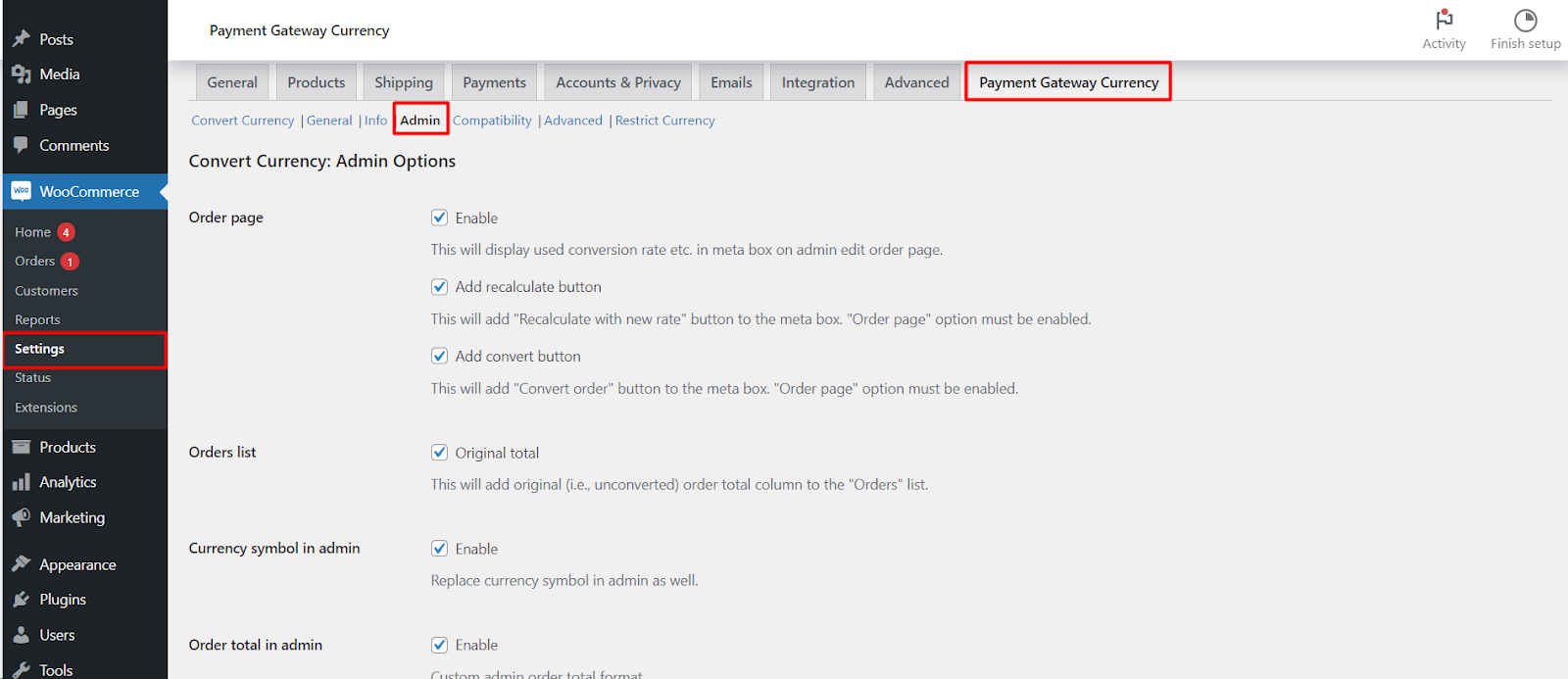
Go to WPFactory > Payment Gateway Currency (also reachable at WooCommerce > Settings > Payment Gateway Currency), then open the Admin sub-tab under Convert Currency.
All Admin options are free and only work while Convert currency is enabled on the main Convert Currency sub-tab.
What each option does #
- Order page adds a Currency Conversion box to the side of the edit order screen for converted orders. It shows the used rate (for example “Used USDEUR rate”), the Original total in your shop currency, whether shipping, coupons and fees were converted, and the current rate.
- Add recalculate button adds Recalculate with new rate to that box, which reprices the order with today’s rate. There is no undo.
- Add convert button adds Convert order to [currency] for orders that were not converted, for example orders created before you set up conversion, when the order’s gateway has a rate and a different currency. There is no undo.
- Orders list: Original total adds an Original total column with the unconverted amount.
- Number of decimals in admin and Currency symbol in admin apply the gateway’s Number of decimals and Currency symbol settings on admin screens, not only on the storefront.
- Order total in admin replaces how order totals are printed in the admin with your format, for example
%order_total% (%order_total_original%)to show both amounts.
Options #
| Label | Option ID | Default |
|---|---|---|
| Order page (meta box) | alg_wc_pgbc_convert_currency_order_meta_box |
Yes |
| Add recalculate button | alg_wc_pgbc_convert_currency_order_meta_box_recalculate |
No |
| Add convert button | alg_wc_pgbc_convert_currency_order_meta_box_convert |
No |
| Orders list: original total | alg_wc_pgbc_convert_currency_admin_orders_list_total |
No |
| Number of decimals in admin | alg_wc_pgbc_convert_currency_admin_num_decimals |
No |
| Currency symbol in admin | alg_wc_pgbc_convert_currency_admin_symbol |
No |
| Order total in admin | alg_wc_pgbc_convert_currency_admin_order_total |
No |
| Order total format | alg_wc_pgbc_convert_currency_admin_order_total_format |
%order_total% %currency% |
| Analytics: Orders and Revenue | alg_wc_pgbc_convert_currency_analytics_orders_and_revenue |
No |
Order total format placeholders #
Used by the Order total in admin field:
%order_total%: the converted order total.%currency%: the gateway’s currency code.%currency_symbol%: the gateway’s currency symbol.%convert_price_rate%: the conversion rate applied.%order_total_original%: the original (unconverted) order total.
WooCommerce Analytics #
Enable Orders and Revenue to recalculate Analytics figures using each order’s conversion rate. If numbers do not refresh, clear the Analytics cache from WooCommerce > Status > Tools.
Set it up #
- Open WPFactory > Payment Gateway Currency > Convert Currency > Admin.
- Keep Order page on, and tick Add recalculate button or Add convert button only if your team needs them.
- Tick Orders list: Original total if you reconcile payments in your shop currency.
- Optionally enable Order total in admin and edit the format.
- Click Save changes and open a converted order to check the box.
If it does not work #
- Convert currency is off on the main sub-tab. None of the Admin options run without it.
- The order was not converted by the plugin, so the box shows “No data.” (or only the convert button, if enabled).
- The Recalculate with new rate button is missing although enabled. It is hidden when WooCommerce Subscriptions: Recalculate renewal orders is on in Compatibility.
- The box or the Original total column does not show on your Orders screen. These options hook into the classic, post-based order screens (
shop_order), so they may not appear on the High-Performance Order Storage orders page. Contact support if you use HPOS.
FAQ #
Can I see the original shop-currency total of a converted order? #
Yes. It is in the Currency Conversion box as Original total, and you can add it as a column with Orders list: Original total or print it with %order_total_original%.
Can I convert an old order after the fact? #
Yes. Enable Add convert button. The button appears on orders that were not converted, when their gateway has a conversion rate and uses a different currency.
Are these options Pro? #
No. All Admin options are free. The only Pro difference in Payment Gateway Currency is which gateways you can set a currency for.
Related: recalculate WooCommerce Analytics for converted orders and set a different currency per payment gateway.
Get more control #
These Admin options are free. Payment Gateway Currency for WooCommerce Pro extends conversion to every gateway on your store. See what Pro unlocks.
Need a hand? Our team answers every ticket on the Payment Gateway Currency support forum.