To disable or invalidate WooCommerce coupons for specific user roles, use Coupon by User Role for WooCommerce. It lets you decide, per user role, whether coupons work at all, so you can reserve promotions for the customers you actually want to reward.
Disable vs invalidate: pick the right one #
Coupon by User Role gives you two different tools. They are not the same:
- Disable: coupons are removed completely for the selected roles. The coupon code field disappears from the cart and checkout, so those users cannot enter a code at all.
- Invalidate: the coupon code field stays visible, but any code entered by the selected roles is rejected with a message you control. Use this when you want people to see that a promotion exists and be nudged to register or upgrade.
Step-by-step setup #
- Go to WPFactory > Coupon by User Role (also reachable at WooCommerce > Settings > Coupon by User Role).
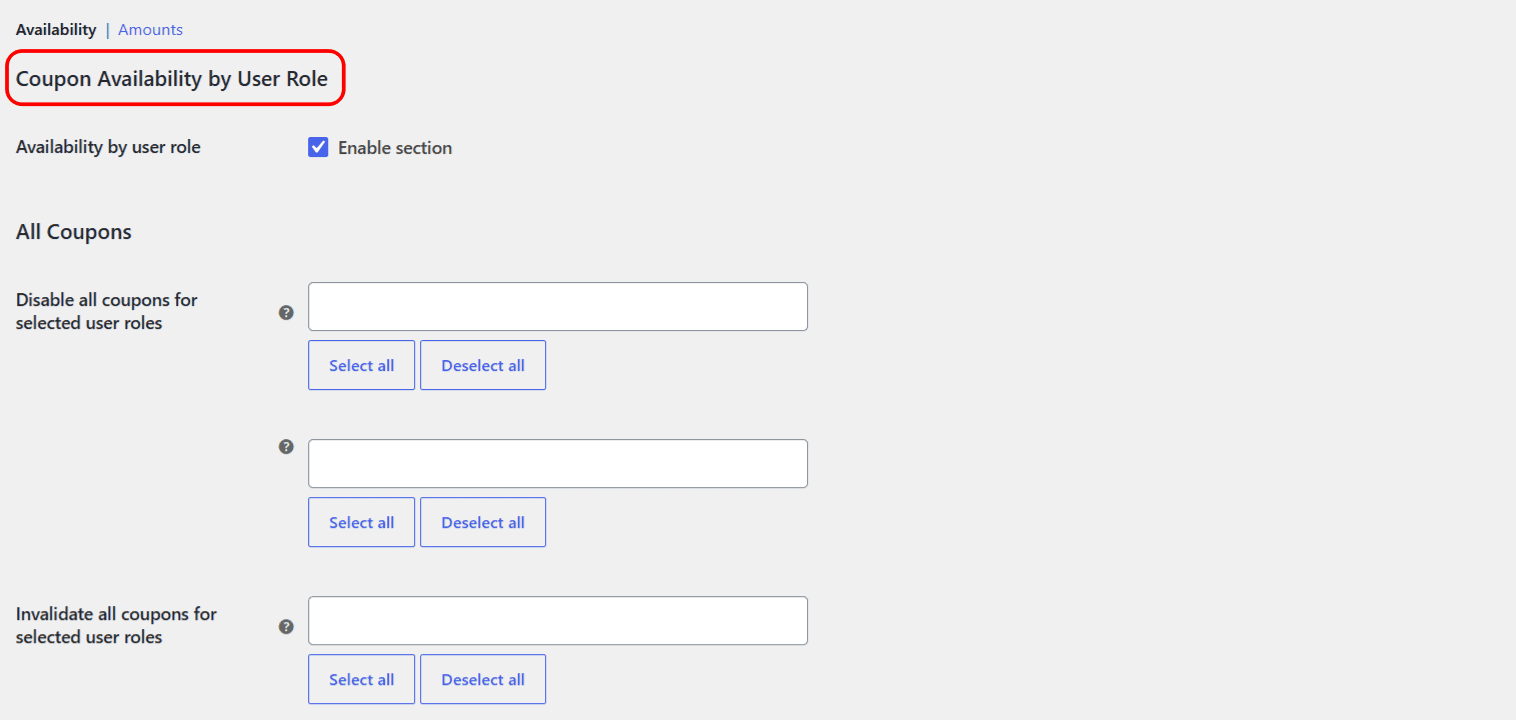
- Open the Availability section.
- Make sure Availability by user role is ticked (this is the Enable section switch, on by default).
- Under All Coupons, add roles to Disable all coupons for selected user roles and/or Invalidate all coupons for selected user roles. Use the Select all and Deselect all buttons to save time.
- Click Save changes.
Options reference #
| Label | Option ID | Type | Default | Free/Pro |
|---|---|---|---|---|
| Availability by user role (Enable section) | wpjup_wc_coupon_by_user_role_plugin_enabled |
Checkbox | yes |
Free |
| Disable all coupons for selected user roles | wpjup_wc_coupon_by_user_role_disabled |
Multiselect | Empty | Free (standard roles), Pro (custom roles) |
| Disable: Exceptions | alg_wc_coupon_by_user_role_disabled_exceptions |
Multiselect | Empty | Free (standard roles), Pro (custom roles) |
| Invalidate all coupons for selected user roles | wpjup_wc_coupon_by_user_role_invalid |
Multiselect | Empty | Free (standard roles), Pro (custom roles) |
| Invalidate: Exceptions | alg_wc_coupon_by_user_role_invalid_exceptions |
Multiselect | Empty | Free (standard roles), Pro (custom roles) |
About the exceptions fields #
Each list has a matching Exceptions field. A user is only affected if they have one of the selected roles and none of the exception roles. This matters because a single WordPress user can hold several roles at once: for example a customer who is also a shop manager. Add the role you want to protect to the exceptions list, and the coupon rule will skip anyone who has it. See handling users with multiple roles for a worked example.
Logged-out visitors #
Visitors who are not logged in are treated as the Guest role. To disable or invalidate coupons for guests, add Guest to the relevant list. See coupons for guests and logged-out visitors.
Use cases #
- Stop guests from using coupons, so discounts are a reward for registering.
- Reserve a promotion for subscribers by invalidating it for everyone else, while still showing the code exists.
- Prevent staff roles like shop manager from applying customer-only promotions.
Troubleshooting #
- Nothing changes. Confirm Availability by user role is enabled and that you saved changes. Test while logged in as a user who actually has the targeted role.
- A custom role is missing from the list. The free version lists the eight standard roles only. Custom roles require Pro.
- Both a disable and invalidate rule apply. A disabled role removes the coupon field entirely, so the invalidate message never appears for that role.
Invalidate a Single Coupon by User Role (Per-Coupon Control) #
Sometimes you want role rules on one specific coupon rather than across every coupon at once. Coupon by User Role for WooCommerce does this with per-coupon invalidation: a dedicated tab on each coupon’s edit page where you pick the roles that cannot use that coupon.
Per-coupon vs all-coupons #
- All coupons (the Availability section) applies one rule to every coupon in your store.
- Per coupon (this feature) targets one coupon at a time, and its roles are added on top of any all-coupons rule.
Per-coupon invalidation is a free feature for the standard roles. Only custom user roles require Pro.
Step 1: enable the per-coupon tab #
- Go to WPFactory > Coupon by User Role (also reachable at WooCommerce > Settings > Coupon by User Role).
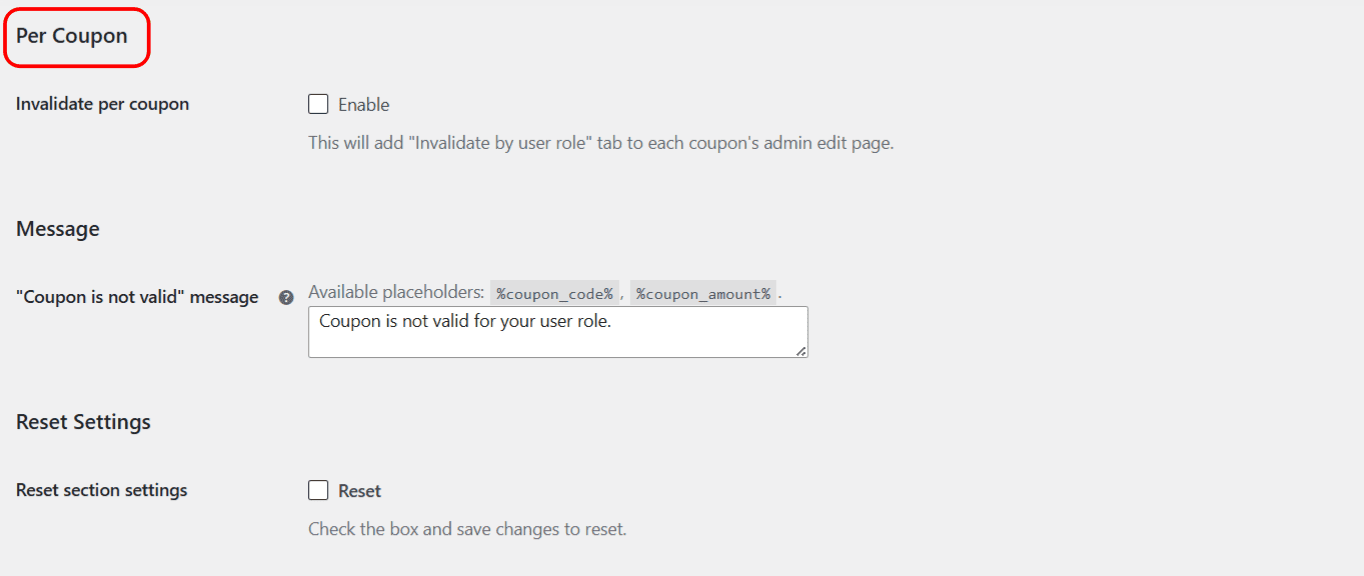
- Open the Availability section and scroll to Per Coupon.
- Tick Invalidate per coupon (Enable). This adds an Invalidate by user role tab to every coupon’s edit page.
- Click Save changes.
Step 2: set the roles on a coupon #
- Go to Marketing > Coupons and open the coupon.
- Open the Invalidate by user role tab.
- In Invalidate for roles, choose the roles that should not be able to use this coupon.
- Optionally add roles to Exceptions to protect users who also hold a role you want to keep eligible.
- Update the coupon.
Invalidated users still see the coupon code field and can type the code, but it is rejected with your “Coupon is not valid” message.
Options reference #
| Label | Option / meta key | Type | Default | Free/Pro |
|---|---|---|---|---|
| Invalidate per coupon (Enable) | wpjup_wc_coupon_by_user_role_invalid_per_coupon |
Checkbox | no |
Free |
| Invalidate for roles (per coupon) | _wpjup_wc_coupon_by_user_role_invalid |
Multiselect | Empty | Free (standard roles), Pro (custom roles) |
| Exceptions (per coupon) | _alg_wc_coupon_by_user_role_invalid_exceptions |
Multiselect | Empty | Free (standard roles), Pro (custom roles) |
Use cases #
- Run a subscriber-only promotion on one code while leaving all other coupons open to everyone.
- Block guests from a single high-value code without changing your store-wide rules.
- Exclude wholesale customers from a retail-only coupon (custom role, Pro).
Troubleshooting #
- No Invalidate by user role tab. Enable Invalidate per coupon in the Availability section and save, then reload the coupon.
- The code is rejected for the wrong people. Check the Exceptions field and remember a user can have several roles at once.
- A store-wide rule still fires. Per-coupon roles are added to, not instead of, the all-coupons Availability rules.
Get more control #
These availability rules are free for the standard roles. Coupon by User Role for WooCommerce Pro adds every custom user role on your site, so wholesale, membership, and B2B roles get their own coupon rules. See what Pro unlocks.