With Coupon by User Role for WooCommerce a single coupon code can carry a different value for each user role. Subscribers might get 10% off while wholesale customers get 20%, all from the same code, so you run one promotion instead of juggling several codes.
Free or Pro? #
Per-role amounts are free for the eight standard roles. Custom user roles (for example a wholesale or membership role) require Pro.
How it works #
Each coupon gets an Amount by user role tab. The value you enter for a role overrides that coupon’s standard Coupon amount when a matching customer applies the code. The number follows the coupon’s Discount type, so it is a percentage on a percentage coupon and a currency value on a fixed coupon.
Set it up #
- Go to WPFactory > Coupon by User Role (also reachable at WooCommerce > Settings > Coupon by User Role).
- Open the Amounts section and tick Amount per coupon under Per Coupon, then save.
- Open a coupon under Marketing > Coupons and select the Amount by user role tab.
- Enter an amount per role. Leave a role blank to use the coupon’s standard amount.
0is a valid amount and means a zero discount, not “ignore”. - Update the coupon.
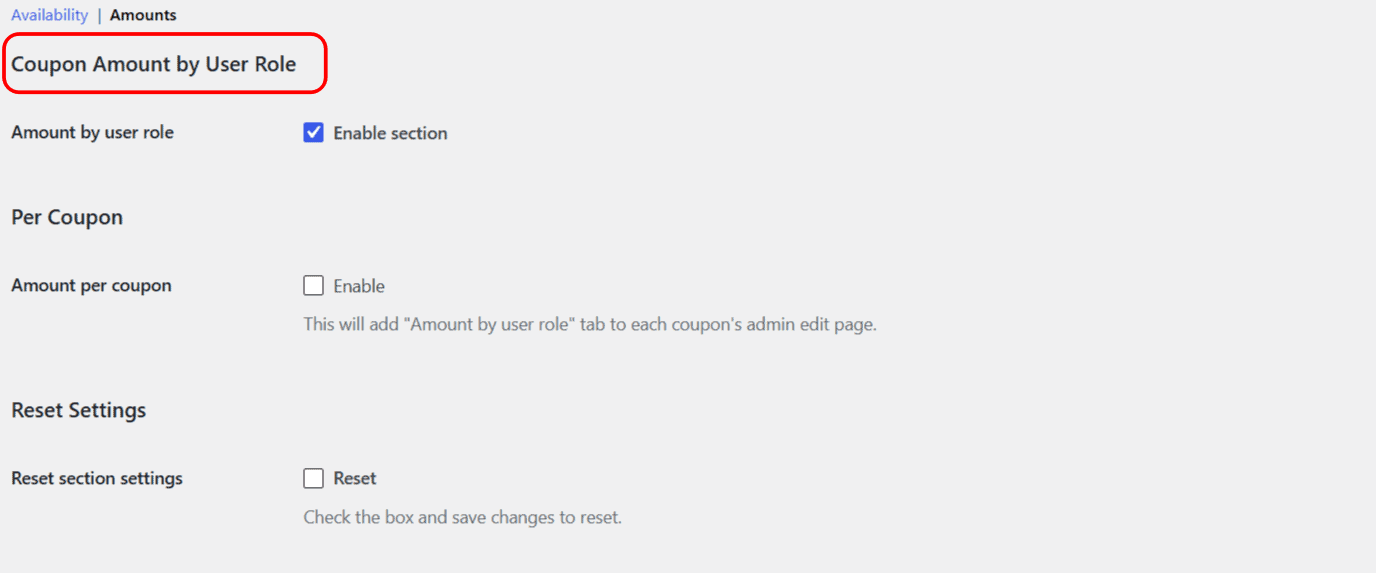
The step-by-step settings walkthrough, including the full options table, lives in how to set a coupon amount by user role.
When a customer has several roles #
If a customer holds more than one role, the first role with a non-empty amount on that coupon is applied. There is no automatic highest-wins or lowest-wins logic, so plan overlapping roles deliberately, or use the exceptions approach described in handling users with multiple roles.
Use cases #
- Reward loyalty tiers: bigger discounts for higher-value roles, one code for the campaign.
- Wholesale pricing: a steeper amount for a wholesale role than for retail customers (custom role, Pro).
- Registration incentives: a smaller guest discount and a larger customer discount to encourage sign-up.
How to Set a WooCommerce Coupon Amount by User Role #
To give the same coupon a different value for different user roles, use the Amounts feature in Coupon by User Role for WooCommerce. One coupon code can then discount, say, 10 for subscribers and 15 for customers, with no need for separate codes.
Is this free or Pro? #
The Amounts feature is free for the eight standard roles (Guest, Administrator, Editor, Author, Contributor, Subscriber, Customer, Shop manager). Only support for custom user roles requires Pro. You do not need Pro to set per-role amounts for the standard roles.
Step 1: turn on Amount per coupon #
- Go to WPFactory > Coupon by User Role (also reachable at WooCommerce > Settings > Coupon by User Role).
- Open the Amounts section.
- Confirm Amount by user role is ticked (the Enable section switch, on by default).
- Under Per Coupon, tick Amount per coupon (Enable). This adds an Amount by user role tab to every coupon’s edit page.
- Click Save changes.
Step 2: set the amounts on a coupon #
- Go to Marketing > Coupons and open (or create) a coupon.
- Open the Amount by user role tab in the coupon data panel.
- Enter an amount for each role you want to target. Leave a role blank to fall back to the coupon’s standard Coupon amount. A value of
0is allowed and treated as a real amount, so enter it only if you mean a zero discount. - Update the coupon.
How the value is interpreted #
The per-role amount replaces the coupon’s own Coupon amount for matching users. It is interpreted according to the coupon’s Discount type: for a percentage coupon the number is a percent, for a fixed cart or fixed product coupon it is a currency value. If you change the discount type later, review your per-role amounts, because the same numbers are now read differently.
Options reference #
| Label | Option ID | Type | Default | Free/Pro |
|---|---|---|---|---|
| Amount by user role (Enable section) | alg_wc_coupon_by_user_role_amount_section_enabled |
Checkbox | yes |
Free |
| Amount per coupon (Enable) | alg_wc_coupon_by_user_role_amount_per_coupon |
Checkbox | no |
Free |
| Per-role amount (per coupon, stored as meta) | _alg_wc_coupon_by_user_role_amount |
Text (one per role) | Empty | Free (standard roles), Pro (custom roles) |
Users with more than one role #
If a customer holds several roles, the first role that has a non-empty amount set on the coupon wins. There is no automatic “highest” or “lowest” selection, so set your amounts with that in mind when roles overlap.
Troubleshooting #
- No Amount by user role tab on the coupon. Enable Amount per coupon in the Amounts section and save, then reload the coupon edit page.
- The coupon uses its standard amount instead of the role amount. The role field was left blank, or the logged-in user does not have that role. Blank means “use the standard amount”.
- A custom role is missing. Custom roles are a Pro feature.
Ready to set this up? #
The Amounts feature is free for the standard roles. To give your custom roles their own coupon values, upgrade to Coupon by User Role for WooCommerce Pro. Get Coupon by User Role Pro.