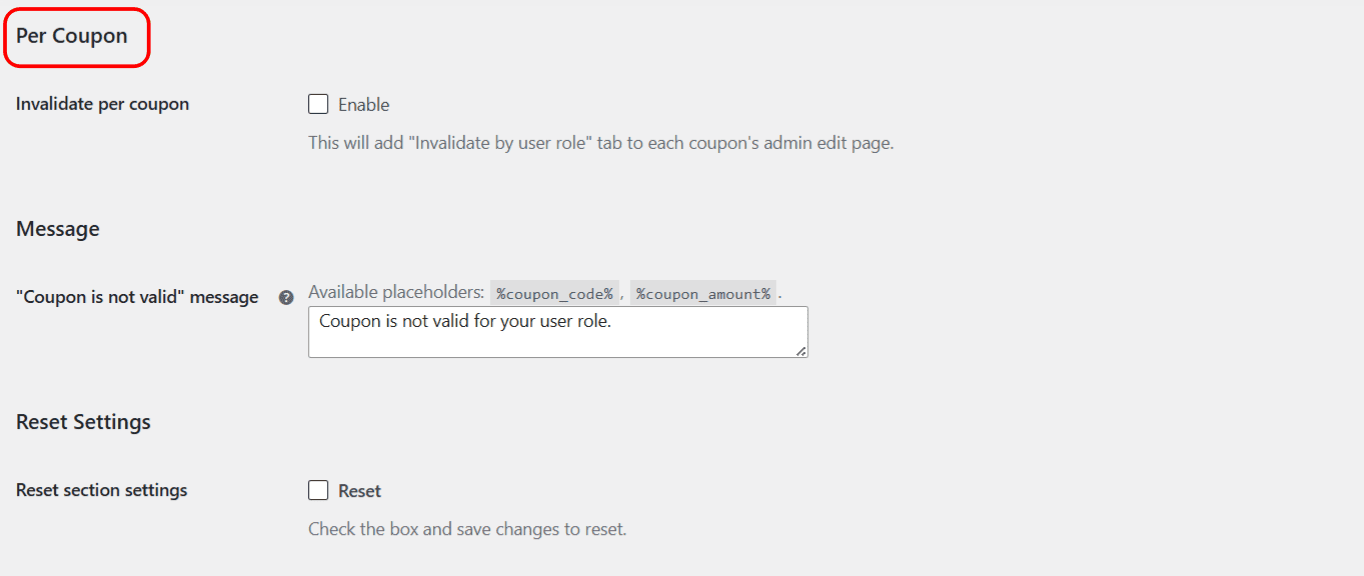
To customize the “Coupon is not valid” message in Coupon by User Role for WooCommerce, go to WPFactory > Coupon by User Role, open the Availability section, scroll to Message, and edit the “Coupon is not valid” message field. You can use the %coupon_code% and %coupon_amount% placeholders, HTML and shortcodes. Click Save changes.
Where to change it #
- Go to WPFactory > Coupon by User Role (also reachable at WooCommerce > Settings > Coupon by User Role).
- Open the Availability section and scroll to Message.
- Edit the “Coupon is not valid” message field.
- Click Save changes.
Options reference #
| Label | Option ID | Type | Default |
|---|---|---|---|
| “Coupon is not valid” message | wpjup_wc_coupon_by_user_role_invalid_message |
Textarea | Coupon is not valid for your user role. |
Placeholders #
Two placeholders are replaced when the message is shown:
| Placeholder | Replaced with |
|---|---|
%coupon_code% |
The code the customer tried to apply. |
%coupon_amount% |
The coupon’s amount. |
Example message:
The code %coupon_code% is only available to registered customers. Sign in or create an account to use it.HTML and shortcodes are allowed #
The message accepts HTML and shortcodes. That is what makes it translatable: drop in the [alg_wc_cbur_translate] shortcode to show a different message per language. See multilingual coupon messages.
When does this message appear? #
Only for invalidated coupons. A disabled role has no coupon field at all, so it never sees this message. See disable or invalidate coupons by user role for the difference.
Get more control #
The message is free for all users. Coupon by User Role for WooCommerce Pro adds custom-role targeting, so any role on your site can trigger its own invalidation message. See what Pro unlocks.