When Frontend info is enabled, Payment Gateway Currency for WooCommerce shows the used conversion rate and converted amounts in the cart, at checkout, on order details, and in emails. Each place it appears is a position, and each position renders a small template built from placeholders. This reference lists the positions, the placeholders available in each, and the default templates.
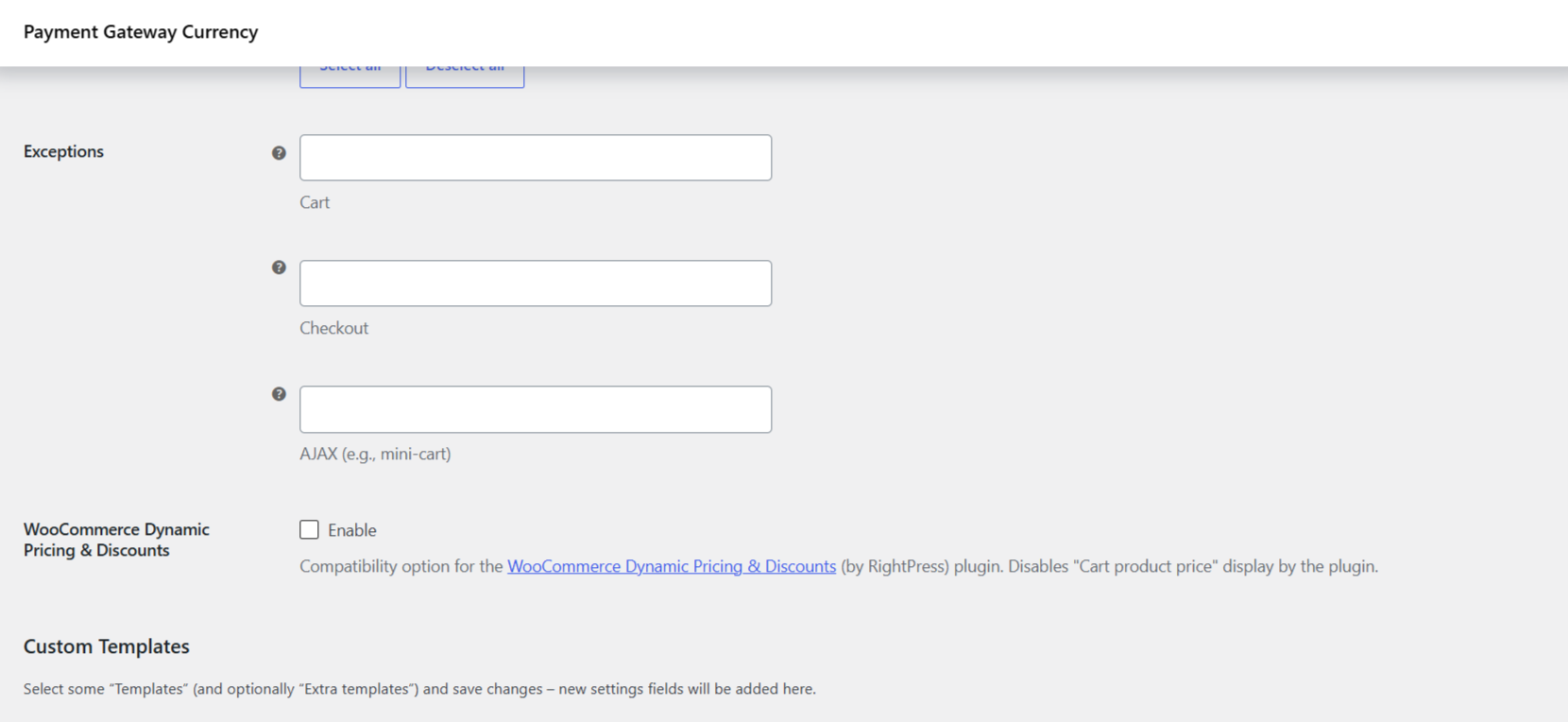
Where to configure it #
Go to WPFactory > Payment Gateway Currency (also reachable at WooCommerce > Settings > Payment Gateway Currency), open the Convert Currency sub-tab, then the Info section.
| Label | Option ID | Default | What it does |
|---|---|---|---|
| Frontend info | alg_wc_pgbc_convert_currency_show_info |
No | Master switch for all frontend info display and for the price table shortcode. |
| Positions | alg_wc_pgbc_convert_currency_info_hooks |
All positions | Which positions display the info. Affected by General > Convert on. |
| Templates | alg_wc_pgbc_convert_currency_info_hooks_custom_templates |
(none) | Pick positions you want to give a custom template. Save to reveal a text box for each under Custom Templates. |
| Extra templates | alg_wc_pgbc_convert_currency_info_hooks_extra_template[{scope}] |
(none) | Set a different template for the same position on the Cart page or on AJAX (mini-cart). |
| Exceptions | alg_wc_pgbc_convert_currency_info_hooks_exceptions[{scope}] |
(none) | Exclude selected positions from the Cart, Checkout, or AJAX (mini-cart) contexts. |
| Custom template text | alg_wc_pgbc_convert_currency_info_template[{position}] |
Position default | The actual template for a position you selected under Templates. |
Placeholders #
Every position can use these three placeholders:
| Placeholder | Value |
|---|---|
%convert_rate% |
The conversion rate used for this order or session. |
%convert_currency% |
The target currency code the amount was converted to. |
%shop_currency% |
The store’s base currency code. |
Price positions (the ones that render a specific amount, such as cart product price, cart total, order totals, shipping, fees, taxes, and coupons) additionally provide:
| Placeholder | Value |
|---|---|
%price% |
The converted amount, formatted in the target currency. |
%unconverted_price% |
The original amount, formatted in the shop currency. |
Positions and their default templates #
The positions fall into three groups by default template. Price positions show the converted price with the original in brackets; the email position prints a rate line; the single product summary outputs the price table shortcode.
| Position | Default template |
|---|---|
| Cart product price, Cart product subtotal, Cart subtotal, Cart total, Cart totals (Coupons, Shipping, Fees, Taxes), Order product subtotal, Order subtotal, Order totals (Discount, Shipping, Fees, Taxes), Order total | %price% <small>(%unconverted_price%)</small> |
| Email: After order details | <p><strong>%shop_currency%%convert_currency%:</strong> %convert_rate%</p> |
| Single product summary | [alg_wc_pgbc_product_price_table] |
| Cart totals: After order total, Checkout: After order total, Order: Before subtotal (and any other rate-only position) | <tr><th>%shop_currency%%convert_currency%</th><td>%convert_rate%</td></tr> |
Editing a template #
- Under Positions, make sure the position you want is selected.
- Add it to the Templates option and click Save changes.
- A text box for that position appears in the Custom Templates section, pre-filled with the default template and a note of the placeholders it supports.
- Edit the template and save again.
The default template for a rate-only position uses a table row (<tr>), which suits positions that print inside a totals table. If you place the info somewhere that is not a table, switch the template to your own markup.
Get more from Payment Gateway Currency #
Frontend info keeps shoppers informed about the currency and rate at checkout. To convert on every payment method, unlock all gateways with Payment Gateway Currency for WooCommerce Pro. See what Pro unlocks.