To import an ACF field that holds several values, such as a checkbox, put the values in one Excel cell separated by the Separator for multiple values import (a comma by default). WooCommerce Products Import & Export with Excel at WPFactory > Product Import/Export saves them as a list, the format ACF uses for these fields.
Before you start #
- WooCommerce, active.
- Advanced Custom Fields installed, with a field group that includes the multi-value field (for example a checkbox).
- At least one product already saved with that ACF field filled in, so the plugin can detect the field. Custom field detection also requires Import / Export Custom Fields (deactivate if you see any issues) set to Yes in WPFactory > Product Import/Export > Settings > Main.
Step by step #
- In your Excel file, add a column for the ACF field and enter the multiple values comma separated in each product row, for example
red,blue,green. Use the ACF choice values, not the labels, if they differ. - Save the file as
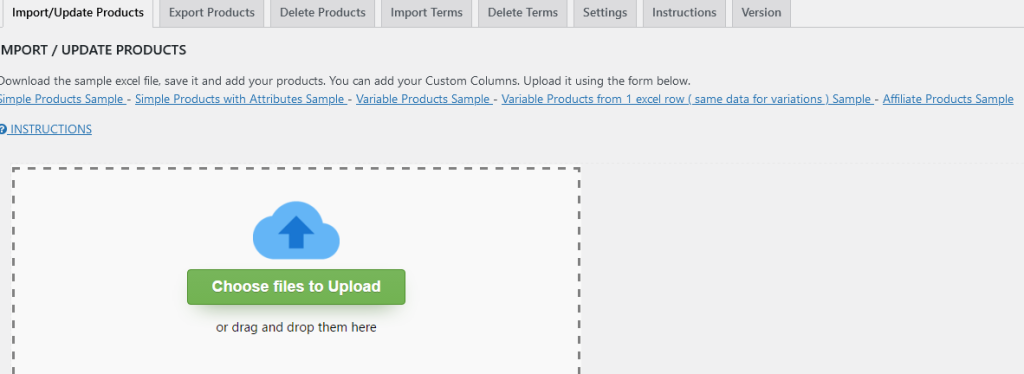
.xlsx. - Open WPFactory > Product Import/Export, stay on the Import/Update Products tab, and upload your file.
Map the ACF column #
On the mapping screen, find your Excel column in the EXCEL COLUMNS section and map it to the matching field in the CUSTOM FIELDS section, either by drag and drop or with Auto Match Columns. The field appears under its ACF field name.
Run and verify #
Press Upload to run the import, then open an imported product and confirm the ACF field holds the correct values.
How values are saved #
- A cell that contains the separator is split and saved as a list. A cell without it is saved as a single value.
- Web addresses are never split, even if they contain the separator.
- Empty cells are skipped, so they do not clear an existing value.
- For ACF image or gallery fields, list the field names in Settings > Main > Img/Gallery ACF – custom fields, then put image URLs in the cell. The images are downloaded and attached.
If it does not work #
- The field is not in CUSTOM FIELDS: no product has that field saved yet, or Import / Export Custom Fields (deactivate if you see any issues) is not Yes. Fields whose key starts with an underscore are hidden; add them in Manually add custom field.
- Only one checkbox is ticked: the values are not separated by the configured separator, or the values do not match the ACF choices.
- Text values are split by mistake: set a different separator, such as
|, and use it in every multi-value column.
FAQ #
Can I export ACF fields to Excel too? #
Yes. Detected custom fields, including ACF fields, can be ticked on the Export Products tab.
Can I import ACF field groups or options pages? #
No. The plugin imports product field values, not ACF field group definitions or options page data.
Which separator should I use? #
The value in Separator for multiple values import. If it is empty, a comma is used.
Related: Import WooCommerce Products with Custom Fields and ACF and Product Import and Export Settings Reference.
Get the most from Products Import & Export with Excel #
WooCommerce Products Import & Export with Excel detects ACF and other custom fields automatically and imports or updates them alongside your products. See everything it can do.
Need a hand? Our team answers every ticket on the Products Import & Export with Excel support forum.