You can import a WooCommerce product gallery from Excel with WooCommerce Products Import & Export with Excel by placing the gallery image references in one Excel column and mapping that column to the Product Image Gallery field. Products Import & Export with Excel reads either image URLs or the names of images already in your Media Library.
Before you start #
- WooCommerce, active.
- WooCommerce Products Import & Export with Excel, active.
- An Excel (.xlsx) file with your products and a gallery column.
Step by step #
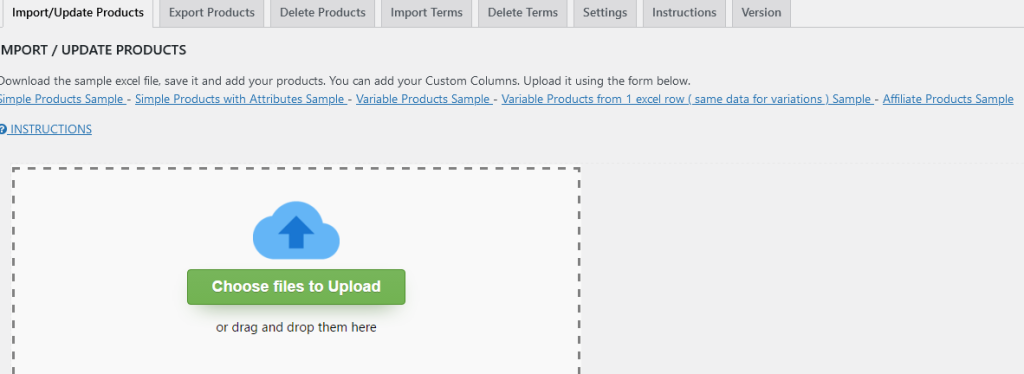
- Open WPFactory > Product Import/Export and stay on the Import/Update Products tab. Download one of the sample files linked at the top of the screen if you want a template.
- In your Excel file, add a column for the product gallery. In each product row, enter the gallery images as comma separated values: either the URL where each image lives, or the name of an image you have already uploaded to the WordPress Media Library.
- Save the Excel file.
- Back on the Import/Update Products tab, upload your file.
Map the gallery column #
On the mapping screen, map your gallery column to the Product Image Gallery field. In the EXCEL COLUMNS section, drag the button that carries your gallery column onto the PRODUCT IMAGE GALLERY field in the PRODUCT FIELDS section. You can also tick Auto Match Columns, which maps columns automatically when the Excel headers match the product field names.

Run and verify #
- Press Upload to start the import. Products Import & Export with Excel reads the file and attaches the gallery images to each product.
- Open a few products in the WooCommerce admin to confirm the gallery images imported correctly.
Get the most from Products Import & Export with Excel #
WooCommerce Products Import & Export with Excel imports and updates simple and variable products, images, galleries, categories, and attributes from a single Excel file. See everything it can do.