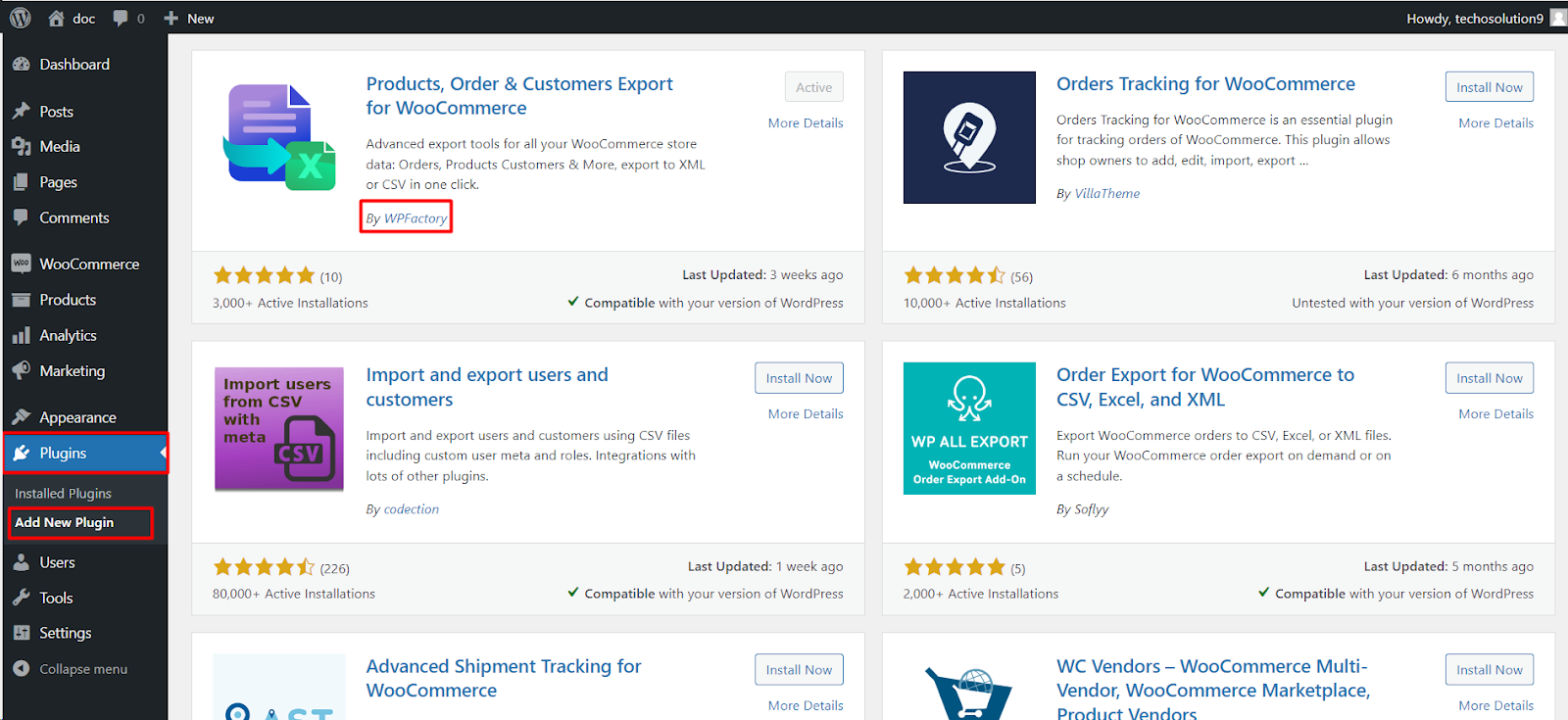
To install Export Products, Orders & Customers for WooCommerce, go to Plugins > Add New, search for the plugin by WPFactory, then click Install Now and Activate, or upload the Pro zip with Upload Plugin. Choose export fields at WPFactory > Export and run exports from the dashboard at WooCommerce > Export.
Before you start #
- WooCommerce, installed and active. Export WooCommerce is an extension and will not run without it.
- The free version exports products, orders, order items, and customers, in CSV or XML. Export WooCommerce Pro adds unlimited custom meta-field columns and a few extra fields (see the Free vs Pro article).
Method 1: install the free version from WordPress.org #
- In your WordPress dashboard, go to Plugins > Add New.
- Search for Export Products, Orders & Customers for WooCommerce.
- Find the plugin by WPFactory and click Install Now, then Activate.
Method 2: upload the Pro version #
- Download the Pro zip from your account on wpfactory.com.
- Go to Plugins > Add New and click Upload Plugin at the top.
- Choose the zip file, click Install Now, then Activate. If both the free and Pro versions are installed, keep only Pro active; the free version steps aside automatically.
The two screens you will use #
Export WooCommerce has two places in the admin, and it helps to know the difference from the start:
- Settings (choose what to export): go to WPFactory > Export (also reachable at WooCommerce > Settings > Export). Along the top are the sections General, Products, Orders, Orders Items, Customers, Customers from Orders, and Import. This is where you pick fields and set options.
- Export dashboard (run the export): go to WooCommerce > Export. This page has a tab per tool, a date-range picker, and Download CSV / Download XML buttons.
How exporting works, tab by tab #
Not every settings section exports the same way:
- The Products and Customers from Orders sections have their own Preview and Export buttons right on the settings screen.
- The Orders, Orders Items, and Customers sections show an Open Tool button that takes you to the Export dashboard, where you set the date range and download.
General export settings #
Before your first export, review WPFactory > Export > General. It holds store-wide options such as the CSV separator, UTF-8 BOM, User Capability, the secondary separators, and the Advanced Options (Block Size, Time Limit, Ajax Download, Confirm HPOS enabled). See the General settings reference for each option.

Next steps #
- Choose product fields and export them: see the product export how-to.
- Export orders, order items, or customers from the WooCommerce > Export dashboard.
- Import products from a CSV or XML file under WPFactory > Export > Import.
Get more from your exports #
Every export tool is free. Export Products, Orders & Customers for WooCommerce Pro adds unlimited custom meta-field columns and extra fields like lifetime spend and order counts. See what Pro unlocks.