To show or hide payment gateways by product tag in Payment Methods by Product & Country for WooCommerce, go to WPFactory > Payment Gateways per Products > Product Tags, confirm Enable section is ticked, add tags to each gateway’s Include or Exclude field, and save. This is a free feature.
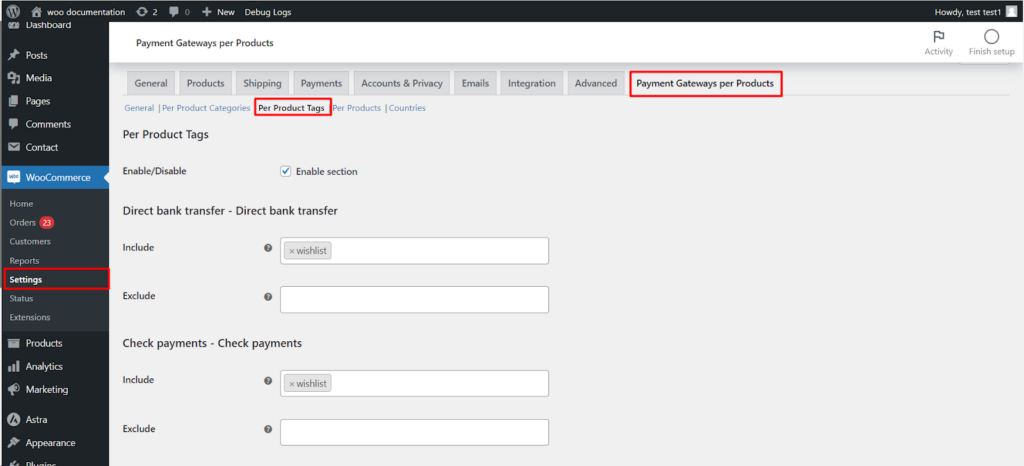
Open the Product Tags tab #
- Go to WPFactory > Payment Gateways per Products (also reachable at WooCommerce > Settings > Payment Gateways per Products).
- Open the Product Tags tab.
- Confirm Enable/Disable > Enable section is ticked (on by default).
Set Include and Exclude per gateway #
Each gateway has an Include and an Exclude field. Both are select boxes populated with your store’s product tags, so you choose tags from the list rather than typing them:
- Include: the gateway shows only when the cart contains a product carrying one of the selected tags.
- Exclude: the gateway is hidden when the cart contains a product carrying one of the selected tags.
Important: Do not add the same tag to both Include and Exclude for one gateway. The two rules cancel each other out and the gateway is left unchanged.
Example #
- Offer Cash on Delivery only for products tagged furniture: add that tag to Cash on Delivery’s Include field.
- Keep Check Payments off products tagged high-value: add that tag to Check Payments’ Exclude field.
Click Save changes. Each gateway can be configured independently.
Get more control #
Tag rules are free. Payment Methods by Product & Country for WooCommerce Pro adds rules for individual products, variations and billing countries, plus a fallback gateway. See what Pro unlocks.