To control which payment methods appear for each shipping method, install Payment Gateways by Shipping Method for WooCommerce and go to WPFactory > Payment Gateways by Shipping (also reachable at WooCommerce > Settings > Payment Gateways by Shipping). Pick the shipping methods that allow each gateway, save, and checkout hides that gateway for every other method.
What the plugin does #
Payment Gateways by Shipping adds an “enable for shipping methods” list to every payment gateway in your store, including gateways added by other plugins. When a customer picks a shipping method at checkout, any gateway that is not allowed for that method is removed from the payment options.
- Works with any payment gateway registered in WooCommerce: Cash on delivery, Direct bank transfer, Check payments, PayPal, card gateways and custom gateways.
- Rules can use shipping method types (for example every Flat rate method in every zone) or individual shipping method instances inside shipping zones.
- A gateway with an empty list is never touched, so you only configure the gateways you want to restrict.
Every feature is included in both the free and the Pro build of the plugin. The Pro build adds WPFactory license management; it does not unlock extra settings.
Requirements #
- WordPress with WooCommerce active. The plugin does nothing when WooCommerce is not active.
- At least one shipping method set up in WooCommerce > Settings > Shipping.
- The plugin declares compatibility with WooCommerce High-Performance Order Storage (HPOS).
Install and activate #
- In your WordPress admin, go to Plugins > Add New Plugin > Upload Plugin and upload the plugin zip you downloaded from your WPFactory account.
- Click Install Now, then Activate.
- If you install Pro on a site that already runs the free build, activate Pro. The free build detects Pro and stays idle, and your saved rules carry over because both builds use the same option names.
Create your first rule #
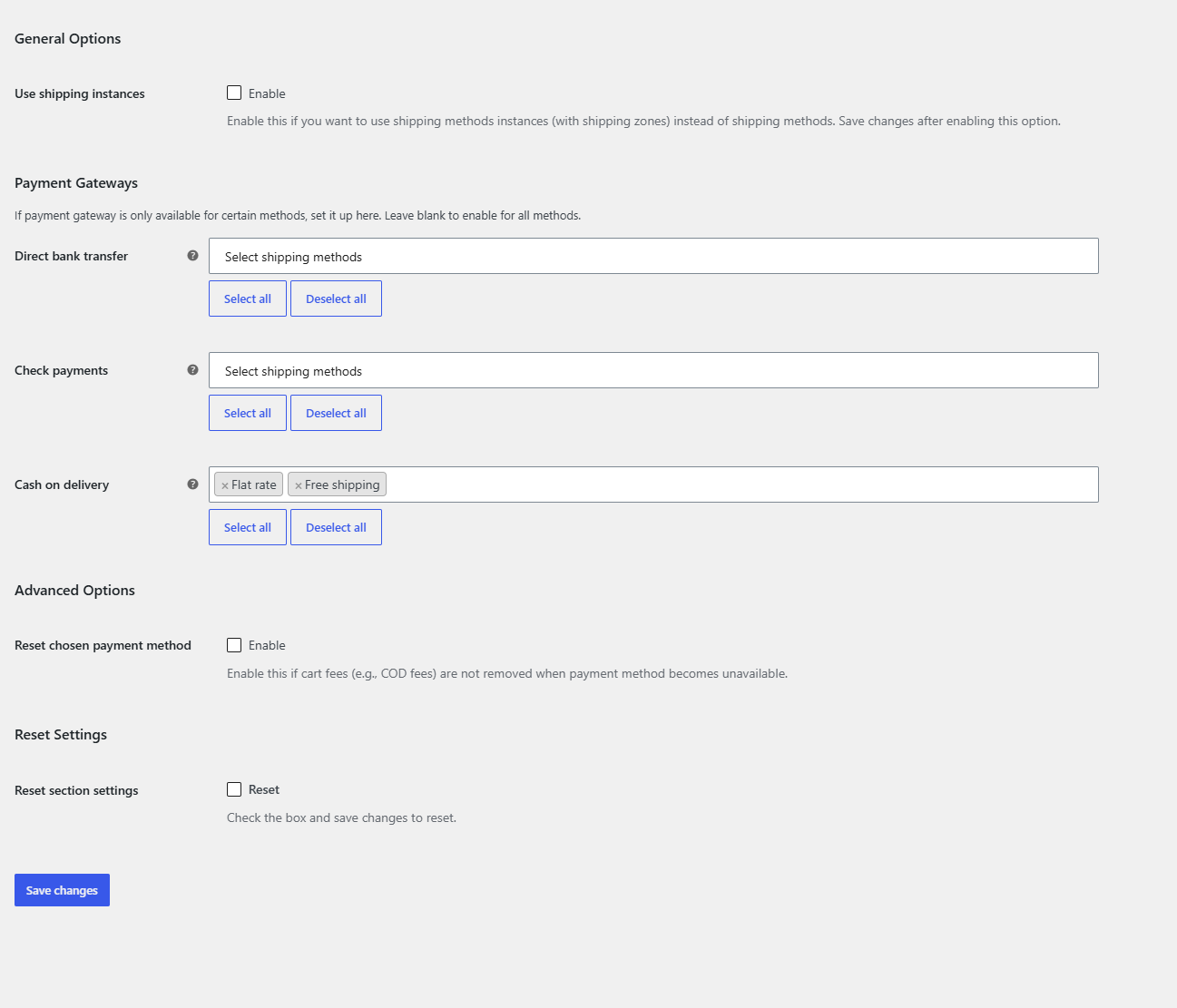
- Go to WPFactory > Payment Gateways by Shipping (also reachable at WooCommerce > Settings > Payment Gateways by Shipping).
- In the Payment Gateways section, find the gateway you want to restrict, for example Cash on delivery.
- Click the field under the gateway name and select the shipping methods that should allow it. Use Select all and then remove the ones you do not want when you have many methods.
- Leave every other gateway empty so it stays available for all shipping methods.
- Click Save changes.
- Add a product to the cart, open checkout and switch between shipping methods to confirm the gateway appears and disappears.
Where to go next #
- How to disable Cash on Delivery for local pickup
- How to show payment methods based on shipping method
- How to restrict payment methods by shipping zone
- Settings reference
- Troubleshooting
Get Payment Gateways by Shipping #
Every feature described here is included in Payment Gateways by Shipping. Set a rule once and WooCommerce checkout hides the wrong payment methods on its own.
Need a hand? Our team answers every ticket on the Payment Gateways by Shipping support forum.